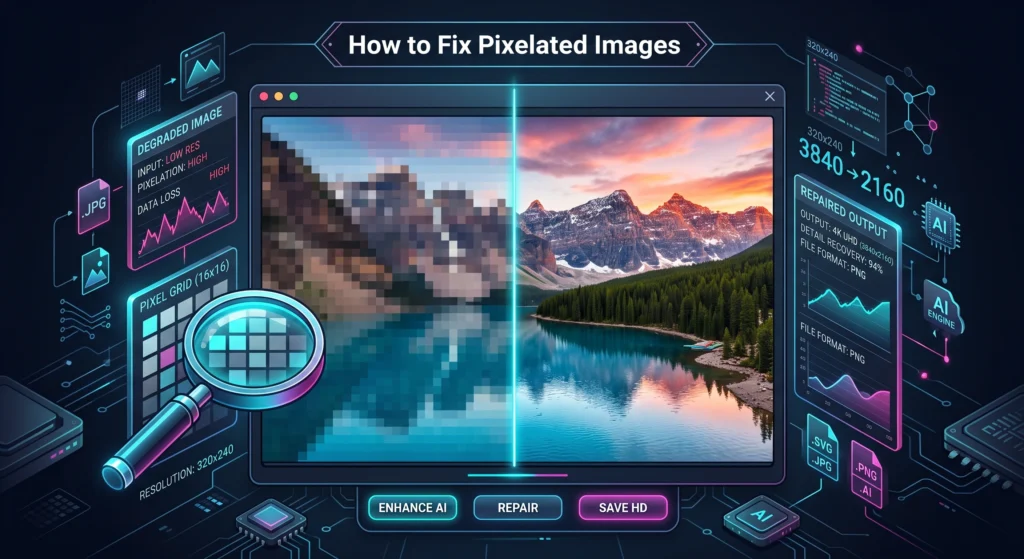
Pixelated images happen when an image is displayed or printed at a size larger than its pixel resolution supports — each original pixel expands to cover multiple display pixels, making the individual squares visible as a blocky, mosaic effect. A 400 × 300 pixel image displayed at 1200 × 900 pixels has each pixel expanded 9 times — producing the classic pixelated look that signals low resolution or incorrect sizing. This guide covers every cause of pixelation, every available fix, what is genuinely fixable versus what cannot be recovered, and exactly which tools give the best results for each situation in 2026.
What Is Pixelation? — Definition and Core Cause
Pixelation is the visible appearance of individual pixels in a digital image — producing a blocky, mosaic-like effect where smooth edges and gradients should appear. The word comes from pixel — the smallest unit of a digital image — and the suffix -ation indicating a process or condition.
Every raster image (JPG, PNG, WebP, GIF) is stored as a fixed grid of pixels. Each pixel holds a specific colour value and occupies a specific position in the grid. When a raster image is displayed at its original dimensions, each image pixel maps to one or a few display pixels — producing smooth, sharp output. When the same image is displayed at significantly larger dimensions, each original pixel must be expanded to cover more display pixels — the individual squares become visible, producing pixelation.
The mathematical relationship: A 400 × 300 pixel image displayed at 800 × 600 pixels has each pixel expanded 2 × 2 = 4 display pixels per original pixel. At this scale, pixelation is usually not noticeable — the expanded pixels are small enough to blend together visually. At 1200 × 900 pixels (3× expansion), pixelation begins to become visible. At 2000 × 1500 pixels (5× expansion), the blocky pixel squares are clearly visible to any observer.
Pixelation vs blur: These are distinct problems that are often confused. Pixelation produces hard-edged squares of uniform colour — a clearly blocky, digital appearance. Blur produces soft, smooth softness where edges should be sharp — a photographic or interpolation-style softening. Some software produces interpolation blur rather than hard-edged pixelation when upscaling — the result looks blurry rather than blocky, but the underlying cause (insufficient resolution) is the same.
Why pixelation cannot always be fixed: Pixelation is fundamentally a problem of missing information. The image simply does not contain enough pixels to fill the display space without each pixel becoming visibly large. Software can smooth over the pixelation through interpolation — averaging pixel values to create new intermediate pixels — but it cannot genuinely add detail that was never captured. Every fix for pixelation involves either reducing the display size, sourcing a higher-resolution version, or using AI upscaling that intelligently predicts what additional detail should look like.
Types of Pixelation — Identifying the Specific Problem
Not all pixelation looks the same or has the same cause. Identifying the specific type determines the correct fix.
Type 1 — Classic Resolution Pixelation
What it looks like: Hard-edged squares of uniform colour visible throughout the image. Edges between colours are staircase-shaped rather than smooth. The image looks like it was designed from large blocks rather than continuous content.
What causes it: The image pixel dimensions are too small for the display size. A thumbnail used at full-page size. A low-resolution image downloaded from the web and used at large scale. A profile picture used as a hero image. An image created at screen resolution (72 DPI) used for large-format print.
Fixability: Partially fixable through AI upscaling or completely fixable by sourcing a higher-resolution original. AI upscaling significantly reduces visible pixelation but cannot fully recover genuine fine detail.
Type 2 — Compression Artefact Pixelation
What it looks like: Block-like patterns in what should be smooth areas — particularly in flat colour regions and around hard edges. The blocks are approximately 8 × 8 pixels and aligned to a grid. Colours in flat areas have subtle banding. This is specifically JPEG compression artefacts rather than resolution pixelation.
What causes it: Heavy JPG compression at low quality settings. Images saved at JPG quality below 60 to 70 percent. Images that have been re-saved as JPG multiple times. Images downloaded from low-quality sources that applied aggressive compression.
Fixability: Partially fixable through deblocking filters and careful sharpening. Best fixed by re-exporting from the original lossless source at higher quality settings. If the original is lost, deblocking filters in Photoshop or specialised JPEG artefact removal tools improve the appearance significantly.
Type 3 — Print Resolution Pixelation
What it looks like: Smooth on screen but blocky and pixelated when printed. The image looks fine on a monitor but produces clearly visible pixel squares on the physical print.
What causes it: The image has insufficient pixel resolution for the print size at 300 DPI. A web image (typically saved at 72 DPI) printed at large physical dimensions. Any image where the pixel count does not satisfy the formula: print size (inches) × 300 DPI = minimum required pixels.
Fixability: Fixable by sourcing a higher-resolution version, using AI upscaling before printing, or reducing the print size to fit the available resolution. Not fixable by changing the DPI metadata — actual pixel count is what matters.
Type 4 — Upscaling Interpolation Blur
What it looks like: Not strictly pixelation but the same underlying cause. When software scales an image up using interpolation algorithms (bilinear, bicubic), the result looks soft and blurry rather than blocky. Fine details appear smeared. Edges are present but indistinct.
What causes it: Image scaled beyond its original pixel dimensions using basic interpolation. This is what browsers, image editors, and operating systems do automatically when displaying an image larger than its file dimensions — they interpolate new pixel values rather than showing hard pixel squares.
Fixability: Partially fixable through sharpening and AI upscaling. The AI approaches this problem better than traditional sharpening — predicting plausible detail rather than just enhancing existing edges.
Type 5 — Social Media and Platform Recompression
What it looks like: Images that look sharp before uploading appear pixelated or blurry after posting to Instagram, Facebook, Twitter, or other platforms. The degradation happens after upload — not before.
What causes it: Platform recompression algorithms resize and recompress all uploaded images. Uploading at incorrect dimensions forces the platform to resize before recompressing — the combined operation degrades quality more than either step alone. Uploading already heavily compressed images gives the platform degraded source material.
Fixability: Completely preventable by uploading at correct dimensions and appropriate format. Not fixable after the fact — the original upload needs to be corrected.
What Can and Cannot Be Fixed
Before investing time in fixing a pixelated image, understanding the genuine limits of what is recoverable saves frustration.
What Can Be Fixed
| Problem | Fix | Quality Result |
|---|---|---|
| Image displayed at wrong size | Display at correct smaller size | Perfect |
| Correct dimensions not set in CSS/HTML | Fix the display code | Perfect |
| Wrong export settings (too small) | Re-export from original at correct size | Perfect |
| Platform upload at wrong dimensions | Re-upload at correct dimensions | Perfect |
| WordPress resizing incorrectly | Upload correct size or fix theme settings | Perfect |
| Print too large for pixel count | Reduce print size or AI upscale before printing | Good to excellent |
| Mild upscaling blur (1.5× to 2×) | AI upscaling or sharpening | Good |
| JPEG compression artefacts (mild) | Deblocking + sharpening | Good |
What Cannot Be Fully Fixed
| Problem | Best Available Fix | Honest Result |
|---|---|---|
| Severe resolution deficiency (5× to 10× upscale) | AI upscaling | Improved but not crisp — synthetic detail |
| Original file genuinely low resolution | AI upscaling from original | Better but not photographic quality |
| Heavy JPEG compression on lost original | Deblocking filters | Improved appearance — original quality unrecoverable |
| Camera focus blur | AI deblur tools (limited) | Marginal improvement only |
| Motion blur during capture | AI deblur tools (limited) | Marginal improvement only |
The honest truth: If an image was captured at low resolution, if the original high-resolution file is lost, or if severe compression was applied without keeping the original — no software in 2026 can fully recover the lost detail. AI upscaling tools predict what detail should exist based on training data — they produce plausible-looking results that reduce visible pixelation, but they are generating synthetic detail rather than recovering real captured information.
Fix 1 — Display the Image at the Correct Size
Why This Is the First Fix to Try
The most common cause of web image pixelation is not a problem with the image file itself — it is the image being displayed at a size larger than its pixel dimensions support. Before attempting any image editing fix, check whether the display size is correct.
How to check if the display size is the problem:
- Right-click the pixelated image on your website
- Select Inspect Element (Chrome, Firefox, Edge)
- Look for two sets of dimensions in the browser developer tools:
- Intrinsic size — the actual pixel dimensions of the image file
- Rendered size — the size at which the image is currently displaying
- If the rendered size is significantly larger than the intrinsic size, the image file is too small for its display context
For example, if the developer tools show “Intrinsic: 400 × 300 — Rendered: 1200 × 900”, the image is being stretched 3× and that’s causing the pixelation. The fix is uploading a larger image — not editing the existing one.
Finding the Correct Image Dimensions
The rendered size shown in the developer tools is your target. The image you upload should match these dimensions. If the rendered size is 1200 × 900 pixels, upload an image that is at least 1200 × 900 pixels.
For retina displays, upload at 2× the rendered size — a slot that renders at 600 × 400 pixels needs a 1200 × 800 pixel image for retina sharpness. Our free Image Resizer lets you set exact pixel dimensions — enter your target size and download the correctly-sized image.
Common Display Size Mistakes on Websites
WordPress theme image slots: WordPress themes register specific image sizes for different content slots — featured images, thumbnails, sidebar images. If you upload an image smaller than what the theme expects for a slot, WordPress displays it at the larger size and it looks pixelated. Check your theme documentation for the expected dimensions of each image slot.
CSS stretching images: CSS that sets a fixed width or height larger than the image’s actual dimensions causes pixelation. img { width: 100%; } on an image container that’s wider than the image file stretches it. Always upload images at or above their maximum display width.
Retina display issues: Images sharp on a standard monitor appear pixelated on retina displays because retina screens use 2 physical pixels per CSS pixel. An image displayed at 600px CSS width needs 1200px of actual pixels to look sharp on retina. This is the most common cause of “image looks fine on my Windows PC but pixelated on my MacBook” complaints.
Fix 2 — Source a Higher-Resolution Version
Why This Is Always the Best Fix
The ideal fix for any pixelated image is finding a higher-resolution version of the same image — rather than trying to artificially improve the low-resolution version. A higher-resolution original contains real captured detail that no upscaling algorithm can fully replicate from a pixelated version.
Where to find higher-resolution versions:
Your original camera roll or storage: If the pixelated image came from your own photography, check your camera roll, iCloud, Google Photos, or backup storage for the original full-resolution version. Smartphone photos are typically 12 to 50 megapixels — far larger than needed for web use. If you have the original, resize it correctly and re-upload.
The photographer or designer: If the image was created by a photographer or designer, ask them for the original high-resolution file. Most professionals keep master files and can provide a larger version.
Stock photo libraries: If the image is a purchased or licensed stock photo, check whether a larger size is available. Many stock photo services offer the same image at multiple resolutions — what you downloaded may not be the largest available version.
The original source website: If you downloaded the image from a website, the website may host a larger version that wasn’t directly linked. Right-click the image, open it in a new tab, and check the URL — sometimes replacing thumbnail URL parameters with “large” or “original” reveals a bigger version.
The brand or company: For logos and brand graphics, contact the company whose logo it is and request the high-resolution or vector version. Most companies maintain high-resolution logo files for exactly this purpose.
Fix 3 — Re-Export From the Original Source
When Re-Export Fixes Pixelation
If you created the pixelated image yourself — in Photoshop, Figma, Canva, or any design tool — and you still have the original project file, the fix is simply re-exporting at the correct size. This produces a perfect result because you are working from the full-resolution original rather than trying to improve a degraded export.
Re-Exporting From Common Tools
Adobe Photoshop: Go to File > Export > Export As. Set the width and height to the correct display dimensions (or 2× for retina). Ensure the format is WebP or JPG with appropriate quality settings. Do not use Image > Image Size to change dimensions before exporting — use Export As which handles scaling from the full document resolution correctly.
Figma: Select the element or frame you want to export. In the right panel, click the + in the Export section. Set the scale (2× for retina) and format (WebP or PNG). Click Export. Figma exports from the full vector resolution — scaling is calculated fresh at export time, not resampled from a previous export.
Canva: Click Download in the top right. Select your format (PNG for graphics, JPG for photographs). Canva exports at full resolution by default. If you need specific pixel dimensions, use Custom Size when creating your design.
Adobe Illustrator: For vector artwork in Illustrator — logos, icons, illustrations — export using File > Export > Export As. Set the resolution to 300 DPI for print or 72 DPI for web at the correct pixel dimensions. Better yet, export as SVG for web logos — SVG is resolution-independent and never pixelates at any size.
What to Do If You Don’t Have the Original File
If the original project file is lost and you only have the pixelated export, you need one of the other fix approaches — AI upscaling, sharpening, or sourcing a better version. Re-export is not possible without the original source.
Fix 4 — AI Upscaling — The Most Powerful Technical Fix
What Is AI Upscaling?
AI upscaling uses machine learning models trained on millions of images to intelligently increase image resolution — predicting what additional detail should exist when an image is enlarged. Unlike traditional interpolation (which simply averages surrounding pixels to create new ones, producing blurry results), AI upscaling analyses image content contextually and synthesises plausible fine detail based on patterns learned from its training data.
AI upscaling cannot recover detail that was never captured — it synthesises new detail based on what statistically should exist. For a low-resolution face photograph, AI upscaling predicts what skin texture, hair detail, and eye sharpness should look like based on patterns from thousands of face photographs in its training data. The results are often impressive — but they are generated predictions, not recovered originals.
When AI Upscaling Works Well
AI upscaling produces the best results when:
- The image has clear, recognisable content that matches training data patterns (faces, common objects, text, architectural elements)
- The upscaling factor is moderate — 2× to 4× produces better results than 8× to 16×
- The source image is reasonably sharp but simply too small — AI upscaling improves resolution deficiency, not fundamental image quality problems
- The image has minimal existing compression artefacts — AI upscaling works better on clean source images
When AI Upscaling Struggles
Results are less impressive when:
- The image is severely low-resolution (thumbnail-level quality) — 8× or greater upscaling
- The image has heavy compression artefacts — AI upscaling sometimes enhances artefacts rather than detail
- The content is unusual or not well-represented in training data — very specific technical diagrams, unusual artistic styles
- The image has camera blur or motion blur — upscaling increases the blur as well as resolution
Best AI Upscaling Tools in 2026
Adobe Photoshop Super Resolution (free with Creative Cloud):
Available in Camera RAW’s Enhance feature. Increases image resolution by 2× using AI. Produces excellent results for photographs. Works inside the professional workflow — no external tool needed.
- Open the image in Photoshop
- Go to Filter > Camera Raw Filter (or open as Camera Raw)
- Right-click the image in Camera Raw and select Enhance
- Check Super Resolution
- Click Enhance — processing takes 10 to 30 seconds
- The result opens as a new DNG file at 2× the original dimensions
Topaz Gigapixel AI (paid — approximately $99):
The most powerful dedicated AI upscaling tool available. Supports upscaling up to 6× with excellent results. Trained specifically for image upscaling with separate models for different content types — face photography, general photography, CGI, low-quality source images. The best commercial option for professional upscaling needs.
Lightroom AI Enhance (free with Creative Cloud):
Adobe Lightroom’s Enhance feature uses AI to double the resolution of RAW and JPEG files. Produces excellent results for photographs within the Lightroom workflow.
Free Online AI Upscaling Tools:
Several web-based AI upscaling tools are available free for occasional use. Quality varies between tools — some produce impressive results comparable to desktop software, others produce overly smoothed results that look artificially generated. Test with a sample image before processing important content.
How Much Improvement to Expect
| Upscaling Factor | Input Quality | Expected Result |
|---|---|---|
| 2× | Good source image | Excellent — noticeable improvement, minimal synthetic look |
| 2× | Moderate source | Good — significant improvement |
| 4× | Good source | Good — detail predicted well for familiar content |
| 4× | Moderate source | Moderate — improvement visible but synthetic texture apparent |
| 8× | Good source | Moderate — detail increasingly synthetic |
| 8× | Poor source | Poor — heavily synthetic, unnatural textures |
Fix 5 — Sharpening in Image Editing Software
What Sharpening Does
Sharpening increases the contrast between adjacent pixels at edges — making boundaries between different colours appear more defined and crisp. It does not add resolution or recover lost detail — it enhances the appearance of existing edges. For mild pixelation and upscaling blur, sharpening can significantly improve the visual impression of sharpness.
Sharpening works best as a final step after AI upscaling — the AI predicts new detail structure and sharpening then enhances the perceived crispness of those new edges.
Sharpening in Photoshop
Unsharp Mask (most controllable):
- Go to Filter > Sharpen > Unsharp Mask
- Set Amount: 80 to 150 percent (how much contrast is added at edges)
- Set Radius: 0.5 to 2.0 pixels (how wide the edge enhancement extends)
- Set Threshold: 2 to 10 (how different pixels must be to be considered an edge)
- Preview the result and adjust until edges look crisp without halos
Smart Sharpen:
- Go to Filter > Sharpen > Smart Sharpen
- Set Amount: 100 to 200 percent
- Set Radius: 0.5 to 1.5 pixels
- In Remove dropdown, select Gaussian Blur
- Adjust until edges look sharp without the bright/dark halos that over-sharpening produces
High Pass Sharpening (most natural-looking for photographs):
- Duplicate the layer (Ctrl/Cmd + J)
- Go to Filter > Other > High Pass
- Set Radius to 1 to 3 pixels — the preview shows edge structure
- Click OK
- Change the duplicate layer’s blend mode to Overlay, Soft Light, or Hard Light
- Adjust the layer opacity to control sharpening intensity
Sharpening in Free Tools
GIMP (free, open-source):
Go to Filters > Enhance > Unsharp Mask. The controls are similar to Photoshop — Amount, Radius, and Threshold. GIMP produces good sharpening results for non-critical use.
Online sharpening tools:
Several browser-based tools apply basic sharpening without requiring software installation. These are suitable for quick fixes on non-critical images.
The Limits of Sharpening
Sharpening improves edge crispness but cannot reduce visible pixel squares in severely pixelated images. Heavy sharpening on a pixelated image makes the pixel edges sharper — which actually makes the pixelation more obvious rather than less. For severely pixelated images, sharpening is counterproductive. Use AI upscaling first — then apply sharpening as a refinement.
Fix 6 — Remove JPEG Compression Artefacts
When This Fix Applies
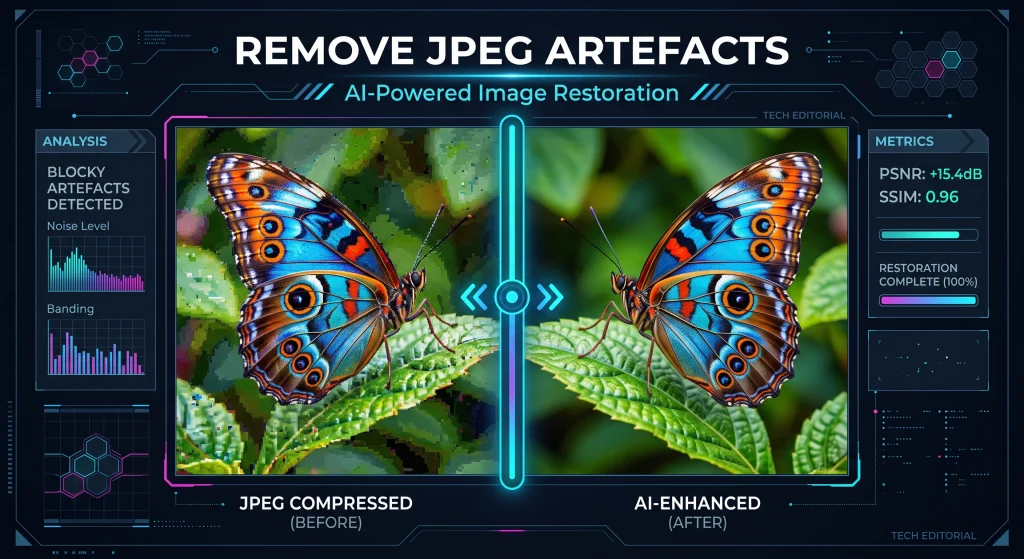
If the pixelation you see is specifically the blocky, 8 × 8 grid pattern of JPEG compression artefacts — rather than resolution pixelation — the fix is different. JPEG artefact removal uses deblocking filters that specifically target the block-boundary discontinuities created by JPG compression.
Identifying JPEG Artefacts vs Resolution Pixelation
JPEG artefacts: Blocky patterns aligned to an 8 × 8 pixel grid. Visible primarily in flat colour areas (sky, skin, plain backgrounds). Colour banding in smooth gradients. Bright/dark ringing around high-contrast edges.
Resolution pixelation: Hard-edged squares of uniform colour — the actual individual pixels are visible. Not aligned to any specific grid pattern. Affects the entire image uniformly, not just flat areas.
Fixing JPEG Artefacts in Photoshop
Reduce Noise filter:
- Go to Filter > Noise > Reduce Noise
- Set Strength: 6 to 10
- Set Preserve Details: 20 to 40 percent
- Check Reduce Color Noise: 30 to 50 percent
- Check Remove JPEG Artifact
- Preview and adjust — the goal is removing blocks without over-smoothing detail
Camera Raw filter for JPEG artefacts:
- Go to Filter > Camera Raw Filter
- In the Detail panel, find the Noise Reduction section
- Increase Luminance (5 to 20) and Color (10 to 25) noise reduction
- Adjust Luminance Detail and Luminance Contrast to recover edge structure after smoothing
Always Re-Export From the Original if Available
JPEG artefact removal is an improvement — not a perfect fix. The best outcome from deblocking is a smoother-looking image with less obvious artefacts — not a restoration of the original quality. If you have the original lossless source file (PNG, TIFF, RAW), re-exporting at higher quality settings is far better than trying to remove artefacts from a compressed copy.
Fix 7 — Fixing Pixelated Images on Specific Platforms
Fixing Pixelated Website Images
Step 1 — Identify the correct display dimensions:
Use browser developer tools (F12 > Inspect the image) to find both the intrinsic (file) dimensions and the rendered (display) dimensions. The gap between these is the problem.
Step 2 — Get or create a correctly-sized image:
If you have a high-resolution original, resize it to the rendered dimensions (or 2× for retina). Use our free Image Resizer to resize to exact pixel dimensions.
Step 3 — Convert to WebP:
After resizing to correct dimensions, convert to WebP for optimal web performance. Our JPG to WebP converter and PNG to WebP converter handle this quickly with batch support.
Step 4 — Re-upload and verify:
Upload the correctly-sized, correctly-formatted image. Right-click and inspect again to confirm the intrinsic and rendered dimensions now match. Verify the image looks sharp on both standard and retina displays.
Fixing Pixelated Instagram Images
Instagram pixelation after posting is almost always caused by uploading at incorrect dimensions or incorrect format. Instagram applies aggressive recompression — uploading at the wrong size forces a resize before recompression, compounding quality loss.
Correct Instagram dimensions:
- Square post: 1080 × 1080px
- Portrait post: 1080 × 1350px
- Landscape post: 1080 × 566px
- Stories and Reels: 1080 × 1920px
Format recommendation: JPG at 80 to 90 percent quality for photographs. PNG for graphics with text or sharp edges.
The process:
- Resize your image to the exact Instagram dimensions for the post type
- Save as JPG at 80 to 90 percent quality
- Delete the pixelated post
- Re-upload the correctly-sized version
Our guide on how to resize an image covers the correct dimensions for every Instagram post type and every other social platform in detail.
Fixing Pixelated Images in PowerPoint
PowerPoint presentations frequently show pixelated images because images are inserted at a size larger than their pixel dimensions support — or because PowerPoint’s automatic compression has been applied.
Fix 1 — Insert a larger image:
Delete the pixelated image. Find or create a version that is at least as large in pixels as the display size in the presentation. For a full-slide image in a 1920 × 1080 presentation, insert an image that is at least 1920 × 1080 pixels.
Fix 2 — Disable PowerPoint’s automatic compression:
PowerPoint automatically compresses inserted images when you save. To disable this:
- Go to File > Options > Advanced
- Scroll to Image Size and Quality
- Check Do not compress images in file
- Also set Default resolution to 330 PPI (High fidelity)
- Click OK
Fix 3 — Right-click and Compress Pictures:
If the image is already inserted and pixelated:
- Click the image to select it
- Go to Picture Format > Compress Pictures
- Uncheck Apply only to this picture
- Select the highest resolution option — Print (220 PPI) or HD (150 PPI)
- Click OK
Fixing Pixelated Images in Word Documents
Word has the same automatic compression behaviour as PowerPoint and the same fixes apply. Additionally, Word sometimes displays inserted images at screen resolution even when high-resolution files are inserted.
Fix: Go to File > Options > Advanced > Image Size and Quality > Do not compress images in file. Then re-insert the image from the original high-resolution source.
Fixing Pixelated Profile Pictures
Profile pictures on websites, LinkedIn, Twitter, and other platforms are displayed at small sizes but need high-resolution source images to look sharp on retina displays.
Common profile picture dimension requirements:
- LinkedIn: 400 × 400px minimum, 800 × 800px recommended
- Twitter/X: 400 × 400px
- Facebook: 170 × 170px displayed, upload at 400 × 400px
- Instagram: Display at 110 × 110px, upload at 320 × 320px minimum
The fix: Crop the source photo to a 1:1 (square) aspect ratio and resize to 800 × 800 pixels at minimum. Upload this correctly-sized version. Retina displays use 2× pixels — a profile picture displayed at 400px CSS needs 800px of actual pixels to look sharp.
Fix 8 — Fixing Pixelated Images for Print
The Print Resolution Problem
Print produces significantly sharper output than screens — and therefore exposes resolution deficiencies that are invisible on screen. An image that looks perfectly sharp on a monitor at 72 DPI may look obviously pixelated when printed at 300 DPI at a large physical size.
The formula is: print size in inches × DPI = required pixels.
For a 5 × 7 inch print at 300 DPI: 5 × 300 = 1500 pixels wide, 7 × 300 = 2100 pixels tall. An image with fewer pixels than this will be pixelated on the print.
Checking Resolution Before Printing
Before sending an image to print, check whether it has enough pixels for the print size at 300 DPI.
In Photoshop: Go to Image > Image Size. Uncheck Resample. Change resolution to 300 pixels/inch. The resulting dimensions in inches tell you the maximum print size at 300 DPI with the existing pixel count.
The formula: Divide the pixel dimension by 300. A 1800 × 1200 pixel image prints sharply at 6 × 4 inches at 300 DPI. At 8 × 5 inches, the effective DPI drops to 225 — still acceptable. At 12 × 8 inches, it drops to 150 — visibly softer but often acceptable for large prints viewed from a distance.
Fixing Print Pixelation
Option 1 — Reduce print size: If the print is too large for the pixel count, reduce the print size until the DPI is 300 or above. This is the most reliable option when the original cannot be replaced.
Option 2 — AI upscaling before printing: Run the image through Topaz Gigapixel AI or Photoshop’s Super Resolution before printing. A 2× AI upscale doubles the pixel dimensions — a 1200 × 900 pixel image becomes 2400 × 1800 pixels. For a 6 × 4 inch print, the effective DPI goes from 300 to 600 DPI — well above the print quality threshold.
Option 3 — Source a higher-resolution version: If the image exists at higher resolution elsewhere (from the photographer, stock library, or original source), sourcing the larger version produces the best print results.
Preventing Pixelation — Best Practices
Fixing pixelated images takes time and produces imperfect results. Preventing pixelation in the first place is always better.
Always Start From the Highest Available Resolution
Work from the highest-resolution source available for every image. Camera photos at full resolution. Original design files at full vector resolution. High-resolution stock photos. Original screenshots at retina resolution. Starting from the best available source gives you headroom to scale down — and scaling down never produces pixelation.
Match Image Dimensions to Display Requirements
Know the correct pixel dimensions for every image slot in your website before uploading. Keep a reference of required dimensions for each context — hero images, product images, thumbnails, profile pictures. Resize source images to match these requirements using our Image Resizer before uploading.
Upload at 2× Dimensions for Retina Support
For any image that may be viewed on retina or high-DPI screens — which means virtually any consumer device in 2026 — upload at 2× the display dimensions. A product image displayed at 400 × 400px CSS should be uploaded as an 800 × 800px file. The browser serves this at 1× on standard displays and 2× on retina — providing sharp output everywhere.
Keep Original High-Resolution Files
Never delete original high-resolution files after creating web-optimised versions. Storage is cheap. Original files are irreplaceable. A systematic backup of all original images means you can always re-export at the correct size and quality for any new requirement — without facing the uphill battle of fixing a pixelated version.
Use Vector Formats for Logos and Icons
Logos and icons created in vector tools should be exported as SVG for web use — not as raster PNG or WebP files. SVG scales to any size without pixelation because it is mathematically resolution-independent. A vector logo displayed at 50px wide and at 5000px wide looks equally sharp from the same SVG file. Our guide on how to convert JPG to SVG covers converting raster logos to vector format when the original vector file is not available.
Set Correct Print Resolution at Creation Time
When creating images specifically for print, set the document resolution to 300 DPI at the intended print size from the start. Creating a 5 × 7 inch document at 300 DPI in Photoshop automatically creates a canvas of 1500 × 2100 pixels — the correct pixel count for that print size. Working at correct resolution from the beginning eliminates print pixelation before it can occur.
Tools Summary — The Best Free Options for Each Fix
| Fix | Free Tool | Where |
|---|---|---|
| Resize to correct dimensions | Image Resizer | imageconvertertools.com/image-resizer |
| AI upscaling | Photoshop Super Resolution | Adobe Creative Cloud |
| JPEG artefact removal | GIMP Reduce Noise | gimp.org |
| Convert to WebP after fixing | PNG to WebP or JPG to WebP | https://imageconvertertools.com/image-converter-tools/ |
| Identify display vs file dimensions | Chrome DevTools (F12) | Built into Chrome browser |
| Test improvement | Google PageSpeed Insights | pagespeed.web.dev |
| Background removal for product images | Image Background Remover | imageconvertertools.com/image-background-remover |
Frequently Asked Questions
1. Why do my images look pixelated on my website?
The most common cause is the image file having fewer pixels than the display size requires. Use Chrome DevTools (F12 > inspect the image) to compare the intrinsic file dimensions with the rendered display dimensions. If the rendered size is larger than the intrinsic size, upload a larger image that matches the display dimensions. For retina displays, upload at 2× the display dimensions.
2. Can pixelated images be fixed?
It depends on the cause. Pixelation from display size mismatch — image displayed too large for its pixel count — is completely fixable by displaying at the correct size or uploading a larger image. Mild pixelation from insufficient resolution can be significantly improved with AI upscaling. Severe pixelation from genuinely low-resolution source images cannot be fully recovered — AI upscaling reduces visible pixelation but synthesises rather than recovers detail.
3. What is the best tool to fix pixelated images?
For the best results with photographs, Adobe Photoshop’s Super Resolution (free with Creative Cloud) or Topaz Gigapixel AI (paid) produce the most impressive AI upscaling results. For quick fixes on non-critical images, free online AI upscaling tools are adequate. For the root cause — wrong display dimensions — the correct fix is resizing to the right pixel dimensions, not image enhancement.
4. Why are my images pixelated on Instagram after uploading?
Instagram recompresses all uploaded images. Uploading at incorrect dimensions forces Instagram to resize before recompressing — compounding quality loss. Upload at exactly 1080 × 1080px (square), 1080 × 1350px (portrait), or 1080 × 1920px (Stories). Use JPG at 80 to 90 percent quality for photographs. Delete the pixelated post and re-upload at the correct dimensions.
5. Why does my image look sharp on screen but pixelated when printed?
Print requires 300 DPI — far higher pixel density than screens. A web image at 72 DPI looks sharp on screen but prints at a fraction of the required resolution at large print sizes. Calculate whether your image has enough pixels using: print size (inches) × 300 = minimum required pixels. A 5 × 7 inch print needs at least 1500 × 2100 pixels. Use AI upscaling to increase pixel count before printing if the original is insufficient.
6. Can AI upscaling fully restore a pixelated image?
No — but it significantly improves appearance. AI upscaling synthesises plausible detail based on patterns learned from training data. For moderate pixelation (2× to 4× upscaling needed), results are often impressive — reducing visible pixelation and adding realistic-looking detail. For severe pixelation (8× or more), results look synthetic — improved but clearly AI-generated rather than photographic.
7. Why are my PowerPoint images pixelated?
PowerPoint automatically compresses inserted images when you save the file. Disable this in File > Options > Advanced > Image Size and Quality > Do not compress images in file. Also ensure inserted images have sufficient pixel dimensions for their display size in the presentation — a full-slide image in a 1920 × 1080 presentation needs at least 1920 × 1080 pixels.
8. How do I fix a pixelated logo?
If you have the original vector file (AI, EPS, SVG), re-export as SVG for web use — SVG logos never pixelate at any size. If you only have a raster version (JPG or PNG), source a high-resolution PNG from the brand or use AI upscaling. For web logos specifically, converting to SVG through tracing is the best long-term solution — our guide on how to convert JPG to SVG covers the tracing process in detail.
9. What is the minimum resolution to prevent pixelation on websites?
Match image pixel dimensions to their display dimensions at minimum — and upload at 2× for retina displays. A hero image displaying at 1920px wide needs a file that is 1920px wide for standard displays and 3840px wide for retina sharpness. A product image displaying at 400px needs an 800px file for retina sharpness. The minimum resolution is always: display dimensions × 2 for retina-safe results.
10. Why are my images blurry after I fix the pixelation?
Basic upscaling algorithms (bilinear, bicubic) smooth pixelated images by blending pixel values — replacing hard-edged squares with smooth gradients. The result looks blurry rather than sharp because interpolation creates soft transitions rather than genuine detail. Apply sharpening after upscaling — Unsharp Mask or Smart Sharpen in Photoshop — to recover edge crispness. AI upscaling produces less blur than basic interpolation because it predicts detail rather than averaging.
Conclusion
Pixelated images have one fundamental cause — insufficient pixel resolution for the display or print size — and several distinct manifestations depending on how that insufficiency presents in different contexts. The right fix depends entirely on identifying the specific type of pixelation you are dealing with.
For websites, check display vs intrinsic dimensions in developer tools and upload correctly-sized images at 2× for retina displays. For social media, upload at platform-specified dimensions in JPG format. For print, calculate required pixel dimensions from the print size and DPI, then source or AI-upscale to meet that requirement. For working files, keep original high-resolution sources and export at correct dimensions — never work from already-compressed or downscaled versions.
When a higher-resolution original doesn’t exist, AI upscaling is the best available technical fix — significantly reducing visible pixelation with results that look natural for modest upscaling factors. But for genuinely low-resolution sources, no fix fully recovers original quality. The most effective strategy is always prevention — using the highest available resolution source, matching dimensions to display requirements, and keeping original files backed up permanently.
Use our free Image Resizer to get pixel dimensions exactly right before uploading — and our Image Compressor to optimise file sizes after resizing. Both tools support batch processing, require no sign-up, and are completely free on every device.