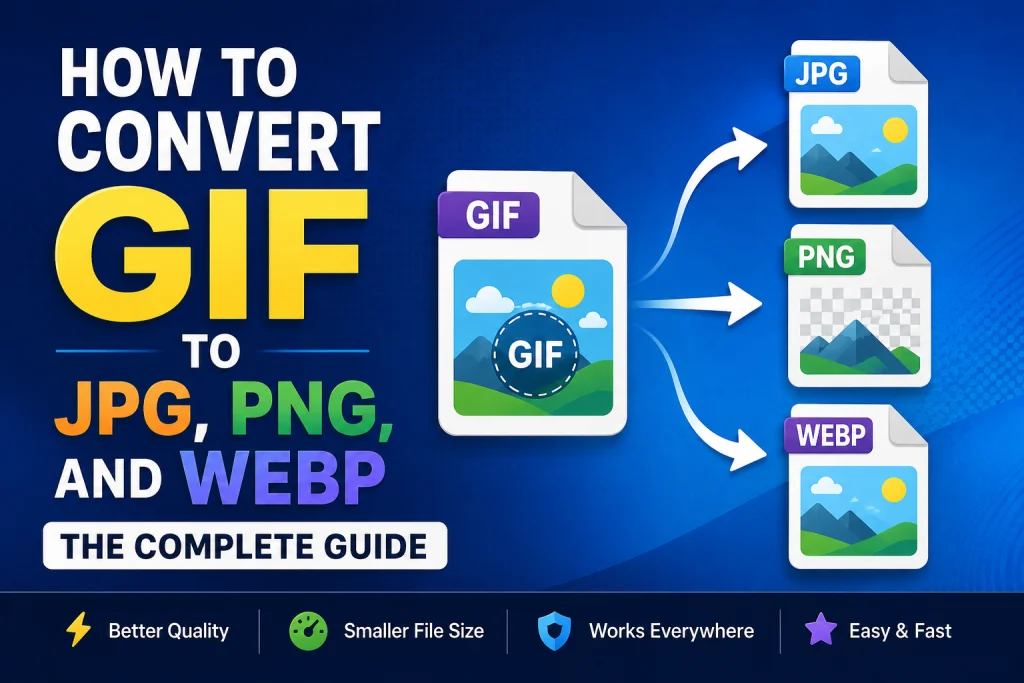
GIF files are one of the oldest image formats on the internet — and honestly, they were never great for quality. They only support 256 colors, produce large file sizes for what you get, and look terrible when you try to use them as static images. Converting a GIF to JPG, PNG, or WebP gives you a smaller file, better colors, and a format that works everywhere.
This guide covers everything. Why GIF is limited, when you should convert it, and exactly how to convert GIF to JPG, PNG, or WebP on any device — online, on Windows, Mac, iPhone, and Android. We’ll also cover which format to pick for different situations so you always make the right choice.
What Is a GIF File and Why Does It Have Problems?
GIF stands for Graphics Interchange Format. It was created back in 1987 — yes, 1987. At the time it was a smart format. But the web has moved on a lot since then.
The biggest problem with GIF is its color limit. GIF can only store 256 colors per frame. Real photos have millions of colors. So when you save a photo as a GIF, it throws away most of the color information and the image looks washed out and pixelated. It’s like printing a full-color photo on a printer that only has 8 crayons.
GIF files are also surprisingly large for the quality they deliver. A GIF version of a simple graphic can easily be bigger than a PNG version of the same image — even though PNG looks much better. According to the Mozilla MDN image format documentation, GIF’s LZW compression is much less efficient than modern formats like WebP and PNG for most image types.
The one thing GIF does that other formats struggle with is animation. Animated GIFs are everywhere on the internet. But even for animation, WebP does it better — smaller files, more colors, smoother results. The only reason people still use animated GIF is compatibility — it works everywhere, even in old email clients.
When Should You Convert a GIF to Another Format?
Convert GIF to JPG When:
You have a GIF that doesn’t need transparency and you just want a clean, small photo-style image. JPG handles photographs much better than GIF does. If your GIF is a static image — not animated — converting it to JPG gives you better color accuracy and usually a smaller file size too.
JPG is an option when you need to email an image upload it to a site that does not accept GIF or use it in a document. JPG works on all devices. All people can open it. One thing to keep in mind is that JPG does not support transparency. So if your GIF has a background converting to JPG will make the background white. If you want to keep the background use PNG or WebP instead.
Convert GIF to PNG When:
You need to keep the transparent background. PNG supports full transparency and it’s completely lossless — meaning the image quality doesn’t drop at all. PNG also supports millions of colors, so your image will look much sharper and more accurate than the GIF version.
PNG is also the right choice when you want to edit the image later. Because PNG doesn’t lose quality, it’s a better working format than JPG or GIF. Convert your GIF to PNG, do your editing, then export to whatever final format you need. If you want to learn more about when to use PNG vs JPG, our article on how to convert JPG to PNG covers the differences in detail.
Convert GIF to WebP When:
You’re putting an image on a website. You want it to load fast. WebP makes your files smaller than JPG and PNG. It also supports backgrounds like PNG. Webp images look better than GIFs. If your GIF is animated don’t worry WebP can handle that too. It does animations with smaller file sizes. WebP also supports colors than GIF. This makes WebP a great choice, for your website.
WebP is the smartest choice for any image that goes on a web page. It loads faster, looks better, and takes up less storage. Our guide on how to convert JPG to WebP explains the WebP format in detail if you want to understand it better before converting.
GIF vs JPG vs PNG vs WebP — Quick Comparison
Before you convert, it helps to know exactly what you’re converting to. Here’s a simple breakdown:
| Feature | GIF | JPG | PNG | WebP |
|---|---|---|---|---|
| Max Colors | 256 | 16 million | 16 million | 16 million |
| Transparency | Basic (on/off) | No | Full | Full |
| Animation | Yes | No | Limited | Yes |
| File Size | Large for quality | Small | Medium | Smallest |
| Best For | Simple animations | Photos | Graphics, logos | Web use |
| Quality | Poor for photos | Good | Excellent | Excellent |
| Print Use | Poor | Good | Good | Not ideal |
How to Convert GIF to JPG, PNG, or WebP Online
The Fastest Way — No Software Needed
Using a free online tool is the quickest way to convert any GIF file. It works on every device — Windows, Mac, iPhone, Android, Chromebook. You don’t need to install anything.
Here’s how to convert GIF to JPG using our free tool:
- Go to imageconvertertools.com/gif-to-jpg
- Click upload or drag your GIF file into the box
- The tool converts it automatically
- Click Download to save your JPG
For PNG output, go to imageconvertertools.com/gif-to-png and follow the same steps. For WebP output, go to imageconvertertools.com/gif-to-webp.
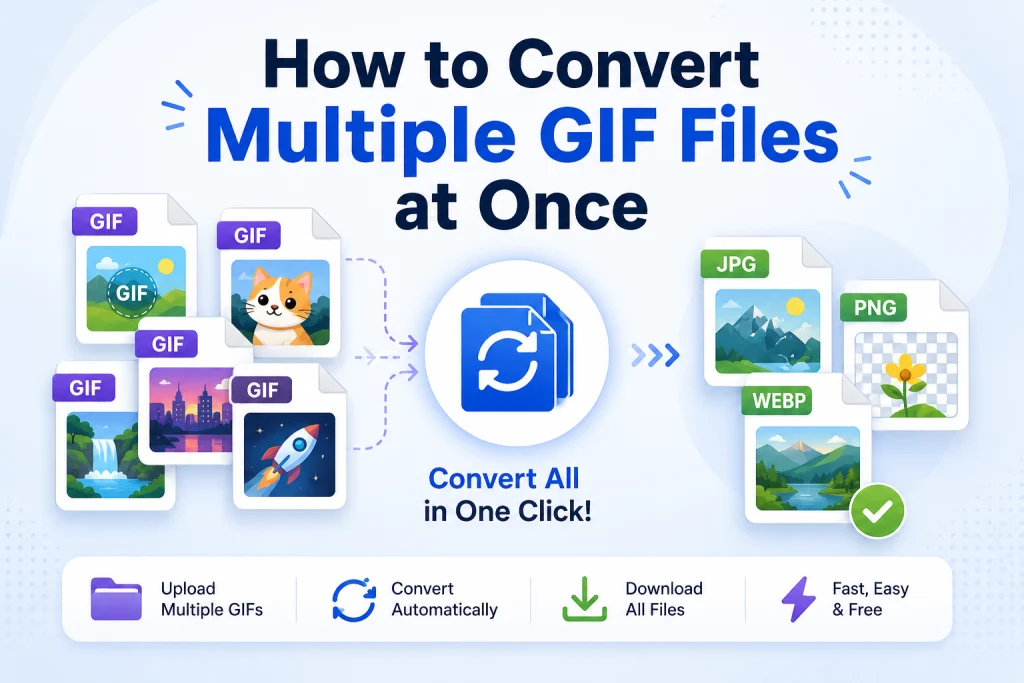
You can upload multiple GIF files at once. The tool processes them all together and lets you download everything at once. Great for when you have a folder full of GIFs to convert in one go.
Pros:
- Works on any device without installing anything
- Handles multiple files at once
- Fast — most files done in under 10 seconds
- Free with no watermarks and no sign-up
Cons:
- Needs internet connection
- Not ideal for private or sensitive images since files upload to a server
- Less control over output settings compared to desktop software
How to Convert GIF to JPG on Windows
Using Paint on Windows
Paint comes installed on every Windows computer and it can convert GIF to JPG in a few clicks. It’s not fancy but it works fine for single files.
- Right-click your GIF file
- Select Open with > Paint
- Go to File > Save As
- Choose JPEG Picture from the list
- Name your file and click Save
That’s it. Paint saves a JPG version of your GIF. The original GIF stays untouched.
One thing to watch: Paint doesn’t let you control the quality level when saving as JPG. It uses a fixed setting. For most everyday uses this is fine. But if you need more control over output quality — for example for a product image or professional photo — use the online tool instead. It gives you better results.
Using Windows Photos App
The Photos app on Windows 10 and 11 also lets you export GIF files as JPG.
- Open your GIF in the Photos app
- Click the three-dot menu at the top right
- Select Save As
- Change the file type to JPG
- Click Save
This is slightly easier than Paint for some people. The result is similar — a clean JPG with no quality control options.
Batch Converting GIF to JPG on Windows
Windows doesn’t have a built-in batch converter for GIF to JPG. If you have multiple GIF files to convert, the online converter is the fastest option. Upload all your GIFs at once, convert them together, and download all the JPGs in one go. Much faster than doing them one by one in Paint.
How to Convert GIF to PNG on Windows
Using Paint for GIF to PNG
The process is almost identical to converting to JPG in Paint. The difference is just the format you choose when saving.
- Open the GIF in Paint
- Go to File > Save As
- Choose PNG Picture
- Click Save
Paint handles GIF to PNG well. This is because PNG is lossless. You do not have to worry about the quality setting. What you see in Paint is what you get in the PNG file. PNG also preserves any transparency that the GIF had. The transparency in GIF is basic. This means pixels are either fully transparent or fully opaque. PNG converts this cleanly. The PNG file will have the transparency as the GIF. This is what makes PNG a good choice, for converting GIF files.
How to Convert GIF to JPG and PNG on Mac
Using Preview on Mac
Preview is built into every Mac and it handles GIF conversion really well. It gives you format control and a quality slider for JPG output — more than you get from Paint on Windows.
- Open your GIF file in Preview — just double-click it
- Go to File > Export
- Click the Format dropdown
- Choose JPEG for JPG output or PNG for PNG output
- If you chose JPEG, use the quality slider — set it to 85 for a good balance of quality and file size
- Click Save
Preview is genuinely one of the best free tools for image conversion on any operating system. It’s fast, gives you real control, and you already have it on your Mac.
Batch Converting GIF Files on Mac
Preview on Mac can convert multiple GIF files at the same time. This is a huge time saver when you have lots of files to process.
- Select all your GIF files in Finder
- Right-click and choose Open With > Preview
- In Preview, press Command + A to select all images in the sidebar
- Go to File > Export Selected Images
- Click Options and choose your output format — JPEG or PNG
- For JPEG, set the quality level
- Choose a destination folder
- Click Choose
All your GIF files convert at the same time. This works for dozens of files just as easily as it works for two or three.
How to Convert GIF to JPG on iPhone
iPhones don’t have a built-in GIF converter. The Photos app can display GIFs but it doesn’t let you export them as JPG or PNG directly.
The easiest way on iPhone is using a browser-based tool in Safari.
- Open Safari on your iPhone
- Go to imageconvertertools.com/gif-to-jpg
- Tap the upload area
- Select your GIF from Photos or Files
- Tap Convert
- Download the JPG — it saves to your Files app
This works on every iPhone model. No app download needed. The whole process takes under a minute.
Tip for iPhone users: If your GIF is animated and you convert it to JPG you will only get the frame as a still image. JPG does not support animation. If you want to keep the animation but in a format you should convert it to WebP instead. Animated WebP works well in all browsers and it looks much better, than animated GIF. You can try converting your GIF to WebP for a result.
How to Convert GIF to JPG on Android
Android also doesn’t have native GIF conversion built into the gallery or any standard app. The browser method works great on Android too.
- Open Chrome on your Android phone
- Go to imageconvertertools.com/gif-to-jpg
- Tap upload and select your GIF from your gallery or files
- Tap Convert
- Download the JPG to your Downloads folder
The converted file shows up in your Downloads folder and you can share it, move it to your gallery, or upload it anywhere straight away.
How to Convert GIF to WebP
Why WebP Is Usually the Best Choice for Web Use
If you want to put a GIF on a website you should use WebP. WebP files are really small compared to JPG and PNG files. They can be transparent. They can also be animated. Every new browser can show files.
I have seen an animated GIF that’s 2MB become an animated WebP that is under 500KB. The animation is the same. The file is much smaller and the colors are better. This makes a difference, in how fast your website loads. Using files can make your website load a lot faster.
Converting GIF to WebP Online
- Go to imageconvertertools.com/gif-to-webp
- Upload your GIF file
- Click Convert
- Download the WebP file
The tool handles both static and animated GIFs. Static GIFs convert to still WebP images. Animated GIFs convert to animated WebP files that preserve the animation with much better quality and smaller file size.
Tips for GIF to WebP Conversion
Getting the best results from GIF to WebP conversion comes down to a few simple things. Always use the highest quality GIF you have as your starting point — the WebP will only be as good as the GIF you start with. Check the converted file in Chrome or Firefox before using it on your website. And if file size is still too large after converting to WebP, run it through our Image Compressor to squeeze the size down further without any visible quality loss.
What Happens to Animated GIFs When You Convert Them?
People often think about this. When you change an animated GIF to a picture that does not move like a JPG or PNG you only get the picture. The movement is gone. You are left with a picture of what was in the first frame of the GIF.
If you want to keep the movement you have two choices. You can change it to an animated WebP. This keeps the movement but the file is smaller and the colors are better.. You can just keep the GIF as a GIF if you need it to work everywhere like in email programs that do not support WebP.
If you just need one picture from an animated GIF. Like taking one frame to use as a small picture. Changing it to a JPG or PNG is fine. You get a picture that is much smaller, than the original GIF.
How to Convert Multiple GIF Files at Once
Batch Conversion Online
Our online converters support multiple file uploads. You can select all your GIF files at once when uploading and they all convert together. Download everything as a batch when done. This saves a huge amount of time compared to converting files one by one.
Batch Conversion on Mac
Use Preview’s Export Selected Images feature as described in the Mac section above. Open all your GIFs in Preview at once, select all, and export. It handles dozens of files just as fast as one.
Batch Conversion on Windows
Windows doesn’t have a strong built-in batch option for this. The online converter is your best bet for batch converting on Windows. Select all your GIF files when uploading and let the tool handle them all at once.
After converting a large batch of GIFs, you might also want to resize them to the correct dimensions for where you’re using them. Our article on how to resize an image covers the correct dimensions for every platform including websites, social media, and email.
Common GIF Conversion Mistakes to Avoid
Most people make the same few mistakes when converting GIFs. Here’s what to watch out for.
Expecting perfect photo quality from a GIF source. GIF only has 256 colors. When you convert a GIF photo to JPG or PNG, the output will look better than the GIF — but it won’t magically gain back all the color detail that GIF threw away when it was originally saved. The converted image can only be as good as the GIF you started with.
Converting animated GIFs to JPG and wondering why the animation is gone. JPG and PNG are still image formats. They can’t store animation. If you need animation, convert to WebP or keep the GIF.
Not checking transparency after conversion. If your GIF has a transparent background and you convert to JPG, the transparency becomes a white background. Always convert transparent GIFs to PNG or WebP if you need to keep the transparency.
Converting without resizing first. If you’re converting a GIF for use on a website, resize it to the correct dimensions before or after converting. Uploading a large GIF converted to WebP is still too big if the pixel dimensions are wrong for where it’s being used.
GIF to JPG vs GIF to PNG vs GIF to WebP — Which Should You Pick?
Here’s a simple way to decide:
Pick JPG if:
- The image is a photo or complex image
- You don’t need transparency
- You need the widest possible compatibility
- You’re sending it by email or using it in a document
Pick PNG if:
- You need to keep the transparent background
- The image has sharp edges, text, or a logo
- You’re going to edit the image again
- You need lossless quality
Pick WebP if:
- The image is going on a website
- You want the smallest possible file size
- You need transparency AND small file size
- You want to keep animation but in a better format
For most web use cases, WebP is the right answer. For everything else, PNG is usually safer than JPG because it’s lossless and supports transparency. Our article on how to compress an image also covers how to reduce file sizes further after converting, which is useful when you’re optimising images for a website.
Frequently Asked Questions
1. Can I convert an animated GIF to JPG?
Yes, but you’ll only get the first frame as a still image. JPG can’t store animation. If you want to keep the animation, convert to animated WebP instead. If you just need a still image from the GIF, converting to JPG works perfectly fine.
2. Does converting GIF to PNG improve quality?
It improves the technical quality because PNG is lossless and supports millions of colors. But it can’t recover color detail that GIF already threw away when the GIF was first created. The PNG will look as good as the GIF allows — no better, no worse.
3. How do I convert GIF to JPG on iPhone?
Open Safari, go to imageconvertertools.com/gif-to-jpg, upload your GIF from Photos, and download the JPG to your Files app. No app download needed. Works on all iPhone models.
4. Will converting GIF to WebP keep the animation?
Yes. Animated WebP supports animation just like GIF does. The difference is that animated WebP files are much smaller than animated GIFs — often 60 to 70 percent smaller — and they support millions of colors instead of GIF’s 256 color limit.
5. How do I convert multiple GIF files at once?
Upload all your GIF files at the same time using our online converter. It processes them all together and lets you download everything at once. On Mac, you can also use Preview’s Export Selected Images feature to batch convert multiple GIFs at the same time.
6. What happens to GIF transparency when I convert to JPG?
JPG doesn’t support transparency. When you convert a GIF with a transparent background to JPG, the transparent areas become white. If you need to keep the transparency, convert to PNG or WebP instead — both support full transparency.
7. Is WebP better than GIF for animation?
Yes, in almost every way. Animated WebP files are smaller than animated GIFs, support millions of colors instead of 256, and support full transparency in animations. The only reason to keep using GIF for animation is compatibility with very old email clients and platforms that don’t support WebP yet.
8. Can I convert GIF to PNG on Windows without extra software?
Yes. Open the GIF in Paint, go to File > Save As, and choose PNG Picture. That’s it. No extra software needed. Paint comes installed on all Windows computers.
9. Why is my converted JPG still large after converting from GIF?
GIF files can actually be quite large for the quality they deliver. Converting to JPG reduces the file size in most cases, but if the JPG is still larger than you want, run it through our Image Compressor to reduce the file size further without losing visible quality.
10. Which is better for websites — GIF or WebP?
WebP is much better for websites. WebP files are smaller, look better, support full transparency, and handle animation more efficiently than GIF. Every modern browser supports WebP. The only reason to use GIF on a website today is if you need compatibility with very old browsers, which is increasingly rare.
Conclusion
The GIF format is really old. It looks like it. It does not have colors and the files are big. If you want quality you should change your GIF files to JPG, PNG or WebP. These formats are better and the files are smaller.
So which one should you use? It is easy. You should use JPG for pictures that you want to share with lots of people. Use PNG for pictures that have parts or sharp lines that you want to edit.. Use WebP, for pictures that you put on a website because it loads fast.
Use our free converters to get it done in seconds — GIF to JPG, GIF to PNG, and GIF to WebP — no sign-up, no watermarks, and no limits on how many files you convert.