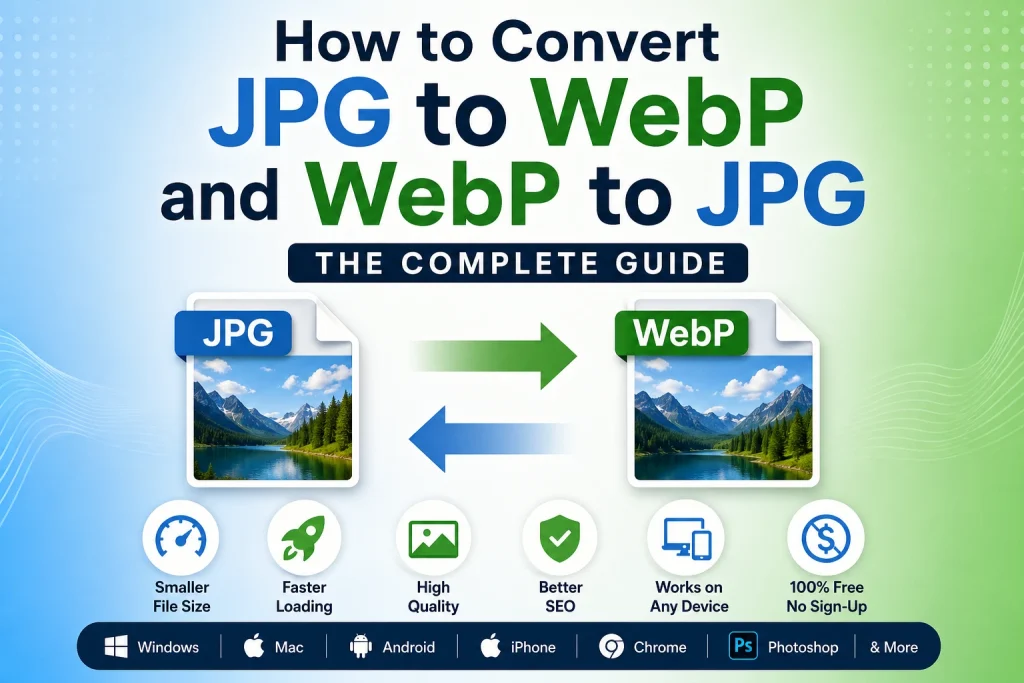
If you have been downloading images from the web lately, you have probably noticed that many of them save as a .webp file instead of a .jpg. Or maybe you are a website owner who has heard that WebP images load faster and want to switch your existing JPG files to WebP. Either way, this guide has you covered.
Here you will learn what WebP actually is, why it matters, how to convert JPG to WebP, how to convert WebP to JPG, and how to do it on Windows, Mac, Android, iPhone, Chrome, Photoshop, and more — with and without software.
What Is WebP and Why Does It Exist?
WebP is a modern image format developed by Google. It was designed specifically for the web, with the goal of making image files smaller without sacrificing visible quality. WebP supports both lossy and lossless compression, meaning it can replace both JPG and PNG depending on your needs.
Google introduced WebP because smaller image files mean faster page loading times, lower data usage on mobile, and better scores in tools like Google PageSpeed Insights. According to Google’s WebP documentation, WebP lossless images are on average 26% smaller than PNG files, and WebP lossy images are 25 to 34% smaller than comparable JPG files at equivalent quality.
That is a significant difference — especially for websites with hundreds of images. This is why so many websites now serve images in WebP format by default, which is also why you end up downloading .webp files when you save images from the web.
JPG vs WebP — What Is the Difference?
Both JPG and WebP are lossy formats, but WebP is newer and more efficient. Here is a quick comparison to understand when to use each one.
| Feature | JPG | WebP |
|---|---|---|
| Compression | Lossy | Lossy and Lossless |
| File Size | Standard | 25–34% smaller than JPG |
| Transparency | Not supported | Supported |
| Animation | Not supported | Supported |
| Browser Support | Universal | All modern browsers |
| Best For | Photos, universal use | Web images, performance |
| Software Support | Universal | Limited in older software |
| Print Use | Widely accepted | Rarely accepted |
The main reason people still use JPG is compatibility. WebP is not accepted everywhere — many older apps, email clients, design tools, and print services still do not support it. JPG, on the other hand, opens on literally every device and platform on earth.
When Should You Convert JPG to WebP?
You Are Optimising Images for a Website
If you run a website and want faster loading times, converting your JPG images to WebP is one of the most effective things you can do. Smaller image files mean pages load faster, which improves user experience and can directly improve your Google search rankings.
WebP is supported by all modern browsers including Chrome, Firefox, Safari, and Edge. If you are building or maintaining a website, switching to WebP for your image assets is a smart move. You can convert all your existing JPG files to WebP in bulk using our JPG to WebP converter — it supports multiple file uploads so you can process everything at once.
You Want Smaller Files Without Visible Quality Loss
WebP gives you noticeably smaller files at the same visual quality as JPG. For social platforms, blog posts, and web stores where image quality and speed both matter, WebP hits a sweet spot that JPG simply cannot match.
You Need Transparency Like PNG but Smaller File Size
Unlike JPG, WebP supports transparent backgrounds — just like PNG. But WebP files with transparency are significantly smaller than PNG files. If you have been using PNG for transparent images and want to reduce file size, WebP is worth considering. You can also convert your existing PNG files using our PNG to WebP converter.
When Should You Convert WebP to JPG?
The Platform Does Not Accept WebP
This is the most common reason. You download an image from a website, it saves as .webp, and then the app or tool you try to open it in does not recognise the format. Converting WebP to JPG gives you a universally compatible file that opens anywhere.
You Need to Send or Print the Image
Email clients, print services, and document editors almost universally accept JPG. WebP is not. If you need to attach an image to an email, submit it to a print shop, or insert it into a Word document or presentation, converting WebP to JPG first saves you a lot of frustration.
You Want to Edit the Image in Older Software
Photoshop added WebP support in newer versions, but many people still use older versions or other image editors that simply cannot open WebP files. Converting to JPG gives you a file you can open in any image editing software without compatibility issues.
How to Convert JPG to WebP Online — Step by Step
The fastest and easiest way to convert JPG to WebP is using a free online tool. No software installation, no account, no cost.
- Go to imageconvertertools.com/jpg-to-webp
- Click the upload button or drag and drop your JPG file into the area
- The tool will detect your file automatically
- WebP will be selected as the output format
- Click Convert
- Download your WebP file
You can upload multiple JPG files at once and convert them all to WebP in a single go. This is useful when you need to bulk convert a whole folder of images for a website or project. Your files are deleted from the server automatically after the conversion is complete, keeping your images private.
How to Convert WebP to JPG Online — Step by Step
Converting WebP to JPG online is just as simple and takes only a few seconds.
- Go to imageconvertertools.com/webp-to-jpg
- Upload your WebP file — you can add multiple files at once
- Make sure JPG is selected as the output format
- Click Convert
- Download your JPG file
No software, no watermarks, no sign-up required. The tool works on any device including phones, tablets, and computers — just open it in a browser and you are good to go.
How to Convert WebP to JPG on Windows
Using Paint on Windows
Windows 10 and Windows 11 include Paint and Paint 3D, both of which can open and save WebP files in newer versions. Here is how to use Paint to convert WebP to JPG:
- Right-click the WebP file
- Select Open with > Paint
- Once the image opens, click File > Save As
- Choose JPEG Picture from the list
- Name your file and click Save
If your version of Paint does not open WebP files, it means your Windows is not fully updated. Run Windows Update first and try again.
Using Photos App on Windows
- Open the WebP file in the Windows Photos app
- Click the three-dot menu in the top right
- Select Save As
- Change the file type to JPG
- Click Save
For converting multiple WebP files to JPG on Windows at once, the online converter is the most practical option since Windows has no built-in bulk conversion tool.
How to Convert WebP to JPG on Mac
Using Preview on Mac
Mac users have it easy. Preview, which comes installed on every Mac, can open WebP files and export them as JPG without any extra software.
- Open the WebP file in Preview — double-click it or right-click and select Open With > Preview
- Go to File > Export
- Click the Format dropdown
- Select JPEG
- Adjust the quality slider if needed
- Click Save
This works on all Mac models including MacBook Air, MacBook Pro, and iMac. For batch converting multiple WebP files to JPG on Mac, open all the files in Preview, select them all in the sidebar, then go to File > Export Selected Images and choose JPEG.
How to Convert WebP to JPG on Android
Android phones do not have a built-in WebP to JPG converter, but a browser-based tool works perfectly on any Android device.
- Open Chrome on your Android phone
- Go to imageconvertertools.com/webp-to-jpg
- Tap the upload area and select your WebP file from your gallery or files
- Select JPG as the output format
- Tap Convert
- Download the JPG file — it will save to your Downloads folder
No app installation needed. The tool is fully mobile-friendly and works on all Android phones and tablets.
How to Convert WebP to JPG on iPhone
The process on iPhone is identical to Android — use a browser-based converter directly in Safari.
- Open Safari on your iPhone
- Go to imageconvertertools.com/webp-to-jpg
- Tap the upload area and choose your WebP file from Photos or Files
- Tap Convert
- Download the JPG to your Files app
If you are regularly downloading images from websites on iPhone and they keep saving as WebP, this is the quickest way to get them into a usable JPG format.
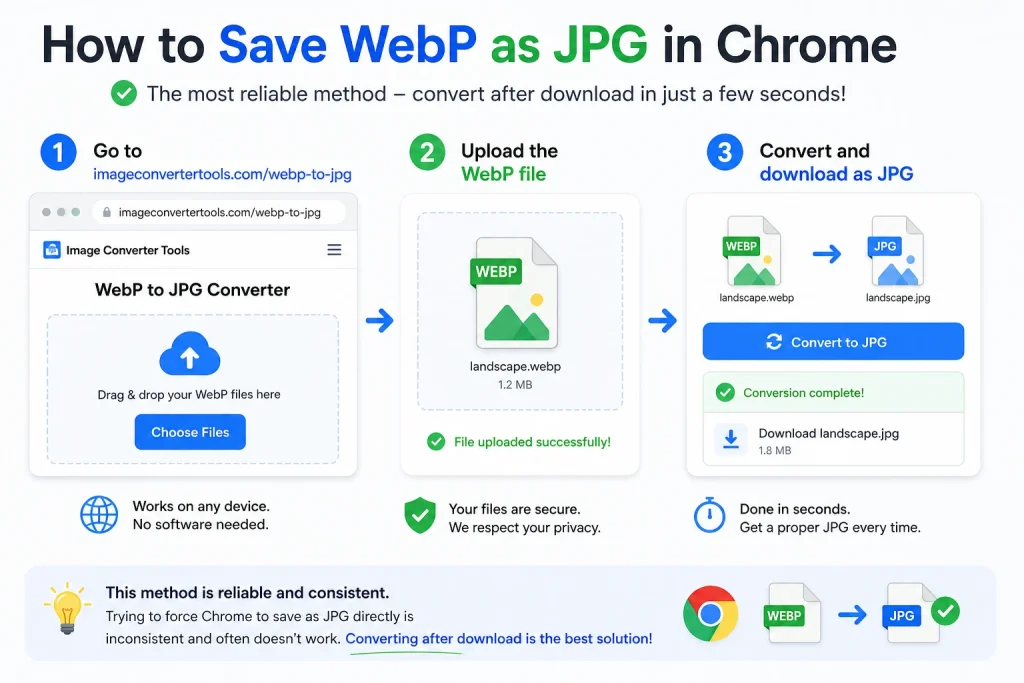
How to Save WebP as JPG in Chrome
This is one of the most common frustrations people run into. You right-click an image on a website, click Save Image As, and it saves as a .webp file instead of a JPG. Here is what you can do:
Method 1 — Open Image in New Tab First
- Right-click the image on the webpage
- Select Open image in new tab
- In the new tab, right-click the image again
- Select Save Image As
- The file may still save as WebP — if so, use the converter below
Method 2 — Convert After Downloading
- Download the WebP file as it is
- Go to imageconvertertools.com/webp-to-jpg
- Upload the WebP file
- Convert and download as JPG
This is the most reliable method. Trying to force Chrome to save as JPG directly is inconsistent and often does not work. Converting after download takes only a few seconds and gives you a proper JPG every time.
Method 3 — Use a Browser Extension
There are Chrome extensions that can intercept image downloads and save them as JPG instead of WebP. However, many of these extensions require broad permissions to access all your browsing data, which is a privacy concern. The online converter is a safer and simpler choice.
How to Convert JPG to WebP in Photoshop
Adobe Photoshop added native WebP support in version 23.2 (released in 2022). If you have a recent version of Photoshop, converting JPG to WebP is straightforward.
JPG to WebP in Photoshop
- Open your JPG file in Photoshop
- Go to File > Save As (or File > Export > Export As for more control)
- In the format dropdown, select WebP
- Adjust quality settings — higher quality means larger file size
- Click Save
WebP to JPG in Photoshop
- Open the WebP file in Photoshop
- Go to File > Save As
- Select JPEG from the format dropdown
- Set quality to 80–90 for a good balance of size and quality
- Click Save
If your version of Photoshop does not show WebP in the format list, it means your version is too old. You can either update Photoshop or use our free online converter — no subscription or update needed.
How to Convert WebP to JPG Without Losing Quality
A common concern is quality loss during conversion. Here is the reality: WebP to JPG conversion always involves some quality loss because JPG is a lossy format and cannot store all the data that a lossless WebP file contains. However, you can minimise this loss significantly by following these steps:
- Use a high quality setting when converting — 90% or above
- Convert only once — avoid converting back and forth multiple times
- Start with the highest quality WebP file available
- Use a reliable converter that does not over-compress the output
For most practical uses like sharing, emailing, or printing, the quality difference at 90%+ settings is barely noticeable. Our converter uses high-quality settings by default so your output looks as close to the original as possible.
Why Is My Converted WebP to JPG File Bigger Than the Original WebP?
This is a question many people ask after converting. The answer is simple — WebP is more efficient at compression than JPG. A WebP file can store the same visual information in less space. When you convert it to JPG, the JPG format needs more bytes to represent that same image at the same quality level.
This is normal and expected. It does not mean something went wrong with the conversion. It just means WebP is genuinely a more efficient format for file size — which is exactly why Google created it.
How to Bulk Convert WebP to JPG
If you have a large number of WebP images to convert, doing them one by one is slow. Our online converter supports multiple file uploads, so you can select all your WebP files at once and convert them in a single batch. Here is how:
- Go to imageconvertertools.com/webp-to-jpg
- Click the upload area and select all your WebP files at once (hold Ctrl on Windows or Cmd on Mac to select multiple files)
- All files will be queued for conversion
- Click Convert
- Download all converted JPG files together
This saves a significant amount of time when you have dozens or hundreds of images to process.
JPG to WebP for WordPress
If you run a WordPress website, converting images to WebP can improve your site speed and Core Web Vitals scores, which directly affect your Google rankings. There are a few ways to handle this:
Using a WordPress Plugin
Plugins like Smush, ShortPixel, and Imagify can automatically convert your uploaded JPG images to WebP format and serve them to visitors whose browsers support it. These plugins typically fall back to JPG for older browsers automatically.
Converting Manually Before Upload
You can also convert your images to WebP before uploading them to WordPress. Convert your JPGs to WebP using our JPG to WebP converter, then upload the WebP files directly to your media library. This gives you full control over the output quality without relying on a plugin.
Many WordPress speed plugins mark JPG images as an issue in their recommendations. Converting to WebP before upload means you are already ahead of the optimisation curve without paying for premium plugin plans.
When to Use WebP vs JPG vs PNG
Not sure which format to use for your specific situation? Here is a simple breakdown:
| Use Case | Best Format |
|---|---|
| Website photos and banners | WebP |
| Email attachments | JPG |
| Social media images | JPG or WebP |
| Print orders | JPG |
| Logos with transparency for web | WebP or PNG |
| Images opened in older software | JPG |
| WordPress and web optimisation | WebP |
| Images shared across all platforms | JPG |
If you are also working with PNG files and need to convert them for web use, check out our guide on How to convert JPG to PNG and PNG to JPG for a full breakdown of when to use each format.
Other Image Conversion Tools You Might Need
Depending on what you are working with, here are some other tools that might be useful:
- WebP to PNG — Convert WebP to PNG for transparent images
- PNG to WebP — Convert PNG files to smaller WebP format
- JPG to PNG — Convert JPG to lossless PNG format
- Image Compressor — Reduce image file size without visible quality loss
Frequently Asked Questions
1. Can I convert WebP to JPG for free?
Yes. Use our free online converter at imageconvertertools.com/webp-to-jpg. There is no sign-up, no software download, and no limits on how many files you can convert. Unlike many other tools that lock bulk conversion behind a paid plan, our converter supports multiple files completely free.
2. Why do images save as WebP instead of JPG when I download them?
Websites serve images in WebP format because it loads faster. When you right-click and save an image from a website, your browser saves it in whatever format the website is using — which is increasingly WebP. To get a JPG, simply convert the downloaded WebP file using our free converter.
3. How do I convert WebP to JPG on Windows 10?
Open the WebP file in Paint, go to File > Save As, and choose JPEG Picture. If Paint does not open the WebP file, use our online converter at imageconvertertools.com/webp-to-jpg — it works directly in any browser on Windows 10.
4. Does converting WebP to JPG reduce quality?
Some quality loss is possible because JPG uses lossy compression. However, converting at a high quality setting (90% or above) keeps the difference barely noticeable for most practical uses. Our converter uses high-quality settings by default to minimise any visible loss.
5. How do I save a WebP image as JPG in Chrome?
Download the WebP file first, then go to imageconvertertools.com/webp-to-jpg, upload the file, and download the converted JPG. Trying to force Chrome to save images as JPG directly is unreliable — the converter method takes only a few seconds and works every time.
6. Can Photoshop convert WebP to JPG?
Yes, but only in Photoshop version 23.2 or newer. If you have an older version, Photoshop will not open WebP files. In that case, use our free online converter which works regardless of what software you have installed.
7. Why is my converted WebP to JPG file larger than the original?
WebP is a more efficient format than JPG, so the same image stored as WebP takes up less space. When you convert to JPG, the file gets larger because JPG needs more data to represent the same image at the same quality level. This is completely normal.
8. How do I bulk convert WebP to JPG?
Go to imageconvertertools.com/webp-to-jpg, click upload, and select multiple WebP files at once. The tool converts all of them together and lets you download the results. No paid plan, no limits.
9. Is WebP better than JPG for websites?
Yes, for website use WebP is generally better than JPG. WebP files are 25 to 34% smaller than JPG at the same visual quality, which means faster page loading and better performance scores. However, JPG is still more universally compatible for non-web uses like printing and older software.
10. How do I convert JPG to WebP for WordPress?
You can convert JPGs to WebP before uploading using our free JPG to WebP converter and then upload the WebP files directly to your WordPress media library. This is a better approach than relying on paid WordPress plugins that charge monthly fees just to handle format conversion for you.
Conclusion
Whether you need to convert JPG to WebP to speed up your website or convert WebP to JPG because a downloaded image will not open on your device, the process is quick and straightforward.
WebP is the smarter format for web use — smaller files, better quality, and faster loading. But JPG remains the most compatible format for everything else — printing, emailing, editing in older software, and sharing across all platforms.
Use our free tools to convert between both formats in seconds — no software, no sign-up, no paid plans required.
Head to ImageConverterTools WebP to JPG or JPG to WebP and get your images converted right now.