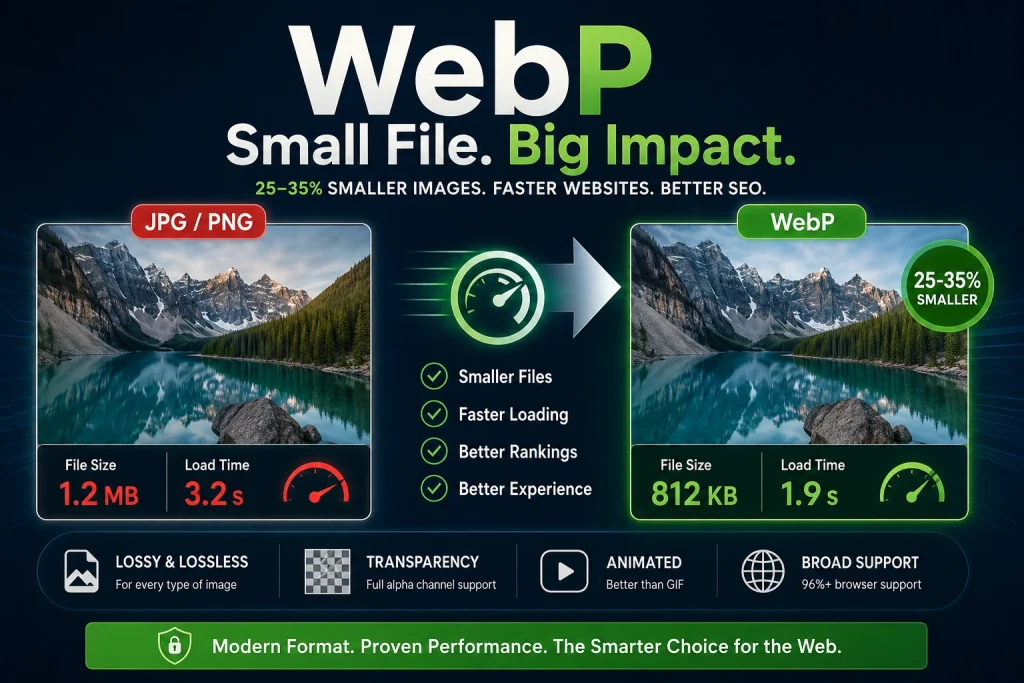
WebP is a modern image format developed by Google that produces files 25 to 35 percent smaller than PNG and 25 to 34 percent smaller than JPG at the same visual quality — making it the most efficient image format available for web use today, supported by every major browser including Chrome, Firefox, Safari, and Edge.
If you have noticed images on websites loading faster than they used to, or if your website performance tool is telling you to serve images in next-generation formats, WebP is almost certainly what it is referring to. This guide explains exactly what WebP is, how its compression technology actually works, what it can and cannot do, where it beats JPG and PNG, where it falls short, and how to decide whether it is the right format for your specific situation.
The History of WebP — Why Google Created It
The Problem With JPG and PNG in the Modern Web
To understand why WebP exists, you need to understand the problem it was built to solve. By the late 2000s, the web had grown enormously in terms of image use — but the two dominant image formats, JPG and PNG, were both products of the 1990s. JPG was standardised in 1992. PNG was introduced in 1996. Neither format was designed with modern web performance in mind, and neither handled all image types efficiently.
JPG was excellent for photographs but could not handle transparency, degraded with each save cycle, and struggled with sharp edges and text. PNG handled transparency and lossless compression well but produced very large files for photographic content. There was no single format that handled all image types efficiently, supported transparency, and produced small file sizes — all at the same time. Every website was stuck choosing between two imperfect options depending on the content type.
Google’s Solution
Google engineers began developing WebP in 2010 as a direct response to this gap. The format was built on technology from the VP8 video codec — the same compression technology Google used in its WebM video format — which was fundamentally more efficient than the algorithms behind both JPG and PNG. Google’s goal was to create a single format that could replace both JPG and PNG for web use, producing smaller files without any visible quality loss.
Google first announced WebP publicly in September 2010 and has been developing and promoting it ever since. According to Google’s official WebP developer documentation, the format has gone through significant improvements since its introduction, adding lossless compression, transparency support, and animation support in the years following the initial release.
How WebP Became a Web Standard
Adoption was slow at first. Chrome supported WebP from 2014, but Firefox and Safari resisted for years, citing concerns about Google controlling a web standard. Firefox added full WebP support in version 65 in January 2019. Safari — arguably the most important holdout — added WebP support in version 14 in September 2020, which also brought WebP support to iPhones and iPads running iOS 14. With Safari on board, WebP achieved the near-universal browser support it has today.
According to Mozilla’s browser compatibility documentation, WebP now has over 96 percent global browser support — meaning the vast majority of internet users worldwide can view WebP images without any special handling or fallbacks required.
How WebP Compression Actually Works
The Technology Behind WebP
To see how WebP gets so efficient, we need to briefly look at the compression technology behind it. WebP has two different compression systems depending if you are using lossy or lossless mode.
WebP uses predictive coding for lossy compression, based on the VP8 video codec. The encoder breaks the image into macroblocks, which are small rectangular sections of pixels, and then predicts each block’s value based on the values of neighboring blocks that have already been processed. Instead of storing the full pixel data for every block, we just need to store the difference between the predicted value and the actual value. The prediction is much more efficient than JPG, which uses a discrete cosine transform on blocks of the image without any knowledge of the surroundings.
For lossless compression, WebP uses a completely different algorithm called WebP Lossless, which combines several advanced techniques — spatial prediction of pixel values, colour transform, subtracting green from red and blue channels, LZ77 backward reference coding, and Huffman coding. This combination allows WebP lossless to represent the same image data using significantly less storage than PNG’s DEFLATE compression.
What This Means in Practice
The technical difference translates directly into real-world file size savings that are consistently measurable across different image types. Simple graphics with flat colours benefit less from WebP’s compression than complex photographs, but both see meaningful reductions. The savings are not theoretical — they represent actual bytes that your website visitors do not need to download, directly reducing loading times on every page that contains images.
The Four Modes of WebP
Lossy WebP
Lossy WebP is the mode most commonly used for photographs and complex photographic content. It works similarly to JPG in that it permanently removes some image data to achieve smaller file sizes, but it does so using a more efficient algorithm that removes less perceptible data per unit of compression. The result is a smaller file than an equivalent JPG at the same visual quality level.
The lossy WebP is controlled by a quality parameter from 0 to 100. At quality 80 to 85, the file looks almost identical to the original at normal screen viewing sizes and is 25 to 34 percent smaller than an equivalent JPG. At quality 90+ the difference from the original is really invisible even under close inspection, and still measurably smaller than JPG. Below quality 60, you start to see compression artefacts – block-like distortions around edges, faces that look slightly smoothed, and fine texture detail that disappears.
Lossless WebP
Lossless WebP preserves every pixel of the original image exactly — no data is removed and the original can be perfectly reconstructed from the compressed file. Despite this, lossless WebP files are on average 26 percent smaller than equivalent PNG files. This makes lossless WebP a straightforward upgrade over PNG for web use — you get the same perfect quality at a meaningfully smaller file size.
Lossless WebP is the right choice for logos, icons, interface graphics, images containing text, and any image where pixel-perfect accuracy is required. It is also the right choice for images with transparency where the transparent edges need to be perfectly clean without any compression artefacts.
Transparent WebP
WebP supports full alpha channel transparency just like PNG. Both lossy and lossless WebP support transparency information. Transparent WebP files are always smaller than comparable transparent PNG files — the transparency information is compressed as efficiently as the image data itself.
So transparent WebP is a great alternative for any web graphic that used to require PNG for its transparency support. This can help with logos on transparent backgrounds, cutout product images, interface elements and overlay graphics when switching from transparent PNG to transparent WebP for web use. The transparency remains perfectly intact and the file is smaller.
Animated WebP
WebP also supports animation, so it could be a replacement for animated gif files. Animated WebP files are much smaller than equivalent animated GIFs — GIF is a very inefficient format for animation, limited to 256 colors per frame, and using simple LZW compression. WebP animations have the same efficient compression as still WebP images, and they look better and load faster. They support the full colour range.
Animated WebP is also better than GIF in other ways — it supports transparency in animations (which GIF does very poorly), and it doesn’t have the 256-colour limitation of GIF. But adoption of animated WebP has been slower than still WebP, because browser support for animated WebP, although broad, has had some historical inconsistencies.
WebP vs JPG — A Detailed Comparison
File Size
WebP consistently produces smaller files than JPG at equivalent visual quality. Google’s own testing shows WebP lossy images are 25 to 34 percent smaller than comparable JPG files. Independent testing by web performance researchers has consistently confirmed these numbers across a wide range of image types. For a website with one hundred images averaging 300KB each as JPGs, converting to WebP could reduce the total image payload from 30MB to around 20MB — a saving that compounds across every page load for every visitor.
Quality at Small File Sizes
At very small file sizes — when compression is aggressive — WebP handles quality loss more gracefully than JPG. JPG compression creates characteristic block-like artefacts called JPEG artefacts, which appear as rectangular patches of distorted colour around edges and in flat colour areas. WebP’s compression creates different, generally less visually intrusive artefacts that tend to look more like slight blurring than the jarring blocks that JPG produces at high compression.
Transparency
JPG has no transparency support whatsoever — it cannot represent transparent pixels at all. Any transparency in a source image is automatically filled with white or another solid colour when saved as JPG. WebP fully supports alpha channel transparency, which means WebP can replace PNG for transparent images as well as replacing JPG for photographic images.
Editing and Re-saving
JPG is a lossy format and degrades every time you open, edit and save it. This is called generational loss and it becomes apparent after a few cycles of editing. WebP in lossy mode has the same problem – each time you save it, you lose a bit of quality. JPG and lossy WebP are both not ideal for working files that will be edited multiple times. PNG or lossless WebP are better formats for files that will be edited repeatedly.
Universal Compatibility
This is where JPG still has a clear advantage. JPG works in literally every context — every device, every operating system, every application, every website, every print service, every email client, and every platform on earth. WebP has excellent browser support but is not universally accepted in print workflows, professional design applications, email clients, and many offline contexts. If you need an image to work everywhere without any conversion or special handling, JPG remains the safe choice.
WebP vs PNG — A Detailed Comparison
File Size
WebP lossless is 26 percent smaller than PNG on average. WebP lossy is dramatically smaller — 50 to 80 percent smaller than PNG for photographic content where lossy compression is acceptable. For websites that currently use PNG for both graphics and photographs, the file size savings from switching to WebP are substantial across both content types.
Lossless Quality
Both PNG and lossless WebP are perfectly lossless — both preserve every pixel of the original image exactly. The difference is purely in how efficiently they store that data. Lossless WebP stores the same information in a smaller file. For practical purposes, a lossless WebP and its PNG source look completely identical because they contain exactly the same pixel data.
Transparency
Both PNG and WebP support full alpha channel transparency. Both handle semi-transparent pixels (partial transparency) correctly. The difference is file size — transparent WebP files are smaller than equivalent transparent PNG files while preserving the same transparency information.
Software and Print Compatibility
PNG has a significant advantage here. PNG is accepted by every image editing application, every print service, every design tool, and every platform without exception. WebP support in desktop software and print workflows is improving but remains incomplete. Many professional applications still do not support WebP. If your images need to work in professional print or design workflows, PNG remains the right format.
Animation
PNG has a related format called APNG (Animated PNG) that supports animation, but APNG is not universally supported and sees limited use. WebP’s animation support is more widely implemented and produces dramatically smaller animated files than GIF, which remains the most commonly used animation format for short web animations.
WebP Advantages — What It Does Well
Superior Compression Efficiency
WebP’s most significant advantage is simply that it stores image data more efficiently than older formats. For every image type — photographs, graphics, illustrations, screenshots — WebP produces a smaller file at the same visual quality. This is not a minor incremental improvement — the 25 to 35 percent reduction in file size compared to PNG and JPG is consistently reproducible across real-world images and represents a meaningful performance improvement for any website.
Versatility Across Image Types
Unlike JPG (good for photos, poor for graphics) and PNG (good for graphics, poor for photos in terms of file size), WebP handles both types efficiently. One format, one set of optimisation decisions, one delivery pipeline — WebP simplifies image management for websites that use both photographic and graphic content.
Full Feature Set
WebP supports lossy and lossless compression, full alpha channel transparency, and animation — covering all the major capabilities that previously required three separate formats (JPG for photos, PNG for transparent graphics, GIF for animation). This versatility makes WebP a genuinely comprehensive image format rather than a specialist tool for one content type.
Web Performance Impact
The performance benefits of WebP go beyond just smaller file sizes. Faster image loading directly improves Core Web Vitals scores — particularly Largest Contentful Paint, which measures how quickly the main visible content of a page loads. Google uses Core Web Vitals as a ranking signal, which means switching to WebP can have a direct positive effect on search engine visibility for image-heavy pages. According to Google’s Web Vitals documentation, image optimisation is one of the primary levers for improving LCP scores on most websites.
WebP Disadvantages — Where It Falls Short
Incomplete Software Support
Despite strong browser support, WebP is still not universally accepted in desktop software, professional design tools, print workflows, and offline applications. Older versions of Adobe Photoshop do not support WebP. Many image editing applications on Windows and Mac still cannot open WebP files natively. Print services do not accept WebP. Email clients display WebP images inconsistently. For any context outside of web browsers, WebP compatibility is still a genuine concern.
Not Suitable as a Master File Format
WebP in lossy mode suffers the same generation loss problem as JPG — repeated open-edit-save cycles degrade quality progressively. Even lossless WebP, while technically superior for storage, is not widely supported enough in professional applications to serve as a reliable master file format for ongoing creative work. PNG or uncompressed TIFF remain better choices for archiving and working files that will be edited multiple times.
Encoding Speed
WebP encoding — the process of compressing an image into WebP format — is computationally more demanding than JPG or PNG encoding. For most individual file conversions this difference is imperceptible. For automated server-side conversion of thousands of images, the encoding time can be a practical consideration depending on the server infrastructure and processing requirements.
Limited Print Acceptance
Print services, publishing workflows, and prepress applications do not accept WebP. This is not likely to change soon — WebP was designed specifically as a web format and the professional print industry has established standards around TIFF, PDF, and high-resolution JPG or PNG that are deeply embedded in existing workflows. If your images need to go to print, WebP is not the right output format.
When Should You Use WebP?
Use WebP For:
- All images displayed on web pages where loading speed matters
- Website logos and icons on transparent backgrounds — use lossless WebP
- Product images in online stores — smaller files, same visual quality
- Blog post images and featured images — significant file size reduction
- Social media assets prepared for web platforms that accept WebP
- Background images and hero images on websites — very large files that benefit most from compression
- Any web graphic where you previously used PNG for transparency support
Do Not Use WebP For:
- Print-ready files for print services or publishing workflows
- Master files for images that will go through multiple editing rounds
- Images that need to be shared with people who may open them in older software
- Email attachments and inline email images — many email clients do not render WebP correctly
- Images for platforms that explicitly require JPG or PNG
- Professional design deliverables intended for client use in design applications
How to Start Using WebP — Practical First Steps
Converting Your Existing Images to WebP
The most straightforward starting point is converting your existing website images from JPG and PNG to WebP. For PNG files, our PNG to WebP converter handles the conversion quickly with no software installation. For JPG files, our JPG to WebP converter covers the JPG side with the same speed and simplicity. Both tools support multiple file uploads so you can process batches of images at once.
Before converting, make sure your images are resized to the correct dimensions for their display context. Converting a 4000px wide image to WebP still produces a file that is far larger than necessary for a 1200px content column. Resize first, then convert to WebP — our article on how to resize an image covers the correct dimensions for every platform and use case in detail.
Implementing WebP on Your Website
Once you have WebP versions of your images, implementing them on your website depends on your platform. For WordPress, uploading WebP files directly to the media library works in WordPress 5.8 and later. For custom HTML sites, using the HTML <picture> element allows you to serve WebP to supporting browsers with automatic JPG or PNG fallback for older browsers.
Compressing WebP Further
Converting to WebP already reduces file sizes significantly, but for websites where every kilobyte matters, running converted WebP files through additional compression can squeeze out further savings. After converting your images, our Image Compressor can reduce file sizes further without any visible quality loss — a useful final step for any image destined for web use.
WebP and SEO — The Direct Connection
How WebP Affects Search Rankings
WebP and SEO are not theoretical — they are directly and measurably related. Google uses page loading speed as a ranking factor , and image file size is one of the biggest culprits behind slow loading times on most websites . WebP instead of JPG or PNG can reduce the total image payload of your pages , which directly improves loading speed metrics .
In particular, WebP conversion improves Largest Contentful Paint scores because the largest visible element on most pages is an image – a hero image, a featured image, or a large product photo. If that image loads faster because it’s a smaller WebP file, the LCP score improves. Better LCP numbers mean better overall Core Web Vitals numbers, which Google uses for page experience rankings.
How to Measure the Impact
After converting your website images to WebP, you can measure the impact using Google PageSpeed Insights. Run a test before conversion to get baseline scores, then run again after implementing WebP images. The difference in loading time and Core Web Vitals scores gives you a concrete measure of the improvement. Most websites with significant numbers of unoptimised PNG or JPG images see meaningful score improvements after WebP conversion.
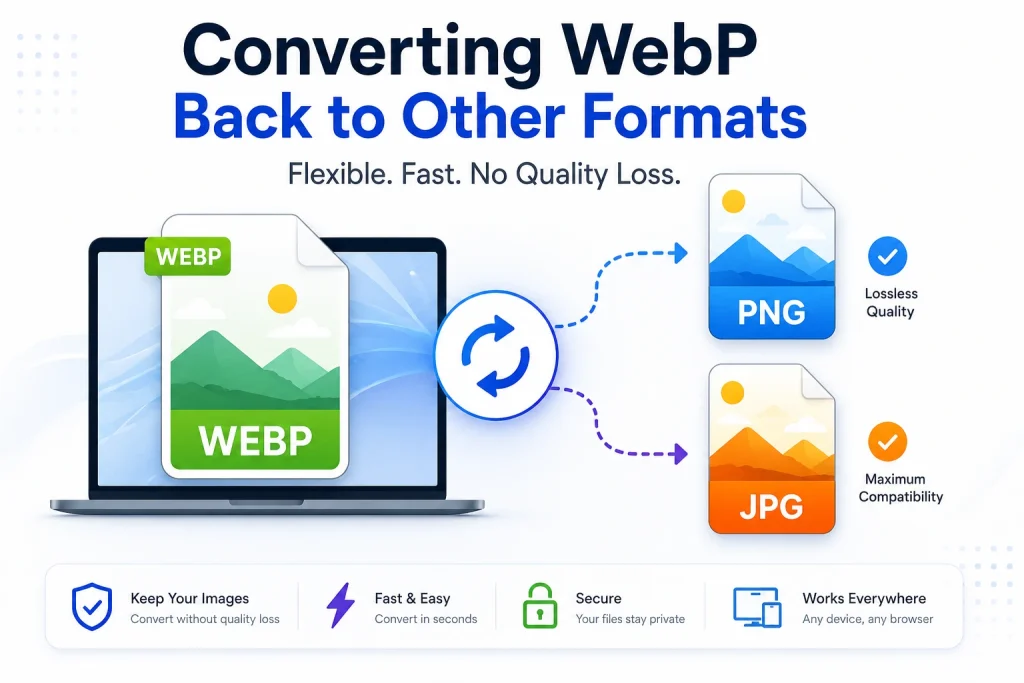
Converting WebP Back to Other Formats
There are situations where you need to convert a WebP file back to PNG or JPG — for editing, printing, sharing with people on older software, or using in applications that do not support WebP. Our WebP to PNG converter handles this conversion without any quality loss — WebP to PNG is a lossless conversion that preserves every pixel of the original. For converting WebP to JPG for maximum compatibility, our WebP to JPG converter gives you a universally compatible file in seconds.
Understanding when to convert between formats is one of the core practical skills in working with web images. Our guide on how to convert JPG to WebP covers the full conversion workflow from the JPG side, and our article on how to convert PNG to WebP covers the PNG conversion process with practical tips for every device and platform.
Frequently Asked Questions
1. What is WebP format and who created it?
WebP is a modern image format developed by Google, first announced in 2010. It was built using compression technology derived from the VP8 video codec and was designed to produce smaller image files than JPG and PNG at equivalent visual quality. It supports lossy compression, lossless compression, transparency, and animation — making it a versatile replacement for JPG, PNG, and GIF for web use.
2. Is WebP better than JPG?
For web use, WebP is better than JPG in most respects — smaller file sizes, better quality at high compression levels, and transparency support that JPG lacks entirely. For universal compatibility in print, email, and older software, JPG remains more practical. WebP is the better choice for web images; JPG is the safer choice when compatibility across all possible contexts matters most.
3. Is WebP better than PNG?
For web use, WebP produces smaller files than PNG at the same lossless quality and dramatically smaller files when lossy compression is used. Both support transparency. PNG has wider software compatibility for print and professional design work. For web images, WebP is the better choice. For print, editing, and non-web use, PNG is more practical.
4. Do all browsers support WebP?
All major modern browsers support WebP — Chrome, Firefox, Safari (version 14+), Edge, and Opera. Global browser support exceeds 96 percent. The main exceptions are very old versions of Safari on older iPhones and Macs, and Internet Explorer, which is no longer supported by Microsoft. For these cases, implementing the HTML picture element with a JPG or PNG fallback ensures all visitors see the correct image.
5. Does WebP support transparency?
Yes. WebP fully supports alpha channel transparency in both lossy and lossless modes. Transparent WebP files are smaller than equivalent transparent PNG files while preserving the same transparency information. This makes WebP suitable for replacing transparent PNG files in web use cases like logos, icons, and cutout product images.
6. Can WebP replace GIF for animations?
Yes, for web use. Animated WebP files are dramatically smaller than equivalent animated GIFs and support full colour range instead of GIF’s 256-colour limitation. Animated WebP also supports transparency in animations, which GIF handles very poorly. Browser support for animated WebP is broad, though not as universally consistent as support for still WebP images.
7. Why is my website performance tool telling me to use WebP?
Performance tools like Google PageSpeed Insights flag non-WebP images under the recommendation to serve images in next-generation formats. This is because switching to WebP reduces image file sizes by 25 to 35 percent on average, which directly reduces page loading time and improves Core Web Vitals scores. Google uses these metrics as ranking signals, which is why performance tools treat WebP conversion as a priority recommendation.
8. Can I use WebP for print?
No. Print services and professional print workflows do not accept WebP files. WebP was designed as a web format and the print industry uses established formats like TIFF, high-resolution JPG, and PDF for print-ready files. If your images need to be printed, keep them as PNG or high-quality JPG and use WebP only for the web versions.
9. Is WebP a safe long-term format to adopt?
Yes. WebP is backed by Google, is an open format with no licensing fees, has been under active development since 2010, and now has near-universal browser support. It is also a registered MIME type and an established web standard. The format is not going away — if anything, its adoption is continuing to grow as more software adds support and more websites switch to it for performance reasons.
10. How do I convert my existing images to WebP?
For PNG images, use our PNG to WebP converter — upload your PNG files and download the WebP versions. For JPG images, use our JPG to WebP converter. Both tools are free, support multiple file uploads for batch conversion, require no sign-up, and work on any device in a browser. After converting, run the WebP files through our Image Compressor for additional file size reduction if needed.
Conclusion
WebP is not a niche format or a passing trend — it is the most efficient image format available for web use today, backed by Google, supported by every major browser, and directly connected to the performance metrics that affect search engine rankings. At 25 to 35 percent smaller than PNG and 25 to 34 percent smaller than JPG at equivalent visual quality, the file size advantages are real, consistent, and immediately measurable.
The reality of the matter is simple. If you upload your images to a website, WebP is almost always the best choice – it loads faster, scores better on performance tools and looks the same as JPG and PNG at normal screen sizes. If your images need to go to print, work in professional design applications or be shared in contexts where compatibility matters more than file size, PNG and JPG are the right formats for those specific situations.
For most web site owners the best workflow is to keep master files as PNG or high-quality JPG, convert to WebP for all web-facing images, and implement WebP with appropriate fallbacks for older browsers. This allows you to get the performance benefits of WebP on the web but with full compatibility everywhere else.