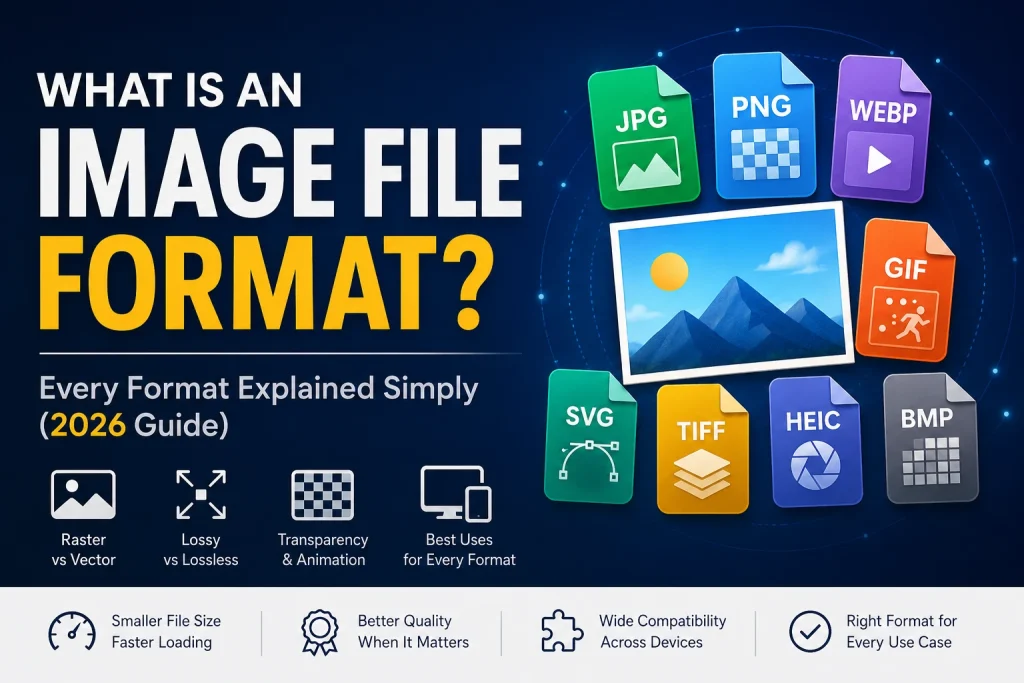
Image file format refers to the standards set for the storage and encoding of images in a digital file. Various file formats take different approaches in how they store pixel information — from level of compression to support for transparency, animation, and more. The format choice determines where the format is effective and ineffective, as well as the ideal choice of format for any particular occasion. This article highlights all the main image file formats as of 2026 — their features, advantages and disadvantages, and applications.
What Is an Image File Format? — Definition and Core Concept
mage file format is a standard of storing, organizing, and compressing the data that represents pixels – colours which form an image. It defines the extension of the file (.jpg, .png, .webp), what type of compression will be used for the pixel data, what features will be enabled, and with what devices the file will be compatible.
Any image you see – in the web, on your phone, in a document or printed – is saved in a certain format. Incorrect choice of file format leads to loss of file size, loading speed, visual quality or compatibility. Correct choice of file format provides optimal image for each case.
Why different formats exist: No single format is best at everything. JPG is excellent for photographs but cannot store transparency. PNG preserves perfect quality but creates large files for photographs. WebP beats both JPG and PNG on file size but isn’t accepted by print services. SVG scales to any size without quality loss but only works for simple graphics. Each format exists because it solves a specific set of problems better than alternatives available at the time it was created.
How image formats are categorised: Image formats fall into two fundamental categories — raster and vector.
- Raster formats store images as grids of pixels — each pixel holding a colour value. JPG, PNG, WebP, GIF, HEIC, BMP, and TIFF are all raster formats. Raster images have fixed resolutions and lose quality when scaled beyond their original dimensions.
- Vector formats store images as mathematical descriptions of shapes, paths, and colours — not pixels. SVG is the primary vector format for the web. Vector images scale to any size without any quality loss.
Within raster formats, there is a further division between lossy formats (which permanently remove some data to achieve smaller files — JPG, lossy WebP) and lossless formats (which preserve every pixel exactly — PNG, lossless WebP, TIFF).
JPG / JPEG — The Universal Photograph Format
What Is JPG?
JPG — Joint Photographic Experts Group — is the most widely used image format in the world. Standardised in 1992 by the Joint Photographic Experts Group committee, JPG was specifically designed for storing photographs efficiently. It uses lossy compression based on the Discrete Cosine Transform (DCT) mathematical technique — permanently removing image data that human eyes are least likely to notice, primarily high-frequency detail like fine texture and sharp edge transitions.
JPG’s defining characteristic is its universal compatibility. Every device ever made — every smartphone, every computer, every browser, every printer, every camera, every app, every platform — can open, display, and process JPG files without any special handling. This universal support, built up over 30+ years, remains JPG’s most valuable property in 2026.
How JPG Compression Works
JPG divides the image into 8 × 8 pixel blocks. Each block is transformed using DCT — converting spatial pixel data into frequency data representing how much visual variation exists across each block. High-frequency components (fine detail, sharp edges) are then quantized — divided by a quality factor and rounded. At high quality settings (80 to 90 percent), only the least perceptible detail is removed. At low quality settings, increasingly visible block-like artefacts appear — the characteristic JPEG compression pattern.
Every application of JPG compression is permanent and cumulative. Opening a JPG, editing it, and saving it again applies another round of lossy compression — degrading quality further with each cycle. Professional photographers and designers always work from lossless master files (RAW, TIFF, or PNG) and export to JPG only at the final delivery step.
JPG Technical Specifications
- Colour depth: 24-bit (8 bits per channel RGB) — 16.7 million possible colours
- Compression: Lossy DCT — quality settings typically 0 to 100 percent
- Transparency: Not supported — transparent areas become white
- Animation: Not supported
- Maximum dimensions: 65,535 × 65,535 pixels
- Colour spaces: sRGB, Adobe RGB, CMYK (limited support)
- File extensions: .jpg, .jpeg, .jpe, .jfif
When to Use JPG
JPG is the right choice when:
- The image is a photograph or photorealistic rendering with complex colour gradients
- File size needs to be small for web delivery, email, or social media
- Transparency is not needed — the image has a solid background
- The image is the final version — not a working file to be edited further
- Universal compatibility across every device and platform is required
- The image will be sent to print services (high-quality JPG is universally accepted)
When Not to Use JPG
- Images with transparent backgrounds — use PNG or WebP instead
- Logos, icons, and graphics with sharp edges — JPG compression blurs hard edges
- Screenshots containing text — JPG creates visible colour fringing around characters
- Working files edited repeatedly — each save degrades quality further
- Web images where WebP is available — WebP achieves 25 to 34 percent smaller files at equivalent quality
According to JPEG.org, JPEG compression is the most widely deployed image compression standard in the world — with an estimated trillion JPEG images stored across all systems globally.
PNG — The Lossless Web Image Standard
What Is PNG?
PNG — Portable Network Graphics — is a lossless raster image format created in 1996 by the PNG Development Group. It was designed as a free, open, technically superior alternative to the GIF format — which was limited by patents and significant technical restrictions. PNG introduced full alpha channel transparency, lossless compression, and 48-bit colour depth to web image formats — capabilities that GIF could not provide.
PNG’s defining characteristic is lossless quality. Unlike JPG which permanently removes data, PNG stores every pixel exactly as captured. Open, edit, and re-save a PNG ten thousand times — the pixel data is mathematically guaranteed to be identical to the original every time. This makes PNG the standard format for logos, icons, screenshots, graphics with text, and any working file that requires editing without quality loss.
How PNG Compression Works
PNG uses DEFLATE compression — a lossless algorithm combining LZ77 and Huffman coding. The LZ77 component finds repeated sequences in the pixel data and replaces subsequent occurrences with references to the first — a row of 500 identical blue pixels becomes one instruction rather than 500 individual values. Huffman coding then assigns shorter binary codes to more frequently occurring values, reducing the total number of bits needed.
PNG’s compression works most efficiently on images with many repeated pixel values — flat colour areas, simple geometric shapes, text on solid backgrounds. For photographs with millions of subtly different pixel values, PNG compression is much less efficient — producing files 5 to 10 times larger than JPG for the same photographic content.
PNG Technical Specifications
- Colour depth: Up to 48-bit (16 bits per channel RGB) — trillions of possible colours
- Compression: Lossless DEFLATE — no quality loss regardless of save cycles
- Transparency: Full alpha channel — 256 levels from fully transparent to fully opaque
- Animation: Standard PNG does not support animation (APNG extension does)
- Maximum dimensions: 2,147,483,647 × 2,147,483,647 pixels (theoretical)
- Colour spaces: sRGB, linear gamma, gAMA chunk for gamma correction
- File extensions: .png
According to the W3C PNG specification, PNG’s alpha channel supports per-pixel transparency with 256 levels — enabling smooth anti-aliased edges and soft drop shadows that GIF’s binary transparency (fully on or fully off) could not reproduce.
When to Use PNG
- Logos and brand graphics that need transparent backgrounds
- Icons and interface elements with sharp edges and flat colours
- Screenshots — especially those containing text, code, or interface elements
- Infographics and diagrams with hard geometric edges
- Working files for images edited repeatedly — no quality loss on re-save
- Images going to print where lossless quality is required
- Web graphics where transparency is needed and WebP is not supported
When Not to Use PNG
- Photographs for web use — file sizes are 5 to 10 times larger than JPG unnecessarily
- Web images where WebP is available — WebP lossless is 26 percent smaller than PNG
- Large photographic backgrounds on websites — creates unnecessarily large files
- Email images — PNG photographs create oversized attachments
WebP — The Modern Web Image Standard
What Is WebP?
WebP is a modern image format developed by Google and publicly released in September 2010. It was engineered to solve the simultaneous limitations of JPG (no transparency, no lossless mode, less efficient compression) and PNG (no lossy mode, large file sizes for photographs) — providing a single format that outperforms both across all use cases relevant to web delivery.
WebP uses compression derived from Google’s VP8 video codec — a prediction-based approach that analyses surrounding pixel values to predict each new block’s content, storing only the difference between prediction and reality. This approach is fundamentally more efficient than JPG’s DCT transformation for most image content. WebP uniquely supports four distinct modes: lossy compression, lossless compression, lossy with transparency, and lossless with transparency — plus animated WebP as a GIF replacement.
WebP Performance Numbers — What the Data Shows
According to Google’s comprehensive WebP study covering over 11,000 images:
- WebP lossy images are 25 to 34 percent smaller than JPG at equivalent visual quality (SSIM)
- WebP lossless images are 26 percent smaller than PNG
- WebP with transparency is 26 percent smaller than equivalent PNG with transparency
- WebP lossy with transparency achieves 60 to 70 percent smaller files than equivalent transparent PNG
These are not theoretical maximums — they represent average results across diverse real-world image types. The savings are consistent across photographs, graphics, screenshots, and mixed content.
WebP Technical Specifications
- Colour depth: Up to 10 bits per channel (lossy) / 8 bits per channel (lossless)
- Compression: Lossy (VP8) and Lossless (WebP Lossless) — both supported
- Transparency: Full alpha channel in both lossy and lossless modes
- Animation: Full support — AnimationWebP replaces GIF with better quality and smaller files
- Maximum dimensions: 16,383 × 16,383 pixels
- Browser support: 96%+ globally in 2026 — Chrome, Firefox, Safari 14+, Edge, Opera
- File extension: .webp
When to Use WebP
- All images displayed on web pages — photographs, graphics, product images, blog images
- Transparent logos and icons on websites — smaller than PNG, same quality
- Hero images and banners — smaller files improve LCP scores and rankings
- Product images in eCommerce — faster loading reduces bounce rates
- Animated graphics — smaller than GIF with better quality
- Any context where browser support can be verified as sufficient
When Not to Use WebP
- Print files — print services don’t accept WebP
- Email images — WebP support in email clients is inconsistent
- Working design files — keep as PNG for editing; export to WebP for delivery
- Platforms that specifically require JPG or PNG uploads
SVG — The Scalable Vector Standard
What Is SVG?
SVG — Scalable Vector Graphics — is a vector image format based on XML (Extensible Markup Language). Unlike raster formats that store images as pixel grids, SVG stores images as mathematical descriptions of geometric shapes — paths, circles, rectangles, text, gradients, and filters described using XML code. The image is rendered fresh by the browser or application each time it’s displayed — calculating the correct pixel output for the current display size, resolution, and context.
SVG was developed by the W3C and became a W3C recommendation in September 2001. It is the only vector format natively supported across web browsers — making it the standard for scalable web graphics including logos, icons, illustrations, charts, and interface elements.
How SVG Works
An SVG file contains human-readable XML code describing every element in the image. A circle becomes <circle cx="50" cy="50" r="40" fill="blue"/>. A logo path becomes a series of bezier curve coordinates. Text is stored as actual text characters with styling attributes. Because the image is described mathematically rather than as pixels, it can be rendered at any size — from 16 × 16 pixels to 16,000 × 16,000 pixels — with mathematically perfect sharpness at every resolution.
SVG files can be extremely small for simple graphics. A complex multi-colour logo that is 200KB as PNG might be 8KB as SVG — because the mathematical description of the shapes is far more compact than storing 200,000 individual pixel values. Complex SVG images with many paths and gradients can be large — but for typical logos and icons, SVG files are dramatically smaller than raster equivalents.
SVG Technical Specifications
- Format type: Vector — mathematical paths and shapes
- Scalability: Perfect at any size — no quality loss at any resolution
- File size: Tiny for simple graphics, variable for complex ones
- Transparency: Native — SVG has no background unless one is added
- Animation: Full support via CSS and JavaScript
- Interactivity: Full support — SVG elements can respond to mouse events
- Browser support: Universal — all modern browsers
- Editability: Fully editable in text editors and vector design tools
- File extension: .svg
When to Use SVG
- Website logos — SVG logos are tiny, sharp at all sizes, work on retina displays
- Navigation icons and interface icons — crisp at all sizes, styleable with CSS
- Simple illustrations and diagrams created in vector tools
- Charts and data visualisations where crisp rendering at any size is needed
- Animated icons and interactive graphics
- Any graphic element that needs to scale between different display sizes
When Not to Use SVG
- Photographs and complex photographic images — SVG cannot efficiently encode photographic content
- Images with millions of colours and gradients — results in enormous, complex SVG files
- Any situation requiring maximum compatibility with basic image viewers
GIF — The Animation Legacy Format
What Is GIF?
GIF — Graphics Interchange Format — was created by CompuServe in 1987. It introduced lossless compression (LZW algorithm) and basic transparency to early web graphics — and uniquely supported animation by storing multiple frames in a single file. GIF became the dominant format for simple web animations in the 1990s and early 2000s and remains widely used for short animated content on social media platforms.
GIF’s fundamental technical limitation is its 256-colour palette restriction. Each GIF frame can store a maximum of 256 colours — far fewer than the 16.7 million colours available in JPG and PNG. This makes GIF unacceptable for photographs (which require millions of subtle colour variations) and limits it to simple graphics and short animations where the colour restriction is manageable.
GIF Technical Specifications
- Colour depth: Maximum 256 colours per frame (8-bit indexed colour)
- Compression: Lossless LZW within the 256-colour limitation
- Transparency: Basic — pixels are either fully transparent or fully opaque (no partial transparency)
- Animation: Supported — multiple frames with timing controls
- File size: Often large relative to quality delivered
- Browser support: Universal
- File extension: .gif
GIF vs Animated WebP vs Video
For animated content, GIF is the least efficient option available in 2026:
| Format | Colour Support | File Size | Quality | Browser Support |
|---|---|---|---|---|
| GIF | 256 colours | Large | Poor for complex images | Universal |
| Animated WebP | 16.7 million | 50-70% smaller than GIF | Excellent | 96%+ |
| MP4 video | Full colour | Smallest | Excellent | Universal |
| APNG | 16.7 million | Moderate | Excellent | 96%+ |
The only reason to continue using GIF in 2026 is compatibility — some platforms and email clients still don’t support animated WebP. Our article on how to convert GIF to JPG, PNG, and WebP covers GIF conversion options for all use cases.
When to Use GIF
- Short animated content for platforms that don’t support animated WebP
- Simple animated icons and loading spinners where WebP isn’t supported
- Legacy contexts where GIF animation compatibility is specifically required
When Not to Use GIF
- Photographs — 256-colour limit makes photos look terrible
- Any static image — PNG, WebP, or JPG are all better for static content
- Web animations where animated WebP is supported — WebP is dramatically better
HEIC / HEIF — Apple’s Efficient iPhone Format
What Is HEIC?
HEIC — High Efficiency Image Container — is Apple’s implementation of the HEIF (High Efficiency Image File Format) standard. Introduced to iPhone with iOS 11 in 2017, HEIC uses HEVC (High Efficiency Video Coding, also known as H.265) compression — the same algorithm used for 4K video streaming.
HEIC stores photographs at approximately half the file size of JPG at equivalent or better visual quality. A JPG photograph at 3MB becomes an HEIC photograph at approximately 1.5MB — with no visible quality difference and often marginally better edge retention due to HEVC’s more sophisticated compression algorithm.
HEIC also supports features that JPG cannot — 16-bit colour depth (compared to JPG’s 8-bit), transparent backgrounds, Live Photo data (both still and motion components in one file), burst photo sequences, and depth map information from Portrait Mode photography.
HEIC Technical Specifications
- Colour depth: Up to 16-bit per channel — dramatically more than JPG’s 8-bit
- Compression: HEVC (H.265) — lossy with efficiency superior to JPG
- Transparency: Supported
- File size: Approximately 50 percent smaller than JPG at equivalent quality
- Multiple images: Can store multiple images, Live Photos, and depth maps in one file
- Browser support: Limited — primarily Apple ecosystem
- Software support: macOS, iOS native; Windows requires codec installation; limited elsewhere
- File extensions: .heic, .heif
The HEIC Compatibility Problem
HEIC is technically superior to JPG but compatibility remains the barrier. Windows 10 and 11 require a paid codec from the Microsoft Store to open HEIC files natively. Android doesn’t support HEIC natively. Most web platforms and email clients don’t accept HEIC. Print services don’t accept HEIC.
This compatibility gap is why converting HEIC to JPG remains one of the most searched image conversion tasks globally — particularly among iPhone users who need to share photos with Windows or Android users. Our comprehensive guide on how to convert HEIC to JPG covers every conversion method for every device and platform.
When to Use HEIC
- Storing photos on iPhone — native format, optimal storage efficiency
- Sharing within Apple ecosystem — Mac, iPad, iPhone all handle HEIC natively
- When storage space on device is critical
When Not to Use HEIC
- Sharing with Windows or Android users — convert to JPG first
- Uploading to websites and platforms — most don’t accept HEIC
- Sending by email to unknown recipients — convert to JPG for guaranteed compatibility
- Print orders — convert to JPG or PNG first
TIFF — The Professional Print Standard
What Is TIFF?
TIFF — Tagged Image File Format — was developed by Aldus Corporation in 1986 and is now maintained by Adobe. TIFF is the professional standard for high-quality image storage, print production, medical imaging, archiving, and scientific imaging. It stores images losslessly (or optionally with LZW lossless compression) at full colour depth — preserving every detail captured by the camera or scanner.
TIFF’s defining advantage over PNG and JPG is its support for professional features — multiple layers, multiple pages in one file (multi-page TIFF), embedded ICC colour profiles, CMYK colour mode for print production, and bit depths up to 32 bits per channel. These capabilities make TIFF the required format in professional print and publishing workflows where colour accuracy, quality preservation, and feature richness are more important than file size.
TIFF Technical Specifications
- Colour depth: Up to 32 bits per channel — exceeds any display technology’s capability
- Compression: LZW lossless or uncompressed — no quality loss regardless
- Transparency: Supported via alpha channel
- Layers: Supported — Photoshop TIFFs can store layer information
- Colour modes: RGB, CMYK, greyscale, LAB — all supported
- File size: Very large — a full-resolution camera TIFF can be 50 to 100MB
- Browser support: Not supported natively in web browsers
- Print support: Universal professional standard
- File extensions: .tif, .tiff
When to Use TIFF
- Professional photography master files for archiving and editing
- Print production files for magazines, books, and commercial print
- Large format print files where maximum quality is required
- Medical and scientific imaging where data integrity is non-negotiable
- Document archiving in institutional and library contexts
- Any workflow requiring CMYK colour mode for print
When Not to Use TIFF
- Web images — browsers don’t support TIFF natively
- Email attachments — TIFF files are enormous and incompatible with most email clients
- Everyday photo sharing — file sizes are impractical for casual use
- Social media uploads — no platform accepts TIFF
BMP — The Legacy Windows Format
What Is BMP?
BMP — Bitmap — is one of the oldest digital image formats, developed by Microsoft in the 1980s as the native image format for Windows. BMP stores raw pixel data with no compression — every pixel is stored individually at full colour depth with zero data reduction. This creates perfect pixel accuracy but at the cost of enormous file sizes.
A 1920 × 1080 BMP image stores over 6MB of pixel data — compared to approximately 400KB for a good JPG of the same image. BMP offers no advantages over PNG for lossless quality — PNG achieves identical lossless quality at 30 to 50 percent smaller file sizes. BMP exists today primarily for legacy compatibility with older Windows applications and specific technical contexts.
BMP Technical Specifications
- Colour depth: Up to 32 bits (8 bits per channel plus alpha)
- Compression: None — raw pixel data (some BMP variants support RLE compression)
- Transparency: Limited support in 32-bit BMP variant
- File size: Extremely large — no compression applied
- Browser support: Limited
- File extensions: .bmp, .dib
When to Use BMP
- Legacy Windows applications that specifically require BMP input
- Specific technical and embedded systems contexts requiring uncompressed pixel data
- Situations where software compatibility specifically requires BMP format
When Not to Use BMP
- Any modern web or digital use — PNG provides identical quality at 50 percent less storage
- Photography and general image storage — JPG or WebP are dramatically smaller with good quality
- Any context where file size matters — BMP files are unnecessarily large for virtually every use case
Our guide on how to convert BMP to JPG covers converting legacy BMP files to modern formats with minimal quality loss.
AVIF — The Emerging Next-Generation Format
What Is AVIF?
AVIF — AV1 Image File Format — is a next-generation image format based on the AV1 video codec, developed by the Alliance for Open Media. AVIF achieves approximately 40 to 50 percent better compression than JPG at equivalent quality — even better than WebP’s 25 to 34 percent advantage. It also supports HDR (High Dynamic Range) content, wide colour gamuts, and 12-bit colour depth.
AVIF is the likely successor to WebP as the dominant web image format — offering better compression and more modern capabilities. Browser support reached approximately 75 percent globally in 2024, with Chrome, Firefox, and Opera all supporting AVIF. Safari added AVIF support in version 16 (2022). Edge added support in 2021.
AVIF Technical Specifications
- Colour depth: Up to 12 bits per channel — supports HDR content
- Compression: AV1 — lossy and lossless, approximately 40-50% better than JPG
- Transparency: Full alpha channel support
- Animation: Supported
- Browser support: Approximately 75% globally in 2026
- File extension: .avif
AVIF vs WebP — Which to Use
| Factor | WebP | AVIF |
|---|---|---|
| Compression efficiency | 25-34% better than JPG | 40-50% better than JPG |
| Browser support | 96%+ | ~75% |
| Encoding speed | Fast | Slow |
| HDR support | Limited | Full |
| Recommendation for 2026 | Primary format | Additional source in picture element |
The practical approach in 2026 — use AVIF as the first source in a picture element, WebP as the second source, and JPG as the fallback. Browsers that support AVIF get the smallest files. Those that support WebP get the second-smallest. Everyone else gets JPG.
RAW Image Formats — Camera Native Formats
What Are RAW Formats?
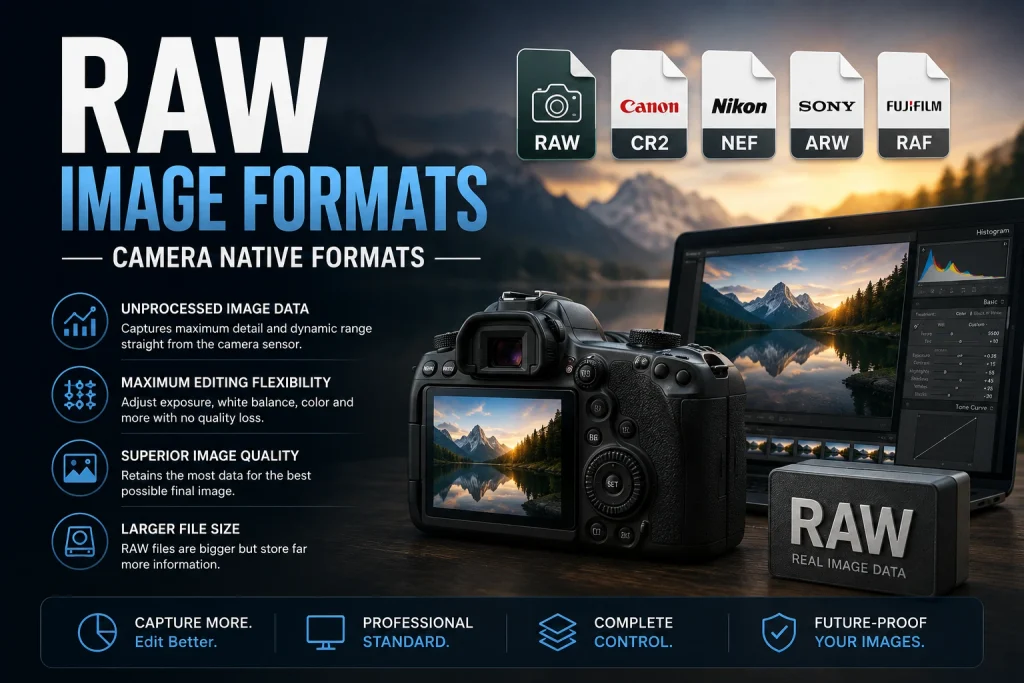
RAW formats are camera-native formats that store the unprocessed sensor data captured by a digital camera — before any in-camera processing, compression, or colour interpretation is applied. RAW files are not images in the traditional sense — they are raw sensor data that requires processing (conversion) software to convert into a viewable image.
Different camera manufacturers have proprietary RAW formats:
- Canon: CR2, CR3
- Nikon: NEF, NRW
- Sony: ARW
- Adobe: DNG (Digital Negative — an open standard)
- Fujifilm: RAF
- Olympus: ORF
- Panasonic: RW2
Why Photographers Use RAW
RAW files store all the information the camera is capable of storing in an image – all the information captured by the sensor. Post-processing of the RAW file in programs such as Adobe Lightroom, Capture One, or Darktable enables the photographer to make various changes to the picture that cannot be made or can only be made with difficulty from the JPG file.
The tradeoff is file size — RAW files are typically 20 to 50MB per image and require specialised software to process. They are never used for web delivery or direct sharing — always processed and exported to JPG, TIFF, or WebP for actual use.
When to Use RAW
- Professional photography where post-processing control is essential
- Portrait photography requiring extensive retouching
- Landscape and nature photography requiring HDR processing
- Commercial photography where client deliverables require maximum quality
When Not to Use RAW
- Casual photography where automatic processing is acceptable
- Situations requiring immediate sharing without post-processing
- Any web or print delivery context — always export to JPG, WebP, or TIFF
Image Format Quick Reference — Which to Use When
This table covers the most common image decisions:
| Situation | Best Format | Why |
|---|---|---|
| Website photographs | WebP | Smallest files, best loading speed |
| Website logo | SVG | Scales perfectly, tiny file |
| Website icon | SVG or WebP | Sharp at all sizes |
| Transparent web graphic | WebP lossless | Smaller than PNG, same quality |
| Email photo attachment | JPG | Universal compatibility, small size |
| Print photograph | JPG (90%+) or TIFF | Accepted everywhere |
| Professional print | TIFF | Lossless, CMYK support |
| Logo for documents | PNG | Universal, preserves transparency |
| Working design file | PNG | No quality loss on re-save |
| Social media photograph | JPG | Handles platform recompression well |
| Social media graphic | PNG | Preserves sharp edges through compression |
| Screenshot with text | PNG | Keeps text perfectly sharp |
| Animated web content | Animated WebP | Better than GIF in every measure |
| iPhone photo sharing | JPG (converted from HEIC) | Universal compatibility |
| Large format print | TIFF | Maximum quality, professional standard |
| Archiving | TIFF or PNG | Lossless, future-proof |
| Next-gen web delivery | AVIF + WebP + JPG fallback | Best compression with fallback |
How to Convert Between Image Formats
Converting between formats is one of the most common image tasks — and our free tools handle every direction quickly.
For web performance:
- Convert JPG to WebP → JPG to WebP Converter
- Convert PNG to WebP → PNG to WebP Converter
- Convert HEIC to JPG → HEIC to JPG Converter
For compatibility:
- Convert WebP to JPG → WebP to JPG Converter
- Convert WebP to PNG → WebP to PNG Converter
- Convert PNG to JPG → PNG to JPG Converter
For vector conversion:
- Convert JPG to SVG → JPG to SVG Converter
- Convert SVG to PNG → SVG to PNG Converter
All tools are free, support multiple file uploads for batch conversion, and require no sign-up or account creation. Our complete Image Converter Tools page lists every available conversion in one place.
Image Format Standards Organisations
Understanding who creates and maintains image format standards helps contextualise how they evolve and why certain formats are trusted for long-term use.
ISO/IEC (International Organization for Standardization): Maintains the JPEG standard (ISO/IEC 10918), HEIF standard (ISO/IEC 23008-12), and AVIF standard (ISO/IEC 23000-22).
W3C (World Wide Web Consortium): Published the PNG specification (ISO/IEC 15948) and SVG specification. The W3C’s involvement ensures these formats remain open standards free from proprietary restrictions.
Google: Developed and maintains WebP. While not a standards body, Google’s scale (Chrome’s 65 percent global browser market share) gives it significant influence over format adoption.
Alliance for Open Media: Developed AVIF. Members include Google, Apple, Microsoft, Mozilla, Netflix, Amazon, and Intel — representing the major players across browsers, content, and hardware.
Frequently Asked Questions
1. What is the best image file format in 2026?
There is no single best format — the right format depends on the use case. For web images, WebP is best — 25 to 34 percent smaller than JPG with equivalent quality and 26 percent smaller than PNG lossless. For logos and icons on websites, SVG is best — infinitely scalable and tiny file sizes. For universal compatibility (email, print, sharing), JPG is best. For working files edited repeatedly, PNG is best — lossless quality preserved across all save cycles.
2. What is the difference between JPG and PNG?
JPG uses lossy compression — permanently removes some data to create small files. PNG uses lossless compression — preserves every pixel exactly, creating larger files. JPG is best for photographs. PNG is best for logos, icons, screenshots, and images needing transparency. At JPG quality settings of 80 to 85 percent, the quality difference from PNG is invisible for photographs at normal viewing sizes. For graphics with sharp edges and text, PNG looks noticeably better.
3. What image format should I use for a website?
WebP for all photographs, product images, and blog images. SVG for logos and icons. PNG fallback for graphics if WebP isn’t available. Implement the HTML picture element with WebP as the primary source and JPG as the fallback to serve the best format to every browser automatically.
4. What is the difference between lossy and lossless image formats?
Lossy formats (JPG, lossy WebP, HEIC, GIF in a sense) permanently remove some image data to achieve smaller files. The removed data cannot be recovered. Lossless formats (PNG, lossless WebP, TIFF, BMP) store every pixel exactly — quality is mathematically guaranteed to be identical to the original regardless of how many times the file is saved.
5. Why do iPhones save photos as HEIC instead of JPG?
HEIC files are approximately 50 percent smaller than JPG at equivalent quality — meaning iPhones can store twice as many photos in the same storage space. HEIC also supports 16-bit colour depth compared to JPG’s 8-bit, and stores Live Photo data (still and motion) in one file. The tradeoff is compatibility — HEIC doesn’t open on Windows without a codec, on Android, or most web platforms.
6. What format should I use for logo files?
SVG for web logos — it scales to any size without quality loss and has tiny file sizes. PNG for logos used in documents, presentations, and print — universal compatibility with full transparency support. Keep the original vector source file (AI, EPS, or SVG from your designer) as the master — all raster versions (PNG, WebP) should be exported from the vector source.
7. Can WebP replace both JPG and PNG?
For web use, yes. WebP lossy replaces JPG (smaller files, equivalent quality). WebP lossless replaces PNG (smaller files, identical lossless quality). WebP supports transparency, making it suitable for both opaque photographs and transparent graphics. The only contexts where WebP cannot replace JPG and PNG are print services, email clients, and applications that don’t support WebP — in those cases, JPG and PNG remain necessary.
8. What is AVIF and should I use it?
AVIF achieves 40 to 50 percent better compression than JPG — even better than WebP. Browser support is approximately 75 percent globally in 2026. Use AVIF as the first source in a picture element with WebP as fallback and JPG as the ultimate fallback — this serves AVIF to Chrome, Firefox, and Opera users while WebP covers Safari and Edge, with JPG covering everyone else.
9. What image format is best for print?
TIFF is the professional standard for print production — lossless quality, CMYK colour mode support, and universal acceptance by print services. JPG at 90 to 95 percent quality is acceptable for most consumer print orders (photo books, photo prints). PNG is also accepted by many print services and provides lossless quality. Never submit WebP, GIF, or AVIF files to print services.
10. What is the difference between raster and vector image formats?
Raster formats store images as grids of pixels — JPG, PNG, WebP, GIF, HEIC, TIFF, and BMP are all raster. Raster images have fixed resolutions and look blurry when scaled beyond their original dimensions. Vector formats store images as mathematical path descriptions — SVG is the primary web vector format. Vector images scale to any size with perfect sharpness because they are rendered fresh at every output size from the mathematical descriptions rather than stretched pixel data.
Conclusion
Each image file format makes certain choices when it comes to compression, quality, compatibility, and capabilities, and the choices made decide whether an image format performs well or badly in certain areas. By knowing those choices, format selection becomes an ordered process, and not a guessing game anymore.
The practical guide for 2026: Use WebP for all web images – photos, product images, blog images, and transparent images. Use SVG for logos and icons on websites – scalable infinitely and have small file size. Use JPG for emails, printing, and universal distribution – when the priority is compatibility over efficiency. Use PNG for working files, logos used outside web, and for any kind of image that requires lossless quality for future editing. Use TIFF for professional printing. Convert iPhone HEIC images to JPG when using outside Apple ecosystem.
Use these image format choices for all your images and their effect will be significant.
Use our free Image Converter Tools to convert between any format instantly — no software, no sign-up, batch conversion supported, completely free on every device.