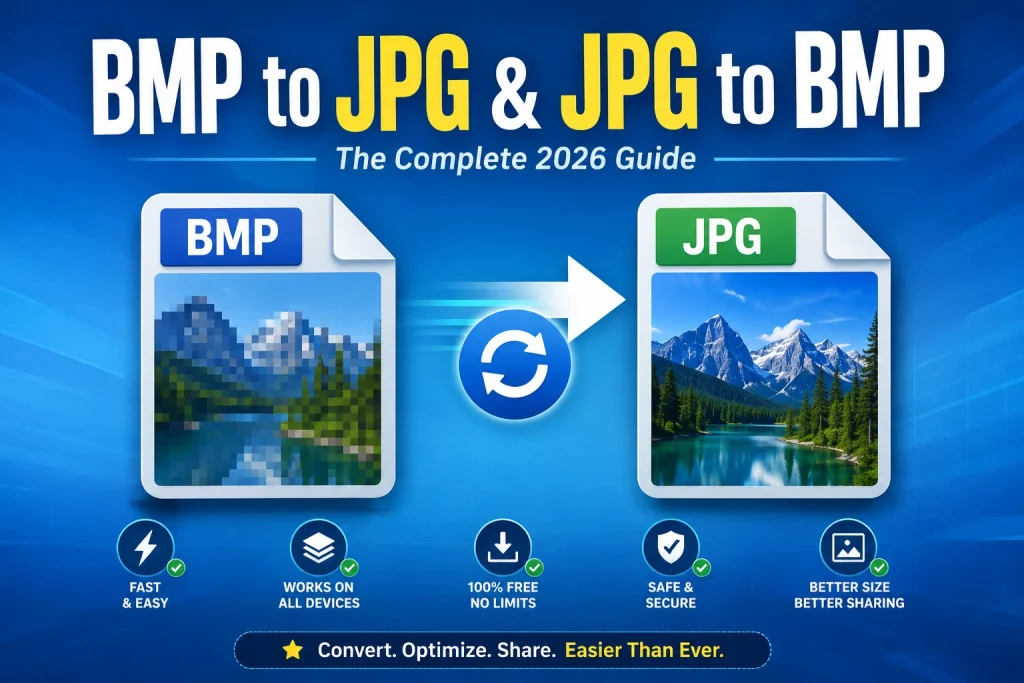
BMP image files contain uncompressed bitmap images, and there is no compression whatsoever in the BMP format. A BMP image may easily be 10 to 20 times bigger than the same image captured in the JPEG format. The conversion of BMP to JPG reduces the file size greatly and makes the images easily transferable as well as compatible across all systems and devices. This tutorial discusses how to convert BMP images to JPG and vice versa on all devices.
What Is a BMP File and Why Is It So Large?
BMP stands for Bitmap. It is one of the oldest formats of images used on the Internet, created in the 1980s by Microsoft for use in Windows. This format stores all the pixels without any form of compression. All the pixels in the image are saved separately.
This may seem comprehensive, but it results in huge files. In a BMP file that is 1920 × 1080, there are more than 2 million pixels at 3 bytes each. That gives more than 6MB of storage for just one image, and that too without any improvement in quality over JPG.
Here’s a real comparison of the same image in different formats:
| Format | File Size | Quality | Compression |
|---|---|---|---|
| BMP | 5.5 MB | Perfect | None |
| PNG | 1.2 MB | Perfect | Lossless |
| JPG (90%) | 450 KB | Excellent | Lossy |
| JPG (80%) | 280 KB | Very Good | Lossy |
| WebP | 200 KB | Excellent | Lossy |
BMP is 20 times larger than a good JPG — for no visible quality advantage on screen. The only reason to use BMP today is when a specific legacy application or workflow requires it.
BMP vs JPG — Key Differences
| Feature | BMP | JPG |
|---|---|---|
| Compression | None | Lossy |
| File Size | Very large | Small |
| Quality | Perfect | Excellent at high settings |
| Transparency | Limited support | Not supported |
| Browser Support | Limited | Universal |
| Software Support | Windows native | Universal |
| Print Support | Yes | Yes |
| Best For | Legacy Windows apps | Photos, web, email, sharing |
| Colour Depth | Up to 32-bit | 24-bit |
BMP is a legacy format kept alive mostly by older Windows applications and specific technical workflows. For everyday use — sharing photos, uploading images, sending email attachments — JPG is better in every practical way.
When Should You Convert BMP to JPG?
Converting BMP to JPG makes sense in most everyday situations. Here’s when to do it:
- The BMP file is too large to email or upload — Most email services have attachment limits between 10 and 25MB. A few BMP files can hit that limit fast. Converting to JPG shrinks them by 90 percent or more.
- You need to upload to a website or platform — Most platforms don’t accept BMP uploads. They accept JPG, PNG, and sometimes WebP. Converting to JPG makes the file work everywhere.
- You want faster loading images on a website — BMP files would make web pages extremely slow. JPG loads in a fraction of the time.
- You want to save storage space — BMP files eat storage fast. Converting a folder of BMP images to JPG can free up gigabytes of space.
- You’re sharing photos with anyone outside Windows — BMP is a Windows-native format. On Mac, iPhone, Android, and most non-Windows devices, BMP files may not open reliably. JPG opens everywhere.
When Should You Convert JPG to BMP?
Converting JPG to BMP is less common but there are legitimate reasons.
- A legacy software or application requires BMP — Some older Windows applications, embedded systems, and technical tools specifically require BMP input files.
- A Windows program saves screenshots as BMP — Some older Windows tools default to BMP for screenshots. You might need BMP output for compatibility with these systems.
- You’re working with certain hardware or embedded systems — Some printers, industrial displays, and embedded systems expect BMP format specifically.
- A specific technical workflow requires uncompressed pixel data — In some technical contexts, uncompressed BMP is preferred because there’s no decoding overhead.
Outside these specific technical situations, there’s rarely a reason to convert to BMP. JPG, PNG, and WebP are all better choices for general use.
How to Convert BMP to JPG Free Online
The Fastest Method — Any Device
Using a free online converter is the quickest way to convert BMP to JPG without any software.
- Go to imageconvertertools.com/bmp-to-jpg
- Click upload or drag your BMP file into the box
- The tool converts automatically
- Click Download to save your JPG file
You can upload multiple BMP files at once and convert them all in a single batch. This is especially useful if you have a folder of old BMP screenshots or images that all need converting. Files are deleted from the server automatically after download.
Pros:
- Works on Windows, Mac, iPhone, Android, and Chromebook
- Converts multiple files at once
- Free — no watermarks, no sign-up, no limits
- Results in under 10 seconds
- No software installation
Cons:
- Needs internet connection
- Less quality control than desktop software
- Not ideal for sensitive or private files
How to Convert BMP to JPG on Windows
Using Paint — Built Into Every Windows PC
Paint is the easiest built-in option on Windows. It’s already installed — no downloads needed.
- Right-click your BMP file
- Select Open with > Paint
- Go to File > Save As
- Choose JPEG Picture from the list
- Name your file and click Save
Paint converts the BMP to JPG instantly. The original BMP stays untouched — Paint creates a new JPG file alongside it.
What to know about Paint’s JPG quality: Paint saves JPG at a fixed quality level with no option to adjust it. For most everyday uses this is perfectly fine. For professional images where you need to control exactly how much compression is applied, use the online converter or Photoshop instead.
Using Windows Photos App
The Windows Photos app gives a slightly cleaner interface than Paint.
- Open the BMP file in Windows Photos — double-click it
- Click the three-dot menu at the top right
- Select Save As
- Change the file type dropdown to JPEG
- Click Save
Same result as Paint — quick, easy, no quality slider.
Using Windows 11 Paint for Better Results
Windows 11’s updated Paint has improved JPG export compared to older versions. The process is the same as above but the output quality is slightly better in the latest Windows 11 builds.
Batch Converting BMP to JPG on Windows
Windows has no built-in batch converter for BMP to JPG. For multiple files, the online converter is the fastest option — upload all BMP files at once, convert together, download all JPGs in one batch.
How to Convert BMP to JPG on Mac
Using Preview on Mac
Preview on Mac handles BMP files natively and gives you a quality slider for JPG export — much better control than Windows Paint.
- Open your BMP file in Preview — double-click it or right-click and choose Open With > Preview
- Go to File > Export
- Click the Format dropdown
- Select JPEG
- Use the Quality slider — set it to 80 to 85 for the best balance of quality and file size
- Click Save
The quality slider is the key advantage of Preview over other basic methods. At 85 percent quality, the JPG looks identical to the original BMP on screen but the file is 90 to 95 percent smaller.
Batch Converting BMP to JPG on Mac
Preview handles batch BMP to JPG conversion without any extra software.
- Select all your BMP files in Finder
- Right-click and choose Open With > Preview
- Press Command + A to select all images in the Preview sidebar
- Go to File > Export Selected Images
- Click Options and select JPEG
- Set the quality level to 80 to 85
- Choose your destination folder
- Click Choose
All BMP files convert to JPG simultaneously. Fast and free — no plugins needed.
Tips for Mac Users
- Watch the estimated file size in the export dialog as you adjust the quality slider
- Keep the original BMP files until you’ve verified the JPG quality is acceptable
- For a folder of old BMP screenshots, batch conversion in Preview takes about 30 seconds regardless of how many files you have
How to Convert BMP to JPG on iPhone
iPhones don’t open BMP files natively in the Photos app. If someone sends you a BMP or you have one in your Files app, the browser method is the most reliable conversion approach.
Using Safari on iPhone
- Open Safari on your iPhone
- Go to imageconvertertools.com/bmp-to-jpg
- Tap the upload area
- Select your BMP file from Files
- Tap Convert
- Download the JPG — it saves to your Files app
Works on all iPhone models. No app installation needed. The converted JPG can be shared directly from Files to any app, message, or email.
Tips for iPhone Users
- BMP files typically live in Files rather than Photos on iPhone — look there when selecting your file to upload
- The converted JPG saves to your Files Downloads folder — share it directly from there or save to Photos using the Share > Save Image option
How to Convert BMP to JPG on Android
- Open Chrome on your Android device
- Go to imageconvertertools.com/bmp-to-jpg
- Tap upload and select your BMP file from your storage
- Tap Convert
- Download the JPG to your Downloads folder
Works on all Android devices. BMP files are usually found in internal storage or on an SD card rather than the default gallery — navigate to them through the file picker.
How to Convert JPG to BMP
Why Would You Convert JPG to BMP?
As mentioned earlier, converting JPG to BMP is mainly for technical or legacy software reasons. The resulting BMP will be much larger than the JPG — and it won’t look any better on screen. But if a specific application or workflow requires BMP, here’s how to do it.
Converting JPG to BMP Online
- Go to imageconvertertools.com/jpg-to-bmp
- Upload your JPG file
- The tool converts to BMP automatically
- Download the BMP file
Simple and fast — no software needed. The BMP output is uncompressed and will be significantly larger than the JPG input — this is expected and normal.
Converting JPG to BMP in Paint on Windows
Paint is the most natural tool for JPG to BMP conversion on Windows since BMP is a Windows-native format.
- Right-click your JPG file
- Select Open with > Paint
- Go to File > Save As
- Choose BMP Picture from the list
- Click Save
Paint gives you several BMP sub-formats — 24-bit BMP is the standard choice for most uses. This stores full colour information at maximum quality.
Converting JPG to BMP on Mac
- Open the JPG in Preview
- Go to File > Export
- Select BMP from the Format dropdown
- Click Save
Preview handles BMP export cleanly. The output is a standard Windows BMP file that opens in any BMP-compatible application.
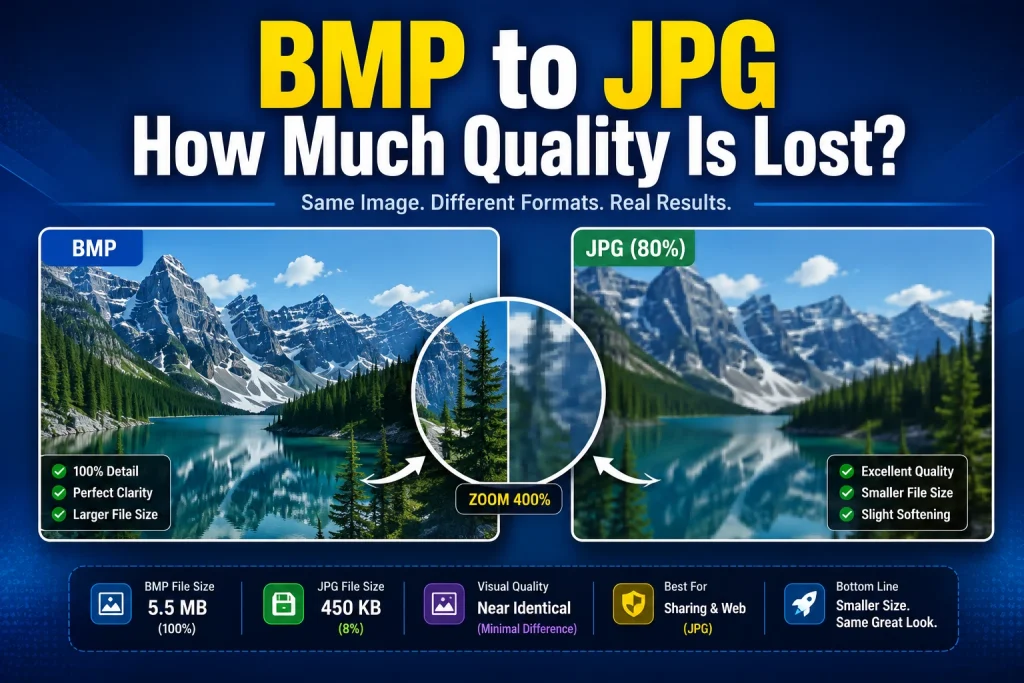
BMP to JPG — How Much Quality Is Lost?
This is the most common concern. The honest answer — at the right quality settings, the quality difference is invisible on screen.
Here’s what happens at different JPG quality levels:
| Quality Setting | Visible Difference | File Size vs BMP |
|---|---|---|
| 95% | Invisible | 85–90% smaller |
| 85–90% | Invisible at normal viewing | 90–93% smaller |
| 75–85% | Invisible on screen | 93–95% smaller |
| 60–70% | Very minor, barely visible | 95–97% smaller |
| Below 60% | Visible artefacts appear | 97%+ smaller |
At 80 to 85 percent quality, the JPG looks identical to the BMP on any screen at any normal viewing size. The quality difference only becomes visible if you zoom in significantly and specifically look for compression artefacts around fine detail.
For most uses — sharing, email, website upload, social media — 80 to 85 percent quality gives you a JPG that looks perfect and is 90 to 95 percent smaller than the original BMP.
BMP to JPG vs BMP to PNG — Which Should You Choose?
Both JPG and PNG are better than BMP for almost every use. Here’s how to decide between them:
| Situation | Convert to JPG | Convert to PNG |
|---|---|---|
| Photograph or complex image | ✅ Best choice | ⚠️ Large file size |
| Logo or graphic with hard edges | ❌ Blurry edges | ✅ Sharp, lossless |
| Image with transparency | ❌ No transparency | ✅ Full transparency |
| Sending by email | ✅ Smallest file | ⚠️ Larger than JPG |
| Uploading to website | ✅ Good for photos | ✅ Good for graphics |
| Will be edited again | ⚠️ Loses quality on re-save | ✅ Lossless — safe to re-edit |
| Maximum compatibility | ✅ Works everywhere | ✅ Works everywhere |
For photographs, go JPG. For graphics, logos, or images you’ll edit again, go PNG. If you want the best of both for web use, consider WebP — our guide on what is WebP format explains why WebP beats both JPG and PNG for web images.
Tips for Getting the Best BMP to JPG Results
These tips make a real difference — most guides skip over them.
Set quality between 80 and 85 percent. This is the sweet spot for most images. The file shrinks by 90 to 95 percent compared to BMP with zero visible quality difference at normal viewing sizes. Going lower saves a little more space but introduces artefacts around fine detail. Going higher increases quality marginally but also increases file size significantly.
Check the result at 100 percent zoom. After converting, open the JPG and zoom to 100 percent. Look for compression artefacts around text, sharp lines, or areas of fine detail. If the quality looks wrong, re-convert from the original BMP at a higher quality setting.
Keep the original BMP until you’ve verified the JPG. Don’t delete the BMP until you’ve checked the converted JPG is acceptable. Once the BMP is gone and you need to convert again at a different quality setting, you’ll have to go back to the original source.
Don’t re-compress an already-compressed JPG. If you convert BMP to JPG and then open and re-save that JPG, it loses more quality with each save. Always go back to the original BMP for any re-conversion. Keep the BMP as your master file.
For batches of old Windows screenshots in BMP — these are extremely common. Old screen recording tools, old Windows Paint saves, and older software often defaulted to BMP. Converting a whole folder of old BMP screenshots to JPG using Preview on Mac or the online batch converter frees up enormous amounts of storage with zero visible quality difference.
Common BMP Conversion Mistakes to Avoid
Deleting the BMP before checking the JPG. Always verify the converted JPG looks correct before deleting the original BMP. A minute checking saves a lot of frustration if the quality isn’t right.
Setting the image quality too low for text-rich images. Screenshot images and images containing text appear quite badly with JPG quality less than 75 percent. Sharp edges of text become blurry and generate color artifacts. Set JPG screenshot quality to at least 85 percent or convert it to PNG where text will be razor sharp.
Converting JPG to BMP just because application needs it. BMP is outdated image format. If the application says that it needs BMP, read the manual very carefully. Many old applications support PNG as well and it is the preferred format in this case. Convert your JPG image to BMP only if it is needed exclusively by the application.
Uploading BMP files to websites. Most web-based image uploaders do not accept BMP at all, some allow. Even if they do, uploading 5MB BMP file instead of 300KB JPG looks absolutely identical is waste of time and bandwidth. Always convert BMP files to JPG before uploading them to websites.
Frequently Asked Questions
1. How do I convert BMP to JPG for free?
Go to imageconvertertools.com/bmp-to-jpg, upload your BMP file, and download the JPG. Completely free — no sign-up, no watermarks, no file count limits. Works on any device with a browser. On Windows, Paint also converts BMP to JPG for free with no internet needed.
2. How much smaller is JPG than BMP?
At 80 to 85 percent quality, JPG is typically 90 to 95 percent smaller than BMP for the same image. A 5MB BMP photograph becomes around 300 to 400KB as JPG — with no visible quality difference on screen at normal viewing sizes.
3. Does converting BMP to JPG reduce quality?
Yes — JPG uses lossy compression which removes some data. But at quality settings of 80 to 85 percent, the quality difference is invisible on screen. The only time visible quality loss appears is below 70 percent quality settings, where compression artefacts become noticeable around sharp edges and fine detail.
4. How do I convert BMP to JPG on Windows?
Right-click the BMP file, select Open with > Paint, go to File > Save As, choose JPEG Picture, and click Save. For multiple files at once, the online converter handles batch conversion — upload all BMP files together and download all JPGs in one go.
5. How do I convert BMP to JPG on Mac?
Open the BMP in Preview, go to File > Export, select JPEG, set quality to 80 to 85 percent, and click Save. For multiple files, open all BMPs in Preview, select all in the sidebar, and use File > Export Selected Images with JPEG selected.
6. Why would I convert JPG to BMP?
Mainly for legacy software or technical workflows that specifically require BMP format. Outside of these specific situations, there’s almost no reason to convert to BMP — it produces much larger files with no visible quality benefit over JPG or PNG.
7. Can I convert BMP to JPG on iPhone?
Yes. Open Safari, go to imageconvertertools.com/bmp-to-jpg, tap upload, select your BMP from Files, and download the JPG. Works on all iPhone models without any app installation.
8. What is the best quality setting for BMP to JPG conversion?
80 to 85 percent quality is the sweet spot for most images. This gives you a file 90 to 95 percent smaller than the BMP with no visible quality difference at normal screen sizes. Use 90 percent or above for images where fine detail is critical — professional product photos, technical diagrams, or anything going to print.
9. Is BMP or PNG better for screenshots?
PNG is much better than BMP for screenshots. Both are lossless so quality is identical — but PNG compresses the data efficiently so the file is typically 4 to 6 times smaller than the equivalent BMP. PNG opens everywhere, while BMP has limited support outside Windows. Always use PNG for screenshots — never BMP. Our article on how to compress an image covers how to reduce PNG screenshot file sizes further.
10. How do I convert multiple BMP files to JPG at once?
Upload all your BMP files at once using our online converter — select all files when uploading and they convert together. On Mac, open all BMPs in Preview, select all in the sidebar, use File > Export Selected Images with JPEG selected. Both methods handle large batches efficiently.
Conclusion
BMP is a legacy format that made sense in the early days of Windows but has no practical advantages in 2026. Converting BMP to JPG reduces file sizes by 90 to 95 percent with no visible quality difference at normal viewing settings — making images easy to share, upload, email, and store efficiently.
The online converter works on any device in seconds with no software needed. Paint on Windows handles quick single-file conversions instantly. Preview on Mac gives you quality control and handles batches effortlessly. And the browser method works perfectly on iPhone and Android.
Going the other direction — JPG to BMP — is only needed for legacy software or specific technical workflows. If a tool you’re using requires BMP, the online converter handles that direction just as easily.
Use our free tools to convert in either direction — BMP to JPG and JPG to BMP — no sign-up, no watermarks, multiple files at once, completely free on every device.