Alt text is one of the most important and most ignored parts of image SEO. Every image without alt text is invisible to Google — and invisible images don’t rank, don’t bring traffic, and don’t help your pages perform better in search. Writing good alt text takes 10 seconds per image and makes a real difference to your rankings in both regular search and Google Image Search.
This guide covers everything. What alt text actually is, why Google needs it, how to write it correctly, what good and bad alt text looks like side by side, how to add it in WordPress and HTML, and every common mistake to avoid. By the end you’ll know exactly what to write for every image on your website.
What Is Alt Text?
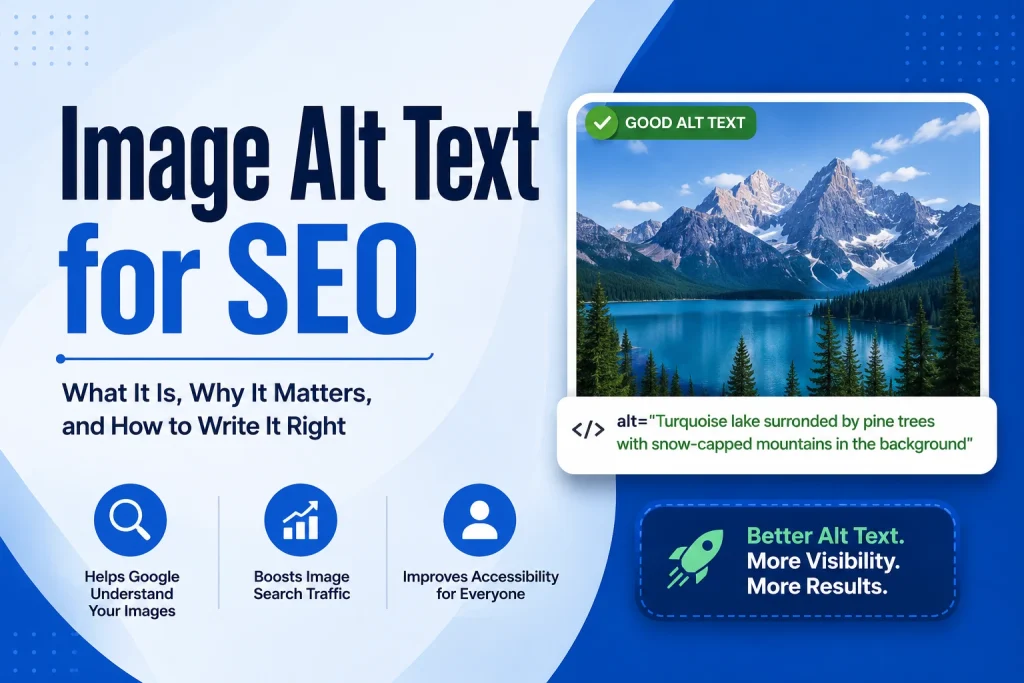
Alt text — short for alternative text — is a written description you add to an image on a webpage. It sits inside the HTML image tag and is invisible to visitors unless the image fails to load. When an image can’t display, the alt text appears in its place so the visitor still understands what was there.
Here’s what it looks like in HTML:
html
<img src="webp-vs-jpg-comparison.webp" alt="Side by side comparison of WebP and JPG file sizes for the same photograph">The alt="" part is where you write your description. That’s it. One short sentence describing what the image shows. Simple in theory — but most websites either skip it entirely or write it badly, which costs them real traffic and rankings.
Alt text serves three important purposes. It helps Google understand image content. It helps visually impaired users who use screen readers — the screen reader reads the alt text aloud so blind users know what the image shows. And it displays as a text fallback when images fail to load, which still happens on slow connections and in some email clients.
Why Alt Text Matters for SEO
Google Can’t See Images Like Humans Can
This is the core reason alt text exists for SEO. Google’s crawlers are extremely sophisticated in 2026 — but they still can’t understand images the same way a human can just by looking at them. Google uses machine learning to analyse image content, but it also relies heavily on text signals — file names, alt text, captions, surrounding content — to understand what an image shows and which searches it’s relevant to.
Without alt text, Google has to guess what your image is about based on the file name and surrounding text. With good alt text, you’re telling Google directly. That directness shows up in rankings — especially in Google Image Search, where images with accurate descriptive alt text consistently rank above images without it.
According to Google’s own documentation on image best practices, providing descriptive alt text is one of the most important steps you can take to help Google understand and rank your images correctly. Google specifically calls out alt text as a key signal for image understanding.
Google Image Search Sends Real Traffic
Most website owners think of Google Image Search as a secondary, unimportant channel. It’s not. Google Image Search handles billions of searches every month. People search for product photos, infographics, diagrams, charts, illustrations, and inspiration images. If your images rank well in Google Image Search, they bring real visitors to your website — visitors who click through to your page to see the full context.
For websites that use original graphics, custom photography, or unique infographics, Google Image Search can be a meaningful traffic source. But it only works if your images have proper alt text so Google knows what they show and which searches to show them for.
Alt Text Affects Your Regular Search Rankings Too
Alt text also helps your regular search rankings — not just image search. When Google crawls your page, it reads everything — your headings, your text content, your image file names, and your alt text. All of this contributes to Google’s understanding of what your page is about. Images with relevant, descriptive alt text reinforce your page’s topic and help Google understand the content more completely.
A page about image compression with images that have accurate alt text like “Before and after comparison of image file sizes after compression” sends clearer topical signals than the same page with images tagged photo1.jpg and no alt text.
What Good Alt Text Looks Like
The Core Rule
Good alt text describes what is actually in the image — accurately, specifically, and naturally. It reads like a sentence you’d say to someone who can’t see the image. Not a list of keywords. Not a vague label. Not a marketing slogan. A real description of what the image shows.
Write it in plain language. Keep it under 125 characters. Include your target keyword if it genuinely fits the description — never force it in. Read it back out loud — if it sounds natural, it’s probably good. If it sounds like a keyword list, rewrite it.
Side by Side Examples
Here are real examples across different types of images:
For a product photograph:
❌ Bad: shoes
❌ Bad: product photo
❌ Bad: buy blue running shoes online cheap fast delivery
✅ Good: Blue Nike running shoes on a white background
✅ Good: Pair of lightweight blue running shoes with white sole
For a screenshot:
❌ Bad: screenshot
❌ Bad: image
❌ Bad: Google PageSpeed score website speed SEO performance
✅ Good: Google PageSpeed Insights showing a mobile performance score of 94
✅ Good: Screenshot of PageSpeed Insights results after converting images to WebP
For an infographic:
❌ Bad: infographic
❌ Bad: chart
❌ Bad: image SEO alt text guide tips tricks 2026
✅ Good: Infographic showing 10 steps to optimise images for SEO
✅ Good: Checklist infographic for image file size reduction on websites
For a comparison image:
❌ Bad: comparison
❌ Bad: jpg png webp
✅ Good: Side by side comparison of JPG PNG and WebP file sizes for the same photo
✅ Good: Bar chart comparing file sizes of JPG at 3MB, PNG at 4.2MB, and WebP at 1.8MB
How Specific Should You Be?
Be as specific as the image requires. If the image shows a generic landscape, a short description is fine. If the image shows a specific product, a specific chart, or a specific process, include the relevant details. The goal is for someone reading the alt text to understand exactly what the image shows without seeing it.
For product images on eCommerce websites, include the product name, colour, and key features in the alt text. For charts and graphs, include what’s being measured and the key finding. For screenshots, include what software is shown and what it’s demonstrating.
How to Write Alt Text for Different Image Types
Photographs of People
For photos of people — team photos, event photos, customer photos — describe who is shown and what they’re doing. Include names if they’re relevant and public. For stock photos with unknown people, describe the scene and action.
Marketing team working together around a table at a startup officeCustomer service representative speaking on a headset at a deskSmall business owner packaging products in a home workshop
Product Images
For product photos, include the product name, key features, and colour. This is especially important for eCommerce SEO — product alt text helps your product images rank in Google Shopping and Image Search.
Stainless steel insulated water bottle in matte black — 32oz capacityWireless noise-cancelling headphones in white with folding designHandmade ceramic coffee mug in sage green — 350ml
Charts and Graphs
For charts and graphs, describe what data is shown and the key finding. Don’t just say “bar chart” — say what the bar chart shows.
Bar chart showing website traffic increase from 2,000 to 8,500 monthly visitors after SEO optimisationLine graph showing image file size comparison between JPG, PNG, and WebP formats over 12 sample images
Screenshots
For software screenshots, describe what software is shown and what it’s demonstrating. Include relevant numbers or results if they’re the main point of the screenshot.
Google PageSpeed Insights showing a desktop performance score of 96 for a website after image optimisationWordPress media library showing image file sizes before and after WebP conversion
Infographics
For infographics, describe the main topic and key information being presented. You don’t need to summarise every data point — just the main subject.
Infographic explaining the difference between lossy and lossless image compression with file size examplesStep by step infographic showing how to convert PNG to WebP in five steps
Logos
For logos, simply name the company or brand. No need to be elaborate.
ImageConverterTools logoGoogle Chrome browser logo
Decorative Images
For images that are purely decorative and don’t add information — dividers, background patterns, abstract shapes — use empty alt text: alt="". Never make up a description for a decorative image. Empty alt tells screen readers to skip it and tells Google it’s not worth indexing.
How to Add Alt Text in WordPress
Adding Alt Text When Uploading Images
The easiest time to add alt text in WordPress is when you first upload an image.
- Go to Media > Add New in your WordPress dashboard
- Upload your image
- Click on the uploaded image to open its details
- Find the Alt Text field in the right panel
- Type your descriptive alt text
- Click Update
Every time you insert this image into a post or page from that point forward, it will automatically include the alt text you wrote here.
Adding Alt Text When Inserting Into a Post
When you insert an image into a post using the WordPress Block Editor:
- Click on the image block to select it
- Look at the right sidebar — find the Alt Text field under Block settings
- Type your alt text directly here
- The alt text saves with the post automatically
Adding Alt Text to Existing Images
To add or fix alt text on images already used in posts:
- Go to Media > Library
- Click on the image you want to edit
- Find the Alt Text field
- Add or update the alt text
- Click Update
Note that updating alt text in the media library updates it for all future uses of that image — but images already inserted into existing posts may need to be updated individually in those posts as well.
Checking Alt Text Across Your Whole Website
To audit alt text across your whole WordPress website at once, use a plugin like Yoast SEO or a dedicated image SEO plugin. These tools identify images with missing alt text sitewide so you can fix them systematically rather than going through posts one by one.
How to Add Alt Text in HTML
If you’re working directly with HTML rather than WordPress or another CMS, adding alt text is straightforward. It’s just an attribute inside the image tag.
Basic image with alt text:
html
<img src="image-compression-guide.webp" alt="Diagram showing how image compression reduces file size by removing imperceptible pixel data">Image with alt text, dimensions, and lazy loading:
html
<img
  src="webp-vs-jpg-comparison.webp"
  alt="Side by side comparison showing WebP file at 180KB versus JPG file at 280KB for the same photograph"
  width="1200"
  height="628"
  loading="lazy">
Decorative image with empty alt text:
html
<img src="divider-pattern.webp" alt="">Always include the alt attribute on every image tag — even when the value is empty. Leaving out the alt attribute entirely is technically incorrect HTML and causes accessibility issues with screen readers.
Alt Text and Keyword Optimisation
How Keywords Fit Into Alt Text
Including relevant keywords in alt text is good SEO practice — but only when those keywords genuinely describe what the image shows. The keyword needs to earn its place in the alt text by being an accurate description of the image. If it fits naturally, include it. If it doesn’t fit, leave it out.
For example, if your target keyword is “image compression” and your image shows a before and after comparison of file sizes after compression, this alt text works perfectly: Before and after comparison showing image compression reducing a 4MB photo to 380KB. The keyword fits because it accurately describes the image.
If the same image shows a random landscape that has nothing to do with image compression, forcing your keyword into the alt text is keyword stuffing — and Google penalises it.
One Keyword Per Image
Don’t try to include multiple keywords in a single alt text. Focus on one primary keyword that genuinely relates to the image and the page topic. Multiple keywords crammed into alt text looks unnatural and triggers spam signals.
One accurate, specific alt text with one natural keyword mention is far more valuable than five keywords squeezed together. Quality over quantity — every time.
Different Images, Different Keywords
If a page targets multiple related keywords, use different images to naturally cover different terms. Don’t repeat the same keyword in every image on the page. Spread relevant terms across different images where they genuinely describe what each image shows.
Alt Text for eCommerce Websites
Why Product Alt Text Is Especially Important
For eCommerce websites, product image alt text directly affects revenue — not just rankings. Product images with proper alt text rank in Google Image Search and Google Shopping. When someone searches for a product and sees your image in the results, they click through to your product page. That’s a direct sales opportunity that comes entirely from good alt text.
Most eCommerce websites have hundreds or thousands of product images. Optimising all of them individually is time-consuming but the cumulative effect on traffic and sales is significant. For large catalogues, prioritise your best-selling products and highest-traffic categories first.
How to Write Product Alt Text
For product images, include these elements in your alt text:
- Product name
- Key colour or material
- Key feature or distinguishing detail
- Size or capacity if relevant
Examples:
Leather laptop bag in tan brown with 15-inch laptop compartment and shoulder strapOrganic cotton t-shirt in forest green — unisex regular fitStainless steel chef's knife with black handle — 8 inch blade
For products with multiple colour variants, give each variant its own alt text that includes the specific colour — don’t use the same alt text for every variant image.
Alt Text for Accessibility
Why Accessibility Matters Beyond SEO
Alt text wasn’t invented for SEO — it was invented for accessibility. Visually impaired users rely on screen readers that convert webpage content to audio. When a screen reader reaches an image without alt text, it either skips it silently or reads out the file name — which is completely useless information.
Good alt text means visually impaired users get the same information from your images that sighted users get from seeing them. This is both ethically important and increasingly legally required. Many countries have web accessibility laws that require meaningful alt text on all meaningful images. Getting alt text right for SEO also gets it right for accessibility — the requirements align perfectly.
Screen Reader Behaviour With Alt Text
When a screen reader reaches an image with alt text, it announces the image and reads the alt text. For example: “Image: Side by side comparison of WebP and JPG file sizes showing WebP is 37 percent smaller.” The user hears this and understands what the image shows.
For decorative images with alt="", the screen reader skips the image completely without announcing it — which is the right behaviour, since decorative images add no information.
Common Alt Text Mistakes to Avoid
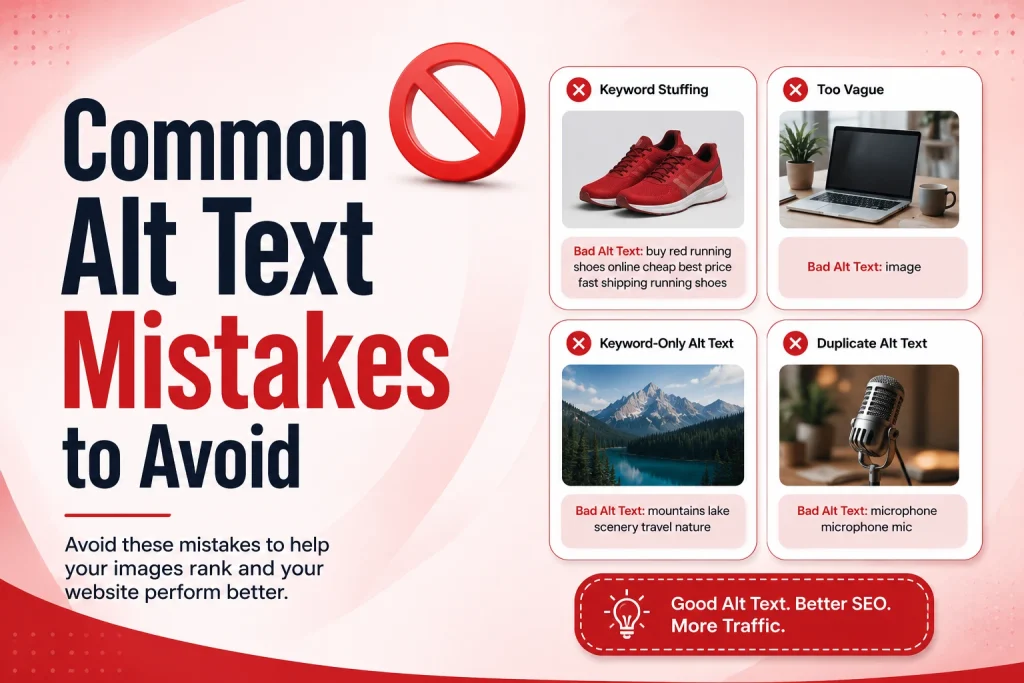
These are the mistakes that hurt your SEO and accessibility the most. Most of them are easy to fix once you know about them.
Leaving alt text completely empty. Every meaningful image on your website should have descriptive alt text. An image without alt text is invisible to Google and useless to screen reader users. Writing the alt text takes 10 seconds — always do it.
Writing “image of” or “photo of” at the start. Screen readers already announce that it’s an image before reading the alt text. Writing “Image of a blue shoe” is redundant — just write “Blue running shoe with white sole.” Save those characters for actual description.
Keyword stuffing. Writing alt text like “image compression JPG PNG WebP reduce file size free online tool 2026” is keyword stuffing. Google detects it and it can hurt your rankings. Write naturally — describe the image, include one keyword if it fits, stop there.
Using the file name as alt text. Alt text like IMG_4829.jpg or screenshot-2025-11-03 tells Google nothing useful. Write a real description.
Writing the same alt text for multiple images. If your page has five product photos and all of them have the same alt text, Google sees this as low-quality content. Each image should have unique alt text that specifically describes that individual image.
Being too vague. “Chart” is not useful alt text. “Bar chart” is slightly better but still vague. “Bar chart comparing average page loading times for websites using JPG versus WebP images” is specific and useful. Be specific.
Skipping alt text on infographics. Infographics contain a lot of information that’s embedded in an image. Without alt text, Google can’t index any of that information. Write a descriptive summary of what the infographic shows — or better yet, include a text version of the infographic content below the image.
Checking and Auditing Alt Text on Your Website
How to Check Individual Pages
To check the alt text on any webpage, right-click on the page and select View Page Source. Press Ctrl + F (or Command + F on Mac) to open the search bar and search for alt=. This highlights every alt text instance on the page so you can review them all quickly.
Alternatively, right-click on any individual image and select Inspect Element. The browser developer tools will show you the full HTML of that image tag, including the alt text.
Free Tools for Sitewide Alt Text Audits
For auditing alt text across your whole website, several free tools identify images with missing or poor alt text:
Google Search Console — Go to Search Console and look at your indexed images. Images appearing with file names instead of descriptions often lack proper alt text.
Screaming Frog SEO Spider — The free version crawls up to 500 URLs and identifies all images with missing alt text. Export the list and work through it systematically.
Browser Extensions — Extensions like Web Developer or Lighthouse (built into Chrome DevTools) can identify accessibility and SEO issues including missing alt text on any page.
Prioritising Which Images to Fix First
If you have a large website with many images missing alt text, prioritise in this order. Start with your highest-traffic pages — fixing alt text on pages that already get visitors has the most immediate impact. Then fix product pages on eCommerce sites — these have the most direct connection to revenue. Then fix your most important blog posts. Then work through the rest systematically.
Frequently Asked Questions
1. What is alt text and why is it important?
Alt text is a written description added to an image in HTML. It’s important for two reasons. First, it tells Google what your image shows so Google can rank it in image search and use it to understand your page’s topic. Second, screen readers read alt text aloud for visually impaired users so they understand what images show. Every meaningful image on your website should have good alt text.
2. How long should alt text be?
Keep alt text under 125 characters. Most screen readers cut off at around 125 characters. Good alt text is specific and concise — it describes exactly what the image shows in one sentence without unnecessary padding. If you find yourself writing more than 125 characters, you’re probably including too much detail.
3. Should I include keywords in alt text?
Yes — but only when the keyword genuinely and naturally describes what the image shows. Include one keyword per image where it fits. Never stuff multiple keywords into alt text or force keywords that don’t describe the image. Keyword stuffing in alt text can hurt your rankings.
4. What’s the difference between alt text and image title?
Alt text appears when an image fails to load and is read by screen readers. It’s the primary text signal Google uses to understand images. Image title is a tooltip that appears when a user hovers over an image — it’s less important for SEO and accessibility. Focus on alt text first. Image title is optional and rarely worth spending time on.
5. Should every image have alt text?
Every meaningful image should have descriptive alt text. Purely decorative images — dividers, background patterns, abstract shapes — should have empty alt text (alt=""). This tells screen readers to skip them and tells Google they’re decorative. Never leave the alt attribute out entirely — always include it even if the value is empty.
6. How do I add alt text in WordPress?
Click on an image in the Block Editor and find the Alt Text field in the right sidebar. For images in the media library, go to Media > Library, click the image, and fill in the Alt Text field. For bulk updates, use an SEO plugin to identify and fix missing alt text across your whole site.
7. Does alt text directly affect Google rankings?
Yes, in two ways. First, images with descriptive alt text rank better in Google Image Search, bringing additional traffic. Second, alt text reinforces your page topic for regular search rankings — Google uses all text signals on a page to understand its content, and alt text is one of those signals. The effect is real but works best as part of a complete image SEO strategy.
8. What should I write for alt text on a logo?
Just the company or brand name followed by “logo.” For example: ImageConverterTools logo or Google Chrome logo. No need to describe the visual design — the brand name is the relevant information. Keep it simple.
9. Can I use the same alt text for multiple images?
No. Each image should have unique alt text that specifically describes that individual image. Using the same alt text on multiple images signals low-quality content to Google and is unhelpful for users. If you have multiple photos of the same product at different angles, each one needs a different description — Product front view, Product side view, Product detail close-up.
10. Does missing alt text hurt my website’s SEO?
Yes. Images without alt text are invisible to Google from an image SEO perspective. They can’t rank in Image Search. They don’t contribute to Google’s understanding of your page. For pages with many images and no alt text, you’re missing a significant number of topical signals that could help your rankings. Fixing missing alt text is a quick SEO win with real measurable impact.
Conclusion
Alt text is one of the simplest and highest-return SEO improvements available to any website. It costs nothing, takes seconds per image, and makes a real difference to your rankings in both regular Google Search and Google Image Search. It also makes your website accessible to visually impaired users — which matters both ethically and legally.
The rules are straightforward. Describe what the image actually shows. Be specific. Keep it under 125 characters. Include one keyword if it fits naturally. Never stuff keywords. Use empty alt text for decorative images. Write unique alt text for every individual image.
Start with your most important pages — your highest-traffic blog posts, your best-selling product pages, your homepage. Add alt text to every image. Then audit the rest of your site and work through it systematically. The improvement in image search rankings and overall page SEO will be measurable within weeks.
For your images to rank well, they also need to be the right format, size, and file size. Our guide on how to optimise images for SEO covers every other image SEO factor alongside alt text so your images are fully optimised from every angle.