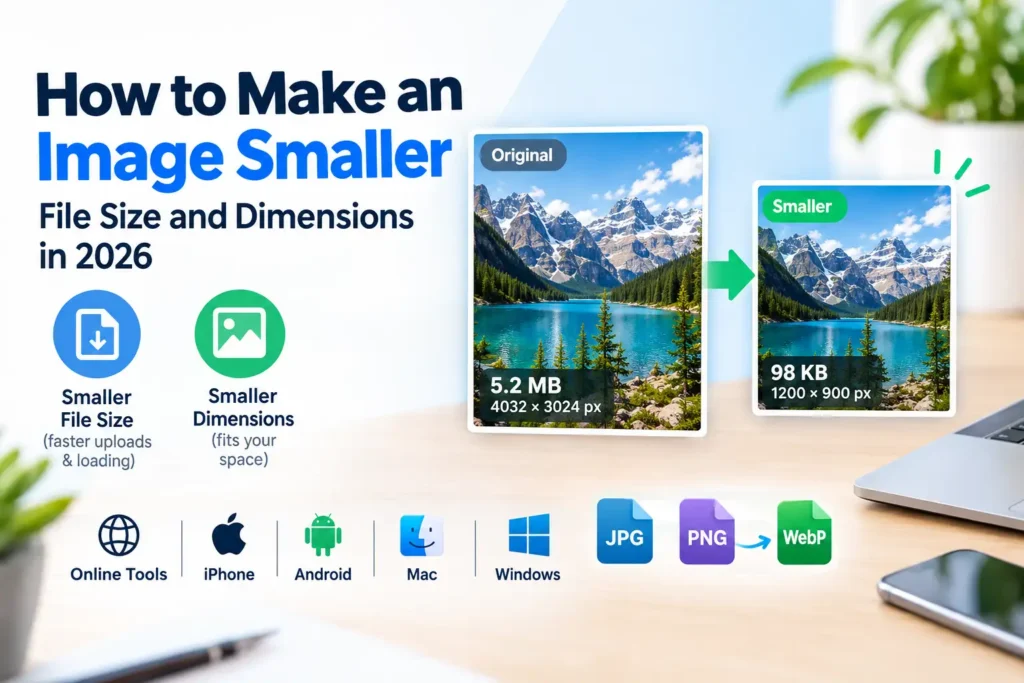
Making an image smaller means two different things — reducing the file size so it uploads and loads faster, or reducing the pixel dimensions so it fits a specific display space. A 5MB smartphone photo can shrink to under 200KB with zero visible quality difference on screen. A 4000 × 3000 pixel photograph can resize to 800 × 600 pixels for a website without looking any different to visitors. Most people need both — and doing them in the right order produces the smallest possible result at the best quality. This guide covers every method to make images smaller in 2026 — free online tools, iPhone, Android, Mac, Windows, and specific fixes for websites, email, and social media.
Two Types of “Smaller” — Understanding the Difference
Before choosing a method, understanding which type of smaller you need determines the right approach and the right tools.
File size reduction means making the image file take up less storage space and download faster — without necessarily changing how large the image appears on screen. A 1200 × 800 image can go from 800KB to 90KB through compression and format conversion while still displaying at exactly 1200 × 800 pixels. File size reduction is what you need for faster website loading, email attachments under size limits, and passing upload restrictions on platforms with file size caps.
Dimension reduction means reducing the actual pixel width and height of the image — making it physically smaller in pixel count. A 4000 × 3000 pixel image reduced to 800 × 600 pixels is smaller in both dimensions and file size. Dimension reduction is what you need when an image is too large for a display area, when you need to match specific platform requirements, or when you want to reduce file size as dramatically as possible.
Why doing both in the right order matters: Reducing dimensions first produces a much smaller starting point for compression. A 4000px wide image compressed to 80 percent quality might still be 1.5MB. The same image resized to 1200px wide first and then compressed to 80 percent quality might be 120KB — a 12× difference from the same two operations applied in the wrong versus right order. Always resize to correct dimensions first, then compress.
How to Make an Image Smaller Online — The Fastest Method
Online tools are the fastest approach for making images smaller on any device — no software installation, no account, works in seconds on Windows, Mac, iPhone, and Android.
Reducing File Size Online
Our free Image Compressor reduces image file sizes by up to 90 percent using smart compression that targets the optimal balance between file size and visual quality. Upload your image, the tool applies intelligent compression, and you download a smaller file that looks identical at normal viewing sizes.
The compressor handles JPG, PNG, WebP, and other common formats. It strips unnecessary metadata — EXIF camera data, GPS coordinates, colour profile information — that adds file size with zero visual benefit for web and email use. Metadata removal alone often reduces file size by 10 to 30KB per image without touching the pixel data at all.
For photographs specifically, converting to WebP before or during compression produces the smallest possible files. WebP achieves 25 to 34 percent smaller files than JPG at equivalent visual quality. A photograph that compresses to 200KB as JPG often compresses to 130KB as WebP — with no visible quality difference on any screen.
Reducing Pixel Dimensions Online
Our free Image Resizer lets you enter exact target dimensions in pixels and download the correctly-sized image. Enter the width and height you need — the tool resizes the image to those exact dimensions and downloads instantly. Batch upload support lets you resize multiple images simultaneously when you need to prepare a set of images for a website, social media campaign, or email newsletter.
Always maintain the aspect ratio when resizing — changing one dimension without proportionally adjusting the other distorts the image horizontally or vertically. The Image Resizer maintains aspect ratio automatically when you enter only one dimension — it calculates the other proportionally.
Converting Format to Make Images Smaller
Format conversion alone — without any compression changes — can dramatically reduce file size. A photograph saved as PNG might be 3MB. The same photograph converted to JPG at 85 percent quality might be 350KB. Converted to WebP at 85 percent quality it might be 230KB. Same image, radically different sizes — just from format choice.
Convert JPG photographs to WebP using our JPG to WebP converter for the smallest web-optimised files. Convert PNG photographs — the most commonly oversized format — to JPG using our PNG to JPG converter for immediate dramatic file size reduction. Both converters support batch upload for processing multiple files simultaneously.
How to Make an Image Smaller on iPhone
iPhones capture photographs at 12 to 48 megapixels depending on the model — producing files between 3MB and 25MB each. Several methods reduce these files directly on the device.
Method 1 — Use Safari and an Online Tool
This works on every iPhone model without any app download:
- Open Safari on your iPhone
- Go to imageconvertertools.com/image-compressor
- Tap the upload area
- Select your image from Photos
- The tool compresses automatically
- Tap Download and save to Files
The compressed image saves to your Files app. From Files, share it to Messages, Mail, or any other app. This method gives the most control over output quality and works on iPhone 8 and later running iOS 14 or above.
Method 2 — Use the Mail App Compression
When you attach a photo directly through the Mail app on iPhone, iOS offers automatic size reduction before sending:
- Open the Mail app and compose a new email
- Tap in the email body and select the photo icon
- Select your image from the photo library
- Before tapping Send, iOS shows a size selection bar at the bottom: Small, Medium, Large, Actual Size
- Tap Small for the smallest file (approximately 200 to 400KB) or Medium for a balance of quality and size
This method only works for email — you cannot save the compressed version to your camera roll directly. For saving a smaller version to Files or sharing through other apps, use the online tool method.
Method 3 — Change iPhone Camera Settings
If you regularly find iPhone photos too large, reduce the camera resolution to produce smaller files from the start:
- Go to Settings > Camera > Formats
- Select Most Compatible — this saves photos as JPG instead of HEIC, producing files 30 to 50 percent smaller than HEIC in many cases
- Go to Settings > Camera > Record Video and reduce video resolution if video file size is also a concern
For even smaller photos, go to Settings > Camera > Photo Capture Priority and select Storage Efficiency on supported iPhone models — this applies more aggressive compression at capture time.
Method 4 — Use the Photos App Edit and Export
On iPhone, you cannot directly export photos at reduced resolution through the standard Photos app. But third-party apps available free from the App Store — including Image Size, Resize Image, and others — let you resize to specific pixel dimensions and save to your camera roll.
How to Make an Image Smaller on Android
Android phones vary by manufacturer and Android version in their built-in image compression tools. The universal method — using a browser-based tool — works on all Android devices regardless of brand.
Method 1 — Use Chrome and an Online Tool
- Open Chrome on your Android device
- Go to imageconvertertools.com/image-compressor
- Tap upload and select your image from the gallery
- The tool compresses and shows the new file size
- Tap Download — the file saves to your Downloads folder
Access downloaded files through the Files app. Share from Files to any other app on your device. This method works on all Android phones and tablets running Android 8 or above.
Method 2 — Samsung Gallery Resize (Samsung Phones Only)
Samsung phones running One UI 3.0 and later have a built-in resize function in the Gallery app:
- Open your image in Samsung Gallery
- Tap the pencil/edit icon
- Tap the three-dot menu in the top right
- Select Resize
- Choose a percentage reduction — 75%, 50%, or 25% — or enter custom pixel dimensions
- Tap Save as copy to keep the original
This method resizes but doesn’t give precise control over compression quality or output format. For specific file size targets, the online tool gives better results.
Method 3 — Google Photos Compression
Google Photos stores photos in two quality settings — Original Quality and Storage Saver (previously called High Quality). Storage Saver compresses photos to save storage space:
- Open Google Photos
- Go to Library > Utilities > Free Up Space
- Google Photos compresses backed-up photos to Storage Saver quality
This affects your stored copies — not the original files on your device. It works well for reducing cloud storage usage but doesn’t produce downloadable smaller files for sharing.
How to Make an Image Smaller on Mac
Mac has excellent built-in tools for reducing image file size and dimensions — no software purchase needed.
Method 1 — Preview App (Best Free Mac Method)
Preview gives you precise control over both file size (through quality settings) and dimensions (through explicit resizing) — making it the most capable free option on Mac.
To reduce file size through compression:
- Open your image in Preview — double-click it
- Go to File > Export
- Select JPEG as the format
- Use the Quality slider — move it to approximately 70 to 80 percent for web use
- Watch the estimated file size shown below the slider — adjust until you reach your target
- Click Save
The quality slider with real-time file size preview is Preview’s most valuable feature for hitting specific file size targets. Keep reducing the slider until the estimated size falls under your target — 150KB for website images, 500KB for email attachments.
To reduce pixel dimensions:
- Open your image in Preview
- Go to Tools > Adjust Size
- Ensure Scale proportionally is checked
- Enter your target width or height in pixels
- Preview automatically calculates the other dimension proportionally
- Click OK
- Go to File > Export and save as JPEG at appropriate quality
To batch reduce multiple images on Mac:
- Select all images in Finder
- Right-click and select Open With > Preview — all images open in one Preview window
- Press Command + A to select all in the Preview sidebar
- Go to Tools > Adjust Size — applies to all selected images simultaneously
- Set target dimensions and click OK
- Go to File > Export Selected Images
- Select JPEG format, set quality, choose destination folder
- Click Choose — all images export simultaneously
Method 2 — Compress Images in Finder (Quick Method)
For a quick file size reduction without opening any app:
- Right-click the image in Finder
- Select Quick Actions > Convert Image
- Choose JPEG format
- Select Small, Medium, or Large size
- Finder creates a compressed copy alongside the original
This method gives less control than Preview but requires zero setup and takes about five seconds per image. The output quality is fixed — use Preview for more control.
How to Make an Image Smaller on Windows
Windows has several built-in options for reducing image file size and dimensions — with varying levels of control.
Method 1 — Paint (Built Into All Windows Versions)
Paint is the simplest Windows option — available on every Windows computer since Windows 1.0.
To reduce pixel dimensions in Paint:
- Right-click the image and select Open with > Paint
- Click Resize in the Home toolbar
- Select Pixels (not Percentage)
- Ensure Maintain aspect ratio is checked
- Enter your target width in pixels — height adjusts automatically
- Click OK
- Go to File > Save As
- Select JPEG Picture for the smallest file size
- Click Save
Paint saves JPEGs at a fixed quality level — you cannot adjust the compression slider. For more control over output quality, use the online compressor.
To reduce file size in Paint:
Open the image in Paint and save as JPEG (File > Save As > JPEG Picture). Converting from PNG to JPEG in Paint alone typically reduces file size by 70 to 85 percent for photographic content — without any explicit compression settings.
Method 2 — Windows Photos App
The Windows 11 Photos app includes a basic resize function:
- Open your image in the Photos app
- Click the three-dot menu in the top right
- Select Resize image
- Choose a preset — Small (640px), Medium (1280px), Large (1920px) — or enter custom pixel dimensions
- Select output format — JPEG produces smaller files than PNG
- Click Save
The Photos app gives more control than Paint but still doesn’t provide a compression quality slider. For precise file size targets, the online compressor gives better results on any Windows version.
Method 3 — Right-Click Send To Email
Windows has a hidden image compression feature through the email sharing function:
- Right-click the image in File Explorer
- Select Send to > Mail recipient
- Windows opens a dialog asking what size to send
- Select Smaller, Small, Medium, or Large
- Click Attach — Windows creates a compressed copy
This method creates a compressed copy temporarily for email — it doesn’t save the smaller version to your storage automatically. To save it, copy the attachment from the email before sending.
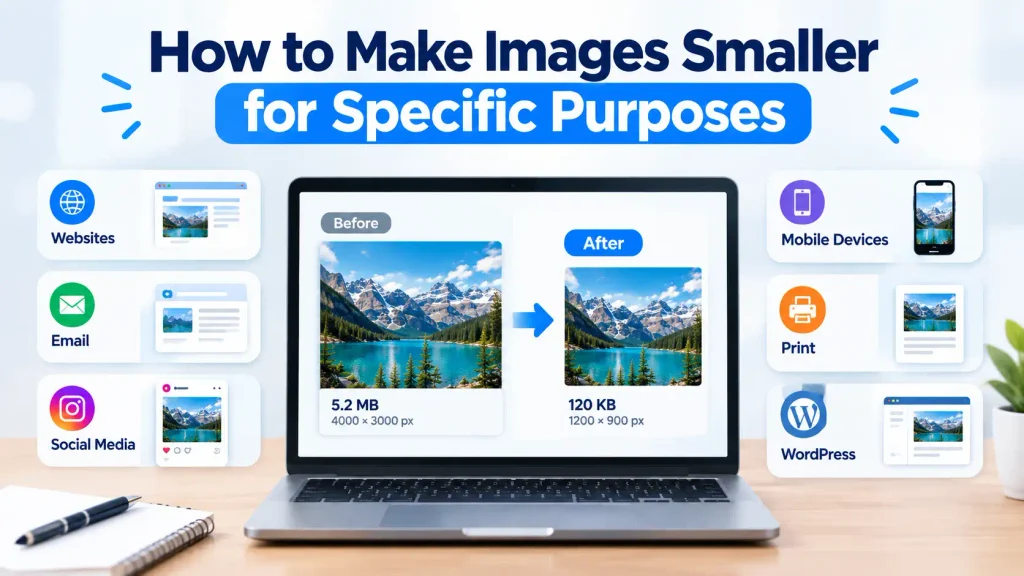
How to Make Images Smaller for Specific Purposes
Different use cases have different requirements. Here is exactly what to target for the most common situations.
Making Images Smaller for Websites
Website images need to balance visual quality with loading speed. Google’s Core Web Vitals — the performance metrics Google uses as ranking signals — directly penalise slow-loading pages, and images cause most page loading delays.
Step 1 — Resize to correct display dimensions:
Find out how wide each image actually displays on your website. Right-click the image on your site, select Inspect Element, and look for the rendered dimensions in the browser developer tools. Your image file should match these dimensions exactly — not be larger.
Common correct web image dimensions:
- Full-width hero image: 1920 × 1080px
- Blog featured image: 1200 × 628px
- Product image: 800 × 800px
- Inline blog image: 800 to 1200px wide
- Thumbnail: 400 × 300px
Step 2 — Convert to WebP:
WebP produces files 25 to 34 percent smaller than JPG at the same quality. Convert using our PNG to WebP converter or JPG to WebP converter.
Step 3 — Compress to target file size:
Target file sizes for web images:
| Image Type | Target File Size |
|---|---|
| Hero / banner | Under 200 KB |
| Blog featured image | Under 150 KB |
| Product image | Under 150 KB |
| Inline blog image | Under 100 KB |
| Thumbnail | Under 30 KB |
Run your page through Google PageSpeed Insights after uploading to verify no image-related warnings remain.
Making Images Smaller for Email
Email has different constraints from websites — most email clients don’t load images until the recipient explicitly allows them, and large attachments trigger spam filters or get rejected entirely.
For inline email images (in email newsletters and HTML emails):
- Maximum 600px wide — the standard email content column width
- Under 100KB per inline image
- JPG format at 75 to 80 percent quality — email clients don’t support WebP reliably
- Strip all metadata to reduce file size further
For photo attachments:
- Under 1MB per image for casual sharing
- Under 500KB for professional correspondence with multiple attachments
- JPG at 75 to 80 percent quality — visually identical to the original at normal email viewing sizes
- Never send PNG photographs as attachments — PNG photos are 5 to 10 times larger than JPG with no quality benefit for email viewing
For logos in email signatures:
- Under 50KB — logos in signatures load on every email sent
- PNG format — preserves sharp edges and transparent backgrounds
- 300 to 400px wide maximum — larger logos look unprofessional in email signatures
Making Images Smaller for Instagram
Instagram recompresses all uploaded images — but uploading at the correct dimensions and appropriate file size minimises the visible quality loss from that recompression.
Correct Instagram dimensions:
- Square post: 1080 × 1080px
- Portrait post: 1080 × 1350px — the highest-performing format
- Landscape post: 1080 × 566px
- Stories and Reels: 1080 × 1920px
File size target: Under 1MB for all Instagram uploads. Keep the source file clean and well-compressed — Instagram applies its own compression on top of whatever quality your file has.
Format: JPG at 80 to 90 percent quality for photographs. PNG for graphics with text or sharp geometric edges.
Making Images Smaller for WhatsApp
WhatsApp applies heavy compression to photos shared as photos — reducing a 5MB image to 200 to 400KB with significant quality loss. Two approaches produce better results.
For better quality — send as a document:
Tap the attachment icon, select Document, then select your image file. WhatsApp doesn’t apply photo compression to documents — the recipient gets the original quality file. This is the single most effective WhatsApp image quality improvement available.
For reduced file size before sending:
Resize to 1280px wide maximum and compress to under 1MB using the online compressor before sharing as a photo. Smaller source files give WhatsApp’s compression algorithm less work — producing marginally better results than sharing a 5MB original.
Making Images Smaller for Print
Print has different requirements from screens. Reducing file size for print must preserve sufficient pixel resolution for the print size at 300 DPI — the professional print standard.
Check resolution before reducing:
Use the formula — print size (inches) × 300 = required pixels. A 5 × 7 inch print at 300 DPI needs at least 1500 × 2100 pixels. Never reduce pixel dimensions below this threshold for print.
Reduce file size without reducing dimensions:
For print files, reduce file size by compressing JPG to 90 to 95 percent quality — maintaining excellent print quality while reducing file size for easier sharing with print services. Never use aggressive compression (below 80 percent) for print files — compression artefacts visible on screen become more visible in print.
Making Images Smaller for WordPress
WordPress has a default upload limit — typically 2MB set by the server’s PHP configuration, though many hosts set it higher. When you hit the WordPress upload limit, reducing the image file size below the limit is almost always better than increasing the limit.
A well-optimised website image should be under 150KB anyway — far below WordPress’s default 2MB limit. If an image is over 2MB, it almost certainly needs both dimension reduction and compression before it belongs on a website.
WordPress-specific optimisation steps:
- Resize to the correct display dimensions for the specific image slot in your theme
- Convert to WebP using our converter tools
- Compress to under 150KB
- Upload the correctly-sized, correctly-formatted, properly-compressed image
WordPress 6.1 and later automatically generates WebP versions of uploaded JPEG images — which helps if you upload JPEGs but want WebP served to visitors. Uploading WebP directly gives you full control over output quality.
How Much Can You Reduce Image Size? — Realistic Numbers
Understanding what file size reduction is realistically achievable helps set correct expectations.
File Size Reduction by Method
| Method | Typical Reduction | Best For |
|---|---|---|
| PNG to JPG conversion | 70 – 85% | PNG photographs |
| JPG to WebP conversion | 25 – 34% | All web photographs |
| PNG to WebP conversion | 50 – 80% | PNG photographs for web |
| JPG compression at 80% | 65 – 80% vs uncompressed | All photographs |
| Resize from camera res to web | 90 – 97% | Camera photos for web |
| Metadata removal | 5 – 15% | All images |
| Resize + convert + compress | 92 – 98% | Camera photos for web |
The last row — combining all three operations — represents the realistic maximum reduction achievable while maintaining acceptable visual quality. A 12MP smartphone photo at 5MB can become 80 to 120KB as a correctly-sized, WebP-format, properly-compressed web image — a 97 to 98 percent reduction.
Real-World File Size Examples
| Original | Original Size | Method Applied | Result |
|---|---|---|---|
| Smartphone photo (4032×3024 JPG) | 4.8 MB | Resize to 1200×900 + WebP 82% | 95 KB |
| Product photo (PNG) | 2.1 MB | PNG to WebP 85% | 68 KB |
| Blog image (JPG) | 850 KB | Resize to 1200px + compress | 105 KB |
| Logo (PNG) | 145 KB | PNG optimisation | 38 KB |
| Screenshot (PNG) | 1.2 MB | WebP lossless | 740 KB |
Common Mistakes When Making Images Smaller
Mistake 1 — Compressing the Original and Overwriting It
Always keep the original file. Export compressed versions as new files — never overwrite the original with a smaller version. Storage is cheap. Originals are irreplaceable. Once you overwrite a high-quality original with a compressed version, recovering that quality requires re-shooting or re-creating the image from scratch.
Mistake 2 — Compressing an Already-Compressed JPG
Opening a JPG, making changes, and saving as JPG again applies another round of lossy compression on top of the previous round. Each cycle removes more quality data permanently — generation loss compounds. Always compress from the original lossless source (PNG, TIFF, or camera RAW). Use PNG as your working format during editing and export to JPG or WebP only at the final step.
Mistake 3 — Only Compressing Without Resizing
Compressing a 4000px wide image produces a smaller file — but not nearly as small as compressing an 800px wide version of the same image. Dimension reduction produces far more file size reduction than compression alone for oversized images. Always resize to the correct display dimensions before compressing — the combination produces dramatically smaller results than either step alone.
Mistake 4 — Using PNG for Photographs
PNG uses lossless compression that cannot achieve the dramatic file size reductions possible with lossy compression. A photograph as PNG might be 3MB. The same photograph as WebP at 85 percent quality might be 250KB. Using PNG for photographic content — especially on websites — creates unnecessarily large files with no visible quality benefit at normal viewing sizes.
Mistake 5 — Targeting File Size Without Checking Visual Quality
Aggressive compression below 70 percent quality creates visible compression artefacts — blocky patterns in flat areas, colour fringing around edges, visible banding in gradients. Always verify output quality at 100 percent zoom before deciding a compressed file is acceptable. The 80 to 85 percent quality range achieves maximum practical compression without producing visible artefacts for most image content.
Mistake 6 — Ignoring Format When Troubleshooting Size
When an image is too large, most people immediately try compressing harder. Format conversion often produces bigger reductions with better quality than increased compression. A PNG photograph converted to WebP loses less quality than the same photograph compressed to an equivalent size as PNG. Check format first before increasing compression aggressively.
Frequently Asked Questions
1. How do I make an image file smaller without losing quality?
Use lossless compression for logos and graphics — this reduces file size without removing any pixel data. For photographs, use lossy WebP at 80 to 85 percent quality — the quality difference from the original is genuinely invisible at normal screen viewing sizes. Additionally, strip metadata (EXIF data, GPS information, camera settings) which adds file size with zero visual impact. Our free Image Compressor handles both approaches automatically.
2. How do I make an image file smaller for email?
Open the image in Preview on Mac (File > Export > JPEG, quality 75 to 80 percent) or use the online compressor on any device. Target under 1MB for photo attachments and under 100KB for inline email images. Use JPG format — WebP is not reliably supported in email clients. For the fastest email-specific fix on iPhone, attach the photo through the Mail app and select Small or Medium before sending.
3. What is the best free tool to make images smaller?
For online use on any device, our free Image Compressor reduces file sizes by up to 90 percent with no watermarks, no sign-up, and batch support. For Mac users, Preview handles both compression and resizing without any additional software. For Windows users, Paint handles basic dimension reduction and format conversion. For precise file size targets on any device, the online tool gives the most control.
4. How do I make an image smaller on iPhone without an app?
Open Safari, go to imageconvertertools.com/image-compressor, upload your image from Photos, and download the compressed version to Files. This works on any iPhone without downloading any app. Alternatively, attach the image through the Mail app and select Small or Medium size — but this only works for email sharing, not for saving a smaller version.
5. How small can I make an image without it looking bad?
For photographs displayed on screens, 80 percent JPG or WebP quality is the threshold where quality loss becomes invisible at normal viewing sizes. Below 70 percent, artefacts start becoming visible in flat colour areas and around edges. For logos and graphics with hard edges, lossless compression preserves quality entirely regardless of how much file size reduction occurs. The minimum acceptable file size depends on the image content and display context — check the output at 100 percent zoom before committing to a quality setting.
6. Does reducing image size reduce quality?
Reducing pixel dimensions (resizing) does not reduce quality when sizing down — it simply makes the image physically smaller. Reducing file size through lossy compression does permanently remove some data — but at quality settings of 80 to 85 percent, the removed data is invisible at normal screen sizes. Reducing file size through lossless compression or metadata removal never reduces quality at all.
7. How do I make images smaller for a website?
Resize to the correct display dimensions for each image slot — find these by inspecting the element in your browser developer tools. Convert to WebP for the smallest files at best quality. Compress to under 150KB for most images. This three-step process — resize, convert, compress — produces the smallest possible files at acceptable quality and eliminates the most common Google PageSpeed Insights image warnings.
8. Why are my images still large after compressing?
If images are still large after compression, the pixel dimensions are likely too large for the use case. A 4000px wide image compressed at 80 percent quality is still much larger than an 800px wide image at 80 percent quality. Resize to the correct pixel dimensions first — this single step typically produces more file size reduction than compression alone. After resizing to the correct dimensions, apply compression to reach your target file size.
9. What is the difference between resizing and compressing an image?
Resizing changes the pixel dimensions of an image — making it physically smaller or larger. It reduces file size by reducing the number of pixels stored. Compressing changes how efficiently the existing pixels are stored — same pixel count, smaller file. Both reduce file size but through different mechanisms. Resizing is more effective for images much larger than their display size. Compression is more effective for images already at the correct display dimensions. Combining both in the right order — resize first, then compress — produces the smallest possible files.
10. How do I make a PNG image smaller?
PNG uses lossless compression — making PNGs dramatically smaller requires converting to a lossy format. For photographs saved as PNG, convert to JPG at 85 percent quality or WebP at 85 percent quality using our converters — this typically reduces file size by 70 to 90 percent. For logos and graphics where you must keep PNG format, use lossless PNG optimisation tools that find more efficient encoding without removing pixel data — typically achieving 20 to 40 percent reduction.
Conclusion
Making images smaller comes down to three decisions made in the right order — choosing the correct format, resizing to the correct pixel dimensions, and applying appropriate compression. Format conversion from PNG to WebP or JPG to WebP produces the biggest file size reductions for photographic content. Dimension reduction eliminates the massive overhead of serving camera-resolution images at web display sizes. Compression at 80 to 85 percent quality removes the remaining excess without producing any visible quality change.
Apply all three steps consistently and a 5MB smartphone photograph becomes a 100KB web image — 98 percent smaller with zero visible quality difference on any screen at any normal viewing distance. This matters for every image on every page — faster loading, smaller storage footprint, faster uploads, better search rankings, and cleaner email delivery.
Use our free Image Compressor to reduce file sizes and our free Image Resizer to reduce pixel dimensions — both support batch processing, work on any device, require no sign-up, and are completely free with no watermarks.