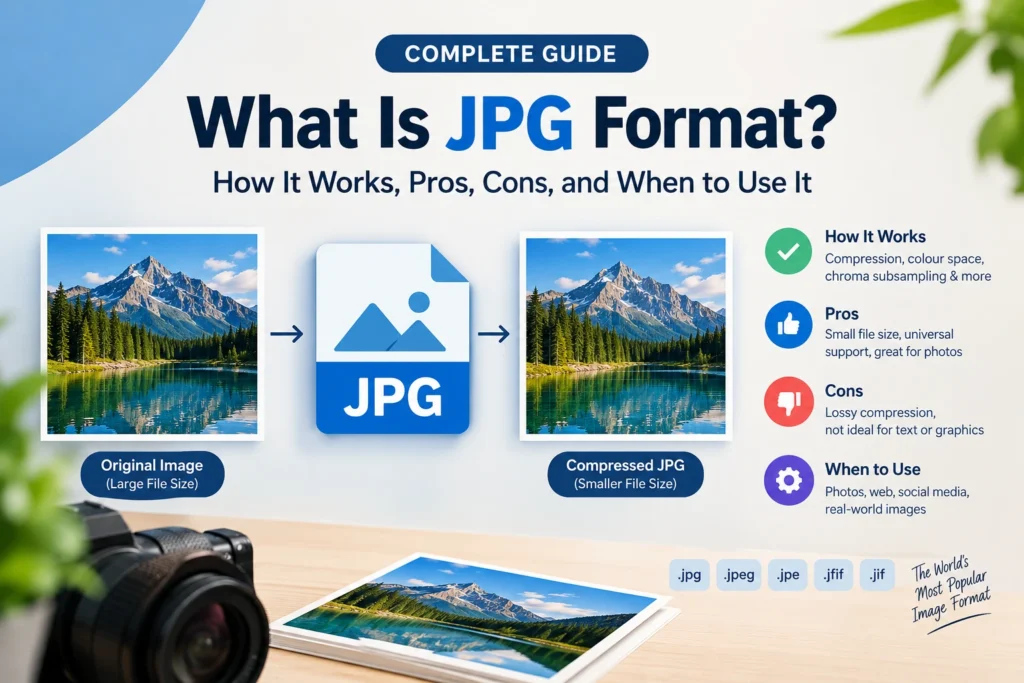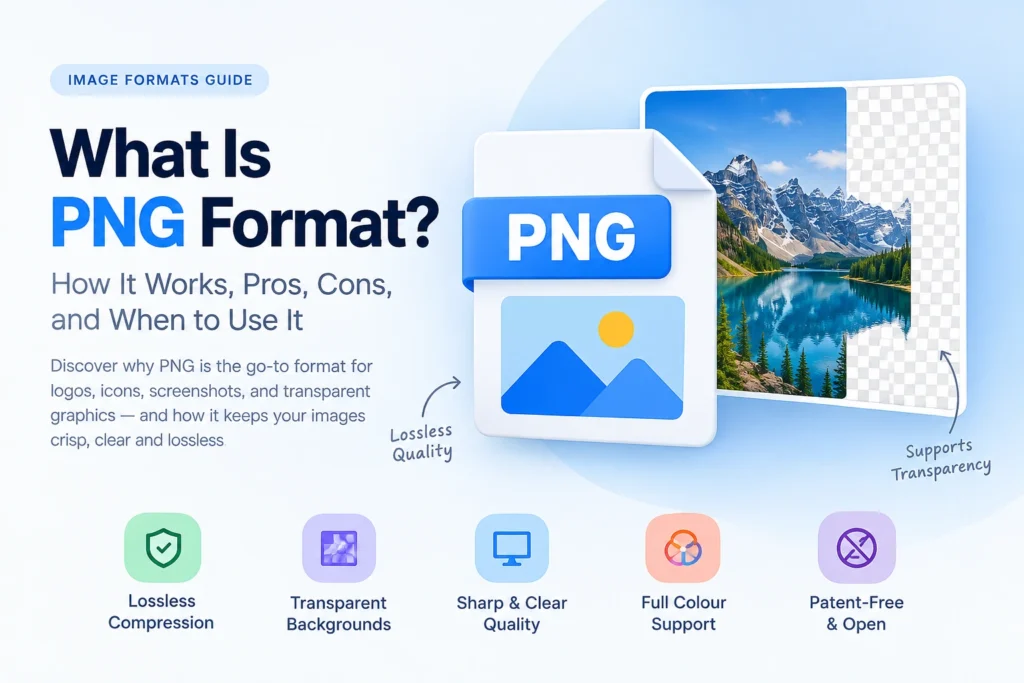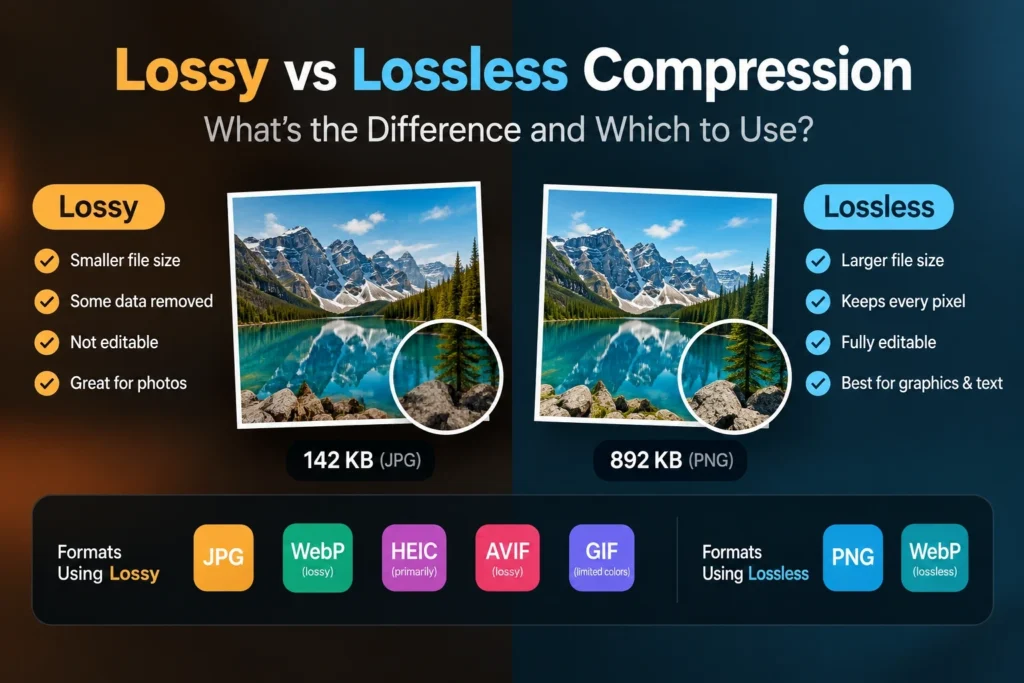
Lossy compression permanently removes image data to create smaller files — at 80 to 85 percent quality the removed data is invisible on screen, but it is gone forever and compounds with each re-save. Lossless compression keeps every pixel exactly intact and produces files that are mathematically identical to the original after decompression — but achieves less dramatic file size reductions than lossy compression. Every major image format uses one or the other — JPG and lossy WebP use lossy, PNG and lossless WebP use lossless — and choosing between them correctly determines image quality, file size, and whether your files can safely be edited again.
This guide covers everything about lossy and lossless compression — the technical processes behind each, what actually happens to image quality at different settings, which formats use which compression type, real file size comparisons, and exactly when to use each approach for every image type and use case.
What Is Image Compression? — The Foundation
Image compression is the process of reducing the number of bytes required to store or transmit a digital image — either by finding more efficient ways to represent the same data, or by permanently removing data the human eye is unlikely to notice. Without compression, a 12-megapixel photograph stores over 36MB of raw pixel data — three channels (red, green, blue) at one byte each for 12 million pixels. Transmitting 36MB for every photograph on the internet would make web browsing impossibly slow.
Compression exists on a spectrum. At one end, lossless compression achieves moderate file size reduction while preserving every bit of original data. At the other end, aggressive lossy compression achieves dramatic file size reduction by permanently discarding data — but crosses a threshold where quality degradation becomes visible to the human eye.
Understanding where your images fall on this spectrum — and choosing the right compression type for each situation — is one of the most impactful decisions in any image workflow.
According to the HTTP Archive Web Almanac, images account for approximately 50 percent of total webpage weight on the median website. Proper compression — choosing the right type and the right settings — is the single highest-impact optimisation available to most website owners.
What Is Lossy Compression? — Definition, How It Works, and Core Concept
Lossy compression reduces file size by permanently removing image data — specifically data that human perception is least likely to notice at normal viewing sizes and distances. The removed data is gone forever. Decompressing a lossy-compressed file produces an image that looks nearly identical to the original but is not mathematically identical — some pixel values have changed permanently.
The name “lossy” refers to this permanent data loss. Every application of lossy compression is irreversible. You cannot recover the original data from a lossy-compressed file — the removed information simply no longer exists in the compressed version.
Why lossy compression works so well for photographs: The human visual system has specific limitations that lossy compression algorithms exploit deliberately. Eyes are significantly more sensitive to brightness differences than to colour differences. Eyes perceive low-frequency tonal gradients (gradual colour changes across large areas) much more accurately than high-frequency detail (rapid pixel-to-pixel variation, fine texture). Lossy compression removes high-frequency detail and reduces colour resolution — exactly the data humans perceive least accurately — while preserving the brightness and tonal information eyes are most sensitive to.
At quality settings of 75 to 90 percent, the data removed by lossy compression is genuinely imperceptible to most human observers under normal viewing conditions at normal distances. The file is dramatically smaller. The image looks identical.
Formats that use lossy compression:
- JPG (exclusively lossy)
- WebP lossy mode
- HEIC (primarily lossy)
- AVIF lossy mode
- GIF (lossy in a specific way — limited to 256 colours)
How Lossy Compression Works — The Technical Process
JPG is the most widely used lossy format and the clearest example of how lossy compression achieves its results. Understanding JPG’s process illuminates lossy compression generally.
Colour Space Conversion and Chroma Subsampling
The first step converts the image from RGB colour space to YCbCr — separating luminance (Y, brightness) from chrominance (Cb and Cr, colour information). The human eye perceives brightness differences approximately 4 times more accurately than colour differences.
Chroma subsampling exploits this by reducing the resolution of the Cb and Cr colour channels — typically halving their resolution in both directions (4:2:0 subsampling). One set of colour values represents a 2 × 2 block of pixels instead of each pixel having individual colour values. This single step reduces colour data by 75 percent — with essentially no visible impact on most photographic content.
Block Division and DCT
The image is divided into 8 × 8 pixel blocks. Each block is transformed using the Discrete Cosine Transform (DCT) — converting spatial pixel data (colour values at positions) into frequency data (how much visual variation exists across the block). The DCT produces 64 frequency coefficients per block — from the DC coefficient representing average brightness to high-frequency AC coefficients representing fine detail.
Quantization — Where Data Is Permanently Lost
Each frequency coefficient is divided by a value from a quantization table, then rounded to the nearest integer. High-frequency coefficients representing fine detail are divided by larger values — discarding more precision. Low-frequency coefficients representing broad tonal relationships are divided by smaller values — preserving more precision.
This rounding is permanent and irreversible. The rounded values cannot be perfectly inverted to recover the original coefficients. This is the step where lossy compression loses data — and where quality settings have their effect. Higher quality settings use smaller quantization divisors — less rounding, less data loss, larger files. Lower quality settings use larger divisors — more rounding, more data loss, smaller files.
Entropy Coding
The quantized data is compressed using lossless Huffman coding — assigning shorter codes to more common values. This step reduces file size further without any additional quality loss.
The Result
At 85 percent quality, JPG typically removes 75 to 85 percent of the file data compared to uncompressed. The removed data was primarily high-frequency detail in flat areas and colour resolution — both categories of information that human eyes detect poorly. At normal viewing sizes on typical screens, the compression is completely invisible.
What Is Lossless Compression? — Definition, How It Works, and Core Concept
Lossless compression reduces file size by encoding image data more efficiently — without removing any of it. Every pixel in a losslessly compressed image can be perfectly reconstructed from the compressed file. The decompressed image is bit-for-bit mathematically identical to the original. No quality is ever lost regardless of how many times the file is compressed, decompressed, edited, and re-compressed.
The name “lossless” refers to this zero data loss. Every application of lossless compression is perfectly reversible. Decompressing a lossless file is the exact reversal of compressing it — producing the complete original data with certainty.
How lossless compression achieves size reduction without data loss: Rather than removing data, lossless compression finds more efficient ways to represent the same data. The principle is the same as packing a suitcase more efficiently — everything fits in less space, but nothing is left behind.
The key insight is that image data contains significant redundancy — adjacent pixels tend to have similar values, large areas of similar colour repeat extensively, and certain value combinations are far more common than others. Lossless compression exploits these patterns to represent the same information with fewer bits.
Formats that use lossless compression:
- PNG (exclusively lossless)
- WebP lossless mode
- TIFF with LZW compression
- BMP (uncompressed — technically not compression at all)
- GIF (lossless within its 256-colour limitation)
- AVIF lossless mode
How Lossless Compression Works — The Technical Process
PNG uses DEFLATE compression — the same algorithm underlying ZIP files — and serves as the clearest example of lossless compression for images.
Filtering — Pre-Processing for Better Compression
Before compression, PNG applies prediction filters to each row of pixels. Five filter types are available — None, Sub, Up, Average, and Paeth. Each filter predicts each pixel’s value based on its neighbours (left, above, or upper-left) and stores only the difference between the prediction and the actual value.
Adjacent pixels in photographs and graphics tend to be similar — so differences between them tend to be small numbers. A row of gradually changing sky pixels might have differences of 1, 2, 1, 3, 1, 2 between adjacent pixels rather than the full colour values of 145, 147, 148, 149, 152, 153. Small numbers compress dramatically more efficiently than the full range of pixel values.
The PNG encoder selects the filter producing the most compressible output for each row — different rows in the same image use different filters. This adaptive approach maximises compression efficiency for the specific content of each image.
LZ77 — Finding and Replacing Repeated Sequences
The filtered data is scanned for repeated sequences of bytes using the LZ77 algorithm. When a byte sequence appears more than once, the second and subsequent occurrences are replaced by back-references — a pointer to the first occurrence plus a length value indicating how many bytes to copy.
This is enormously effective for image data with repetitive content. A logo with a solid blue background might have the same filtered blue pixel value repeating thousands of times. LZ77 stores the value once, then replaces all subsequent occurrences with tiny back-references. The resulting compressed data representing thousands of identical pixels might be smaller than the data representing a handful of uncompressed pixels.
Huffman Coding — Efficient Binary Representation
LZ77-compressed data is further encoded using Huffman coding — assigning variable-length binary codes to each symbol. Frequently occurring symbols get short codes. Rare symbols get longer codes. The average code length reflects the actual frequency distribution of the data — ensuring the compressed representation is as compact as possible for the specific image content.
The combination of prediction filtering, LZ77, and Huffman coding allows DEFLATE to achieve significant compression on lossless data. For images with large areas of uniform colour — logos, simple graphics — the compression can be dramatic. For photographs with complex, varied pixel content — where adjacent pixels differ significantly — lossless compression achieves much less reduction.
Lossy vs Lossless — The Complete Comparison
| Factor | Lossy Compression | Lossless Compression |
|---|---|---|
| Data preservation | Permanently removes some data | Preserves every bit exactly |
| Reversibility | No — original cannot be recovered | Yes — perfect reconstruction always possible |
| File size reduction | 60 to 95 percent | 20 to 50 percent |
| Quality loss | Yes — permanent, compounds on re-save | No — mathematically zero |
| Best image types | Photographs, complex gradients | Graphics, logos, screenshots, text |
| Best use cases | Web delivery, sharing, email | Editing, archiving, working files |
| Re-saving safety | Dangerous — quality degrades each save | Safe — quality never changes |
| Transparency support | Lossy only: No / WebP lossy: Yes | Yes — full alpha channel |
| Primary formats | JPG, lossy WebP, HEIC | PNG, lossless WebP, TIFF |
| Generation loss | Yes — compounds with each save cycle | No — impossible by definition |
File Size Comparison — Lossy vs Lossless With Real Numbers
The file size difference between lossy and lossless compression varies significantly depending on image content. Here are realistic comparisons across common image types:
For Photographs
| Image | Uncompressed | PNG (lossless) | JPG 85% (lossy) | WebP 85% (lossy) |
|---|---|---|---|---|
| Landscape (1920×1080) | 6 MB | 3.8 MB | 420 KB | 280 KB |
| Portrait (1200×800) | 2.9 MB | 2.1 MB | 265 KB | 175 KB |
| Product photo (800×800) | 1.9 MB | 1.1 MB | 95 KB | 65 KB |
| Blog image (1200×628) | 2.3 MB | 1.6 MB | 165 KB | 110 KB |
For photographs, lossy compression at 85 percent quality achieves 90 to 95 percent smaller files than lossless PNG — with zero visible quality difference at normal screen sizes.
For Graphics and Logos
| Image | PNG (lossless) | WebP lossless | JPG 85% | WebP 85% (lossy) |
|---|---|---|---|---|
| Logo (flat colours) | 45 KB | 28 KB | 38 KB (artefacts) | 18 KB (artefacts) |
| Screenshot with text | 820 KB | 510 KB | 320 KB (blurry text) | 210 KB (blurry text) |
| Icon (simple) | 8 KB | 5 KB | 12 KB (artefacts) | 4 KB |
| Infographic | 650 KB | 410 KB | 280 KB (artefacts) | 185 KB (artefacts) |
For graphics, lossless compression is the right choice — lossy compression creates visible artefacts at edges and around text that are immediately apparent. WebP lossless beats PNG by approximately 26 percent while maintaining identical quality.
Quality Comparison — What You Actually See at Different Settings
Understanding what compression actually does to visual quality at different settings is more useful than theoretical descriptions. Here is what human observers actually perceive:
Lossy Compression Quality by Setting
| Quality Setting | What It Looks Like | Typical Use |
|---|---|---|
| 95–100% | Identical to original — no detectable difference even at 200% zoom | Professional archiving, master files |
| 85–95% | Identical at normal viewing — differences only visible at extreme zoom | Client deliveries, professional web |
| 75–85% | Identical at normal screen sizes — sweet spot for web use | Websites, blogs, product images |
| 65–75% | Slight softness in complex textures — barely visible | Thumbnails, less-critical content |
| 55–65% | Visible softness in shadows and gradients — noticeable on close inspection | Not recommended for most uses |
| 45–55% | Block-like patterns visible in flat areas, text areas look soft | Avoid for quality content |
| Below 45% | Clear JPEG artefacts — rectangular blocks visible to casual observer | Avoid entirely |
The Sweet Spot — Why 80 to 85 Percent Is Standard
The 80 to 85 percent quality range consistently emerges as the professional standard for web image compression because it sits in a specific performance sweet spot:
File size efficiency: Moving from 100 percent to 85 percent quality typically reduces file size by 70 to 80 percent — capturing the majority of available compression gain from the first significant quality reduction.
Invisible quality loss: At 85 percent, the removed data is exclusively high-frequency detail in low-perceptibility areas — fine texture variation in flat colour areas, subtle colour gradients below the threshold of normal human colour discrimination. The quality difference from the original requires specialised comparison at 200 percent zoom to detect.
Headroom from maximum compression: Staying at 80 to 85 percent instead of 60 to 70 percent leaves significant quality headroom — important because images are sometimes re-processed or re-compressed in subsequent workflows. Headroom prevents cumulative quality loss from reaching visible levels.
Lossless Compression — Quality Never Changes
Lossless compression has no quality settings in the sense lossy compression does. PNG compression levels (0 to 9) control computational effort and file size — not quality. A PNG at compression level 0 and a PNG at compression level 9 are pixel-for-bit identical. Only the file size differs — level 9 is smaller because the algorithm worked harder to find more efficient encoding.
This is fundamentally different from lossy quality settings. With lossless compression, quality is always perfect — the only variable is how efficiently the data is stored, never whether data is preserved.
Generation Loss — The Hidden Cost of Lossy Compression
Generation loss is one of the most important practical concepts about lossy compression — and one of the least understood by non-professional image users.
What Generation Loss Is
Every time a lossy-compressed image is opened, modified in any way, and saved again as a lossy format, the quantization process applies again — permanently removing more data on top of what was already removed in the previous save. Each save cycle degrades quality further. The degradation compounds — early cycles cause relatively little visible damage, but later cycles produce rapidly increasing visible artefacts.
The term “generation loss” comes from analogue film production — each generation of film copy introduced additional quality degradation. Digital JPG exhibits the same characteristic through repeated re-compression.
How Quickly Generation Loss Accumulates
The rate of visible quality degradation through generation loss depends on the quality setting used at each save and the complexity of the image content. Here is what happens to a typical photograph through repeated JPG saves at 85 percent quality:
| Save Cycle | Visible Impact |
|---|---|
| Save 1 | No visible impact — quality loss imperceptible |
| Save 2 | Slight softness in fine texture areas — not noticeable to most observers |
| Save 3 | Minor colour banding beginning in smooth gradients — requires attention to notice |
| Save 5 | Visible softening in shadow areas and fine detail — noticeable on inspection |
| Save 10 | Clear degradation in flat colour areas — visible without close inspection |
| Save 20+ | Severe block-like artefacts throughout — obviously degraded image |
The Practical Implication
Never use JPG or any lossy format as a working file format for images being edited. The correct workflow is:
- Work from a lossless source — RAW camera file, TIFF, or PNG
- Edit in a lossless format — keep the working file as PNG or TIFF
- Export to lossy format only at the final step — save JPG or WebP lossy only when the image is finished and ready for delivery
If you only have a JPG and need to edit it, convert to PNG first. The PNG captures the current quality of the JPG losslessly — subsequent edits and saves in PNG format do not cause further quality loss. Export back to JPG only when editing is complete.
Our guide on how to convert JPG to PNG covers this conversion in detail — including what happens to quality in each direction and when converting makes sense.
Lossless Compression and Image Editing — Why It Matters
Lossless compression’s zero-quality-loss property makes it the correct format for any image in active use as a working file. A PNG can be opened, edited, and saved any number of times — the pixel data is always perfectly preserved.
This property matters in practical scenarios:
Logo files: A company logo is edited many times over its life — colours updated, sizes adjusted, variants created. A logo kept as PNG retains perfect quality through every revision. A logo repeatedly saved as JPG accumulates generation loss — eventually showing visible artefacts around edges.
Design composites: When assembling multiple images into a composite design — a banner, a product mockup, a marketing graphic — working in lossless PNG throughout preserves quality from every source image. Exporting to JPG or WebP at the end produces one round of lossy compression from the highest possible quality starting point.
Screenshot documentation: Technical documentation, tutorials, and guides often require updating screenshots when software changes. PNG screenshots can be updated indefinitely without quality concerns. JPG screenshots would accumulate artefacts with each update cycle.
Lossy vs Lossless for Transparency
Transparency handling differs significantly between lossy and lossless compression contexts.
Lossless Transparency — PNG and WebP Lossless
PNG’s full alpha channel stores per-pixel transparency with 256 levels — from fully transparent (0) to fully opaque (255). Every level of partial transparency is stored exactly, enabling smooth anti-aliased edges that blend naturally into any background. Lossless WebP preserves transparency with identical accuracy.
This perfect transparency preservation is why logos and icons with transparent backgrounds are almost always stored as PNG — the semi-transparent edge pixels that create smooth, professional-looking edges on any background are preserved exactly.
Lossy Compression and Transparency
Standard JPG has no transparency support whatsoever — transparent areas become white. Lossy WebP does support transparency through a separate lossless alpha channel — the colour data is lossy-compressed but the transparency channel is losslessly preserved. This means the transparency edge sharpness is maintained perfectly while the colour data experiences the modest quality reduction of lossy compression.
For web images with transparent backgrounds — logos on websites, cutout product images — lossy WebP provides the best combination: transparent backgrounds perfectly preserved, colour data efficiently compressed, and file sizes significantly smaller than PNG. Our Image Background Remover creates transparent images that can be saved as either PNG (for universal compatibility) or WebP (for web performance).
Which Formats Use Lossy vs Lossless Compression
Understanding which compression type each format uses clarifies format selection decisions.
Exclusively Lossy Formats
JPG: Always lossy. No lossless mode exists. Every JPG file has had data permanently removed. The quality setting determines how much was removed — but some removal always occurs.
GIF: Lossless within its 256-colour limitation — but the quantization of full-colour images to 256 colours is itself a form of lossy reduction. For full-colour photographs, GIF conversion is effectively lossy due to colour quantization.
Exclusively Lossless Formats
PNG: Always lossless. Every pixel is stored exactly. The compression level setting (0 to 9) affects only file size and encoding time — never quality.
TIFF (uncompressed or LZW): TIFF with no compression or LZW compression is lossless. TIFF with JPEG compression is lossy.
BMP: Stores raw pixel data with no compression — technically uncompressed rather than losslessly compressed, but the result is the same: every pixel preserved exactly.
Formats Supporting Both Modes
WebP: Explicitly supports both lossy and lossless modes. Lossy WebP is 25 to 34 percent smaller than JPG at equivalent quality. Lossless WebP is 26 percent smaller than PNG at equivalent quality. The choice between modes is made at conversion time — most conversion tools let you select which mode to use.
AVIF: Supports both lossy and lossless modes. Currently the most efficient format available in both modes — lossy AVIF is 40 to 50 percent smaller than JPG at equivalent quality.
HEIC: Primarily used in lossy mode for iPhone photography. Lossless mode exists but sees limited practical use.
Format Summary Table
| Format | Compression Type | Transparency | Best For |
|---|---|---|---|
| JPG | Lossy only | No | Photographs, email, print, universal |
| PNG | Lossless only | Full alpha | Logos, graphics, screenshots, editing |
| WebP | Lossy and lossless | Yes (both modes) | All web images |
| GIF | Lossless (256 colours) | Basic | Simple animations (legacy) |
| TIFF | Lossless (typically) | Yes | Professional print, archiving |
| AVIF | Lossy and lossless | Yes | Next-gen web images |
| BMP | Uncompressed | Limited | Legacy Windows applications |
| SVG | Not applicable (vector) | Native | Logos, icons, illustrations |
When to Use Lossy Compression — Specific Situations
All Photographs for Web Delivery
Photographs are the ideal use case for lossy compression. The complexity of photographic content — millions of subtly varying pixel colours — means that the data removed by lossy compression at high quality settings falls precisely in the perceptual categories human eyes detect least accurately. A photograph at JPG 85 percent quality looks identical to the original PNG at normal screen sizes while being 8 to 10 times smaller.
Use lossy WebP at 80 to 85 percent quality for all photographs on websites. JPG at 80 to 85 percent quality for photographs going to email, print, or contexts requiring universal compatibility.
Social Media Images
Social media platforms recompress all uploaded images using their own lossy algorithms. Starting with a well-compressed lossy image — JPG at 80 to 90 percent quality at the platform’s recommended dimensions — gives the platform’s algorithm good source material. The platform applies one round of compression. Starting with a PNG photograph means the platform applies the first lossy compression — with less control over the result than if you applied it yourself first.
Product Photography for eCommerce
Product photographs for online stores should use lossy WebP at 80 to 85 percent quality. The visual quality at these settings is indistinguishable from the original on any monitor or phone screen — and the dramatically smaller file sizes produce faster product page loading, which measurably reduces bounce rates and increases conversion rates.
For product pages with zoom functionality, use slightly higher quality settings (85 to 90 percent) since close-zoom viewing reveals more of the compression detail than standard viewing distances.
Email Attachments of Photographs
JPG at 75 to 80 percent quality is the correct choice for photographic email attachments. WebP is not supported reliably in email clients. PNG photographs create unnecessarily large attachments. JPG at 75 to 80 percent keeps attachment sizes under 1MB for most photographs while maintaining visual quality entirely appropriate for email viewing.
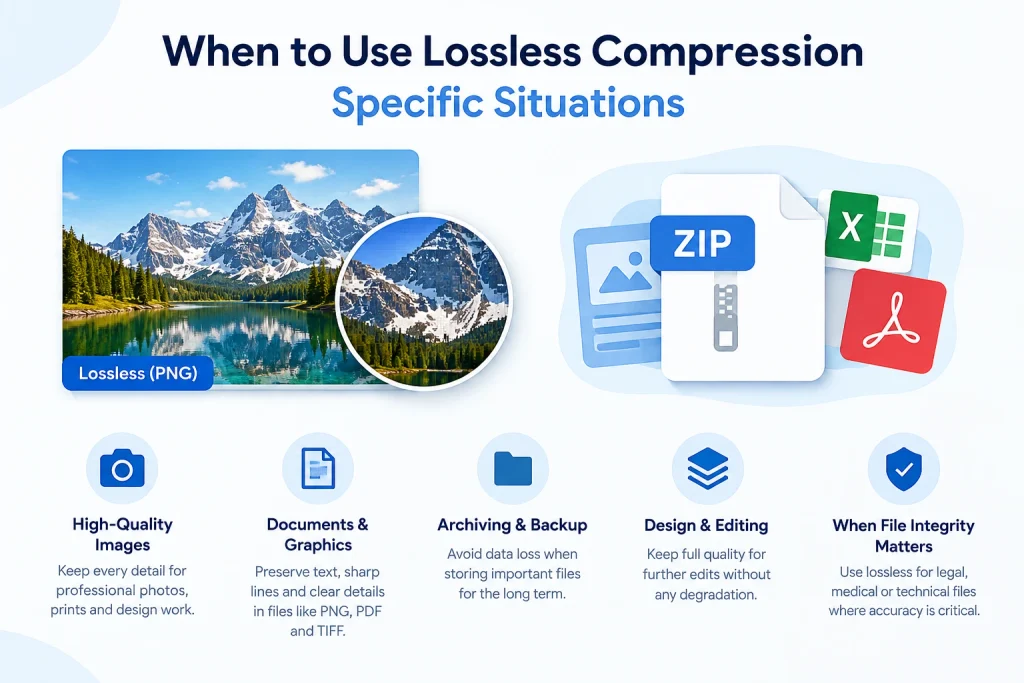
When to Use Lossless Compression — Specific Situations
Logos and Brand Graphics
Logos have hard edges, flat colour areas, and often text — all content types where lossy compression creates immediately visible artefacts. At the sharp colour boundaries in a logo, lossy compression’s 8 × 8 block processing creates block-like patterns and colour fringing visible even at high quality settings.
Lossless PNG or WebP lossless preserves every sharp edge exactly — logos look professionally crisp at any viewing size. For web logos, SVG is often better than even lossless PNG — but for any context where SVG is not available, lossless PNG is the correct format.
Screenshots Containing Text
Text has extremely hard edges — transitions between the text colour and background colour happen at single-pixel boundaries. Lossy compression handles these sharp single-pixel transitions very poorly — creating colour fringing around text characters that makes text look blurry and unprofessional.
PNG lossless preserves every text character with pixel-perfect accuracy. The same screenshot as JPG at 90 percent quality shows visible colour fringing that makes the text look like it has a soft halo. For any image containing text — screenshots, infographics, diagrams with labels — lossless compression is the correct choice.
Working Files Being Edited Multiple Times
Any image that will be opened, edited, and saved again should be kept as PNG or another lossless format throughout the editing process. This is true even if the source was a lossy JPG — convert to PNG, do all editing in PNG, export to JPG only at the final step.
This workflow applies to every type of image work: photo retouching, logo modification, infographic updates, social media graphic revisions. The lossless working file is the source of truth. Lossy exports are disposable delivery files generated from that source.
Professional Print Files
Print renders fine detail at 300 DPI — far higher resolution than typical screen viewing. Compression artefacts invisible on screen can become visible in print, particularly in areas of subtle colour gradation and around sharp edges. For professional print work, lossless PNG or TIFF ensures no compression artefacts reach the print output.
For consumer print use — photo books, greeting cards, photo prints — JPG at 90 to 95 percent quality is generally acceptable. The higher viewing resolution of print demands higher quality settings than web use.
Medical, Scientific, and Technical Imaging
Any imaging context where pixel accuracy affects decisions — medical scans, scientific microscopy, technical measurement imagery — requires lossless compression. A compression artefact that is aesthetically invisible in a photograph could be meaningful data in a diagnostic image. Lossless PNG or TIFF ensures every pixel contains accurate measurement data.
Lossy vs Lossless — Decision Framework
Use this framework to choose between lossy and lossless compression for any image:
Question 1 — What type of content is the image?
- Photograph or complex natural scene → Lossy is appropriate — complex, varied content benefits maximally from lossy compression with minimal visible impact
- Logo, icon, or graphic with flat colours → Lossless required — hard edges and flat areas show lossy artefacts immediately
- Screenshot with text or interface elements → Lossless required — text requires pixel-perfect edge reproduction
- Infographic or diagram → Lossless preferred — text labels and geometric elements need sharp edges
Question 2 — Will this image be edited again?
- Yes, this is a working file → Lossless required — generation loss from repeated lossy saves will accumulate
- No, this is a final delivery file → Lossy is appropriate — one round of lossy compression from a high-quality source is acceptable
Question 3 — Does the image need a transparent background?
- Yes, transparency is required → Lossless PNG (universal) or WebP with transparency (web) — never JPG
- No, transparency is not needed → Either is appropriate based on Questions 1 and 2
Question 4 — Where will this image be used?
- Website → Lossy WebP for photographs, lossless WebP or PNG for graphics
- Email → Lossy JPG for photographs, lossless PNG for logos
- Print → Lossy JPG at 90-95% or lossless PNG/TIFF
- Professional editing workflow → Lossless PNG or TIFF throughout
Quick Decision Summary
| Situation | Use |
|---|---|
| Photograph on a website | Lossy WebP at 80–85% |
| Logo on a website | Lossless WebP or SVG |
| Screenshot shared anywhere | Lossless PNG |
| Photograph in an email | Lossy JPG at 75–80% |
| Logo in a document | Lossless PNG |
| Working design file | Lossless PNG or TIFF |
| Final delivery photograph | Lossy JPG or WebP at 85–90% |
| Print file | Lossless PNG or high-quality JPG at 90–95% |
| Social media photograph | Lossy JPG at 80–90% at correct dimensions |
| Social media graphic | Lossless PNG |
Compression and File Size — Setting the Right Targets
For web images specifically, target file sizes provide practical guidance for compression settings.
Target File Sizes for Lossy Web Images
| Image Type | Target Size | Format | Quality |
|---|---|---|---|
| Hero / banner | Under 200 KB | WebP lossy | 80–85% |
| Blog featured | Under 150 KB | WebP lossy | 80–85% |
| Product image | Under 150 KB | WebP lossy | 80–85% |
| Blog inline | Under 100 KB | WebP lossy | 80–85% |
| Thumbnail | Under 30 KB | WebP lossy | 75–80% |
| Background image | Under 300 KB | WebP lossy | 75–80% |
Target File Sizes for Lossless Web Images
| Image Type | Target Size | Format |
|---|---|---|
| Logo (web) | Under 20 KB | SVG or WebP lossless |
| Icon | Under 5 KB | SVG or WebP lossless |
| Screenshot (documentation) | Under 200 KB | PNG or WebP lossless |
| Infographic | Under 500 KB | WebP lossless |
If lossless PNG files exceed these targets, several lossless-only optimisation techniques reduce file size without any quality compromise. Removing unnecessary metadata, reducing colour depth where few colours are used, and running through lossless optimisation tools like PNGQuant (which reduces PNG colour depth intelligently) can reduce PNG sizes by 20 to 70 percent while keeping the format technically lossless.
Our Image Compressor handles both lossy and lossless compression — applying smart settings for each image type to achieve target file sizes with the minimum necessary quality tradeoff.
The Role of Format Selection in Compression Effectiveness
Compression type and format are closely related but distinct decisions. The format you choose constrains which compression types are available — and the effectiveness of compression varies significantly by format for the same image content.
Choosing the Right Format Multiplies Compression Effectiveness
A photograph saved as PNG (lossless only) at 3.8MB converted to WebP lossy at 85 percent quality becomes approximately 250KB — a 93 percent reduction. The same photograph saved as JPG at 85 percent quality is approximately 380KB — an 90 percent reduction. Both are enormous improvements over PNG, but WebP achieves 34 percent better compression than JPG for the same quality.
Format selection and compression level work together. For web performance, the combination of WebP format plus 80 to 85 percent quality is consistently the optimal choice for photographic content. Our comprehensive guide on best image format for websites covers format selection in detail — including when to use each format for every type of web image.
Converting Between Compression Types
Converting from lossy to lossless (JPG to PNG) creates a lossless copy of the current state — the PNG preserves whatever quality the JPG currently has, with no further loss on subsequent saves. The PNG won’t look better than the JPG source — but it won’t lose quality further.
Converting from lossless to lossy (PNG to JPG or WebP) applies lossy compression for the first time — choosing the right quality setting determines how much data is removed and how small the resulting file is.
Converting between lossy formats (JPG to WebP) re-applies lossy compression — ideally from the original lossless source rather than the JPG. Converting from JPG to WebP gives good results, but converting from the original PNG or RAW source to WebP gives slightly better results because there’s no prior quality loss to preserve.
Our tools handle all common conversion directions. The PNG to WebP converter converts lossless PNG to WebP in either lossless or lossy mode. The JPG to WebP converter converts lossy JPG to more efficient lossy WebP. Both support batch upload for processing multiple files simultaneously.
Lossy vs Lossless and Google PageSpeed Insights
Google PageSpeed Insights distinguishes between compression-related performance issues in specific, actionable ways.
“Efficiently Encode Images”
This recommendation flags images that are too large for their quality level — where better compression settings would reduce file size without visible quality impact. It typically appears when JPG or WebP images are saved at unnecessarily high quality settings, or when PNG photographs (where lossy compression would dramatically reduce file size without visible impact) are used where lossy would be appropriate.
Fixing this recommendation means applying appropriate lossy compression at 80 to 85 percent quality for photographic content, or converting PNG photographs to WebP lossy.
“Serve Images in Next-Gen Formats”
This recommendation flags JPG and PNG images where WebP would provide better compression. It specifically targets the format rather than the compression level — recommending switching from JPG to WebP lossy or from PNG to WebP (either lossless or lossy depending on the image type).
Fixing both recommendations — appropriate compression settings AND correct format — typically produces the most significant PageSpeed score improvements available through image optimisation. Our guide on how to make images load faster covers the complete PageSpeed Insights workflow for image optimisation including every recommendation category.
Frequently Asked Questions
1. What is the difference between lossy and lossless compression?
Lossy compression permanently removes image data to achieve smaller files — at high quality settings the removed data is invisible, but it cannot be recovered. Lossless compression reduces file size without removing any data — the original image can be perfectly reconstructed from the compressed file. JPG is lossy. PNG is lossless. WebP supports both modes. Use lossy for photographs being delivered for viewing. Use lossless for logos, graphics, screenshots, and working files being edited.
2. Is lossy compression bad for image quality?
At quality settings of 75 to 90 percent, lossy compression is not practically bad for most uses. The removed data is genuinely imperceptible at normal viewing sizes and distances. Lossy compression only visibly degrades quality below approximately 70 to 75 percent quality settings, where block-like artefacts become apparent. The practical concern with lossy compression is generation loss — repeated re-saves accumulate quality degradation. Use lossy only for final delivery files, not working files.
3. Which is better — lossy or lossless?
Neither is universally better — they serve different purposes. Lossy compression is better for photographs going anywhere except a working file archive — it achieves 10× smaller files with no visible quality difference. Lossless is better for logos, screenshots, graphics with hard edges, and any image being edited repeatedly — it preserves quality perfectly regardless of how many times the file is saved.
4. Does PNG use lossy or lossless compression?
PNG uses exclusively lossless compression. Every pixel is stored exactly as captured — quality is mathematically guaranteed to be perfect regardless of how many times the file is saved or edited. PNG compression levels (0 to 9) control only file size and encoding time — not quality. A PNG at any compression level looks identical to every other compression level.
5. Does JPG use lossy or lossless compression?
JPG uses exclusively lossy compression. Every JPG file has had some data permanently removed — the quality setting determines how much. There is no lossless JPG mode. At high quality settings (85 to 95 percent), the removed data is invisible at normal viewing sizes. At low quality settings (below 70 percent), visible block-like artefacts appear.
6. What is generation loss and why does it matter?
Generation loss is the cumulative quality degradation that occurs when a lossy-compressed image is opened, edited, and saved as a lossy format repeatedly. Each save cycle applies another round of lossy quantization — removing additional data on top of what previous saves removed. After multiple cycles, visible artefacts accumulate. Generation loss makes JPG and lossy WebP unsafe as working file formats. Always work from lossless PNG or TIFF and export to lossy formats only at the final delivery step.
7. Can I convert a lossy image to lossless to recover quality?
No. Converting a JPG to PNG creates a lossless PNG copy — but it preserves the JPG quality exactly as it is, including all compression artefacts. The PNG looks identical to the JPG because PNG stores whatever pixel values the JPG decompresses to — it cannot recover data that was permanently removed. The benefit of converting to lossless is preventing further quality loss in subsequent saves — not recovering lost quality.
8. What quality setting should I use for lossy compression?
80 to 85 percent quality for most web images — photographs on websites, product images, blog content. 85 to 95 percent for professional deliveries where quality is critical. 75 to 80 percent for thumbnails and social media where file size matters more. Never below 70 percent — compression artefacts become clearly visible below this threshold for most image types.
9. Is WebP lossy or lossless?
WebP supports both. WebP lossy mode produces files 25 to 34 percent smaller than JPG at equivalent quality. WebP lossless mode produces files 26 percent smaller than PNG at equivalent quality. The choice is made at conversion time — you select which mode to use when converting an image to WebP. For photographs on websites, WebP lossy at 80 to 85 percent quality is the recommended choice.
10. Does lossless compression affect image quality?
Lossless compression never affects image quality. By definition, lossless compression preserves every pixel exactly — the decompressed image is mathematically identical to the original. No amount of lossless compression reduces quality. The only variables are file size (higher compression level = smaller file) and encoding/decoding time (higher compression level = more processing required). Quality remains perfect at every compression level.
Conclusion
Lossy and lossless compression are not competing approaches — they are complementary tools with distinct strengths that serve different purposes in image workflows. Understanding which to use in each situation eliminates the most common image quality and file size problems simultaneously.
The practical rules are consistent across all image work. Use lossy compression — JPG or WebP lossy at 80 to 85 percent quality — for photographs going to web delivery, email, and social media. The file size reduction is dramatic and the quality loss is genuinely invisible. Use lossless compression — PNG or WebP lossless — for logos, screenshots, graphics with text, and any image that will be edited again. Quality is perfectly preserved regardless of how many times the file is saved.
Keep lossless versions as master files for any image with ongoing use. Export lossy versions from those masters for delivery. Never use lossy formats as working files — generation loss accumulates silently until suddenly visible quality degradation appears at the worst possible moment.
Apply these principles consistently across your image workflow — and your images will be as small as possible, as sharp as they should be, and safe from the cumulative quality loss that catches most people off guard the first time they encounter generation loss.
Use our free Image Compressor to compress any image with smart quality settings — and our PNG to WebP converter and JPG to WebP converter to convert images to the most efficient web format. All tools support batch upload, require no sign-up, and are completely free.