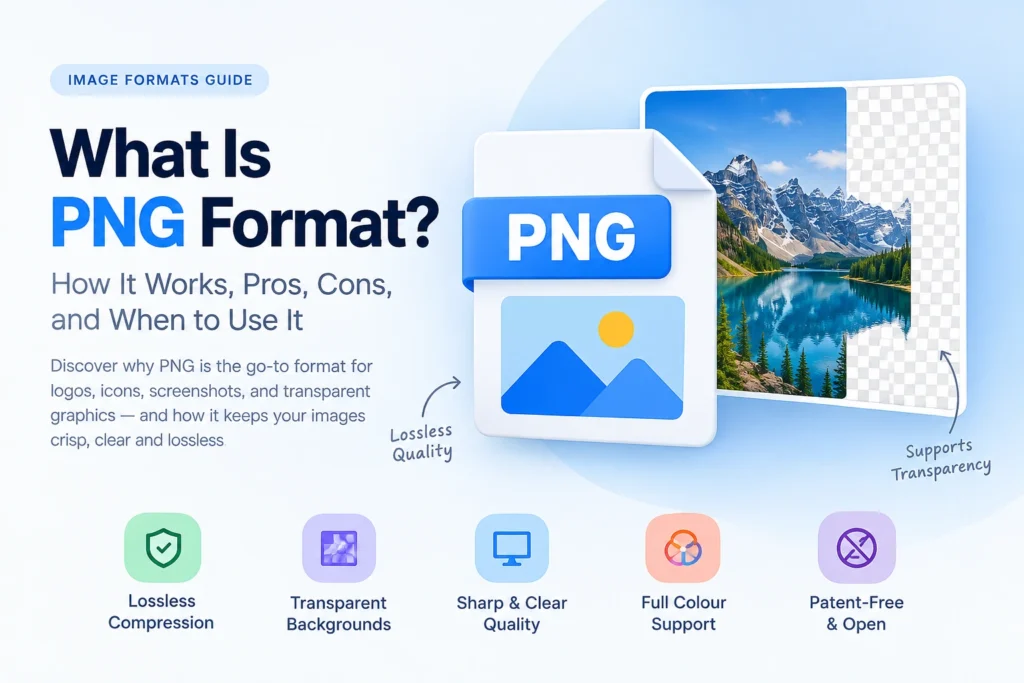
PNG (Portable Network Graphics) is a lossless image format which means it preserves all pixels of the image without losing quality on saving and editing it. In other words, PNG always saves the entire image as it is and does not lose a single bit of it no matter how many times the picture is edited. PNG is the default format for such images as logos, icons, screenshots, and all other images where perfect pixel quality is more important than the size of the file.
In this guide, you will learn everything there is to know about the PNG image format – what it really is, how the technology of lossless compression works, how it differs from JPG and WebP formats, what the advantages and disadvantages of the format are, and in what cases using PNG makes sense.
What Is PNG? — Definition, History, and Origin
PNG refers to Portable Network Graphics. It was developed in 1995 and officially released as a standard in 1996 by the PNG Development Group — a group of independent programmers, formed specifically with the goal of developing an improvement over the GIF file format without any associated patents.
The need for development of PNG arose both on technological and legal grounds. GIF was the dominant format at that time and utilized the LZW (Lempel-Ziv-Welch) algorithm for compression. However, the algorithm was protected by patents owned by Unisys and CompuServe. In 1994, Unisys started charging licensing fees for using the GIF format and thus created a lot of conflict among programmers.
PNG was designed from the ground up to be technically superior to GIF in every measurable way — better compression, full colour support (GIF was limited to 256 colours), full alpha channel transparency (GIF only supported binary on/off transparency), and gamma correction for accurate colour display across different monitors and operating systems.
The PNG specification was submitted to the World Wide Web Consortium (W3C) and became a W3C Recommendation in October 1996. It was later published as an international standard — ISO/IEC 15948 — in 2004, cementing its status as a permanent, officially standardised format with no patent restrictions.
What “Portable” means in the name: The Portable in Portable Network Graphics refers to cross-platform compatibility — PNG was specifically designed to look identical on different operating systems and monitors through built-in gamma correction and colour space information. An image created on a Mac displays identically on Windows without colour shifts — a significant problem with earlier formats.
The unofficial recursive joke: PNG developers playfully defined the name as “PNG’s Not GIF” — a recursive acronym that emphasises PNG’s origin as a GIF replacement while poking fun at the format it was built to replace.
According to the W3C PNG specification, PNG was designed to be a robust, legally unencumbered, well-compressed, well-specified format suitable for lossless storage of raster images — objectives it has fulfilled comprehensively since its release.
How PNG Compression Works — The Technical Process
PNG’s lossless compression is the defining technical characteristic of the format. Understanding how it achieves file size reduction without removing any data explains both PNG’s strengths and its limitations.
What Lossless Compression Actually Means
Lossless compression compresses file size by using a more effective way of representing the same information without losing any data. A file which has been compressed using lossless compression contains the same information as the original, but the difference is in how the information has been organised and represented. Decompression of the lossless compression file will give you an exact replica of the original file.
In contrast, lossy compression (in use for JPG) involves permanent deletion of data in order to get a smaller file size. In PNG, it is possible to recover the original pixel data without losing any data.
Step 1 — Pre-Processing with Filters
Before compression is applied, PNG uses a pre-processing step called filtering that significantly improves how efficiently the subsequent compression works. Five filter types are available for each row of pixels:
None: The pixel values are stored as-is without any transformation.
Sub: Each pixel value is replaced by the difference between it and the pixel immediately to its left. In areas of gradually changing colour, adjacent pixels tend to be similar — so differences between them tend to be small numbers. Small numbers compress more efficiently than large numbers.
Up: Similar to Sub but compares each pixel to the pixel directly above it in the previous row, rather than the pixel to its left.
Average: Combines Sub and Up — each pixel is replaced by the difference from the average of the pixel above and the pixel to the left.
Paeth: Uses a predictor function (developed by Alan Paeth) that selects whichever of three neighbouring pixels — left, above, or upper-left — is closest to a linear extrapolation from all three. This is the most sophisticated filter and often the most effective.
The PNG encoder selects the filter that produces the most compressible output for each row of pixels — different rows in the same image may use different filters. This adaptive per-row filter selection significantly improves overall compression efficiency.
Why filtering matters: By converting pixel values into differences from predicted values, filtering transforms the data into a form dominated by small numbers (since adjacent pixels in photographs and graphics tend to be similar). Small, concentrated number ranges compress dramatically more efficiently than diverse, spread-out raw pixel values.
Step 2 — DEFLATE Compression
The filtered pixel data is then compressed using DEFLATE — the same lossless compression algorithm used in ZIP files, gzip, and many other data compression contexts. DEFLATE itself combines two complementary techniques:
LZ77 (Lempel-Ziv 1977): Scans the filtered data for repeated sequences of bytes. When a sequence appears more than once, the second and subsequent occurrences are replaced by a back-reference — a pointer to the first occurrence with a length value indicating how many bytes to copy. This is extremely effective for data with repetitive patterns.
In a PNG image of a logo with a large flat blue background, the same filtered blue pixel value repeats thousands of times. LZ77 stores the first occurrence, then replaces all subsequent occurrences with tiny back-references — dramatically reducing the data needed to represent the background.
Huffman Coding: After LZ77, Huffman coding assigns variable-length binary codes to each value in the compressed data — shorter codes to frequently occurring values, longer codes to rare values. This ensures the average code length reflects the actual frequency distribution of values in the specific image, minimising the total bits needed.
The combination of LZ77 and Huffman coding — applied to pre-filtered pixel data — allows DEFLATE to achieve significant compression ratios on lossless data. For images with large areas of uniform colour, the compression can be dramatic — a 1000 × 1000 pixel image filled with a single solid colour might compress to under 1KB despite containing one million pixels.
PNG Compression Levels
Most software offers PNG compression levels from 0 to 9 — but this controls computational effort, not quality. A PNG at compression level 9 looks identical to a PNG at compression level 0. The difference is only file size (level 9 produces smaller files through more thorough compression algorithm execution) and encoding time (level 9 takes longer to compress). Decompression time is similar regardless of compression level.
This is an important distinction from JPG quality settings. JPG quality settings directly control data loss. PNG compression levels control how hard the algorithm works — with no data loss at any level.
PNG Technical Specifications
Colour Depth and Colour Modes
PNG supports multiple colour modes and bit depths — more comprehensive than JPG in this regard:
| Colour Mode | Bit Depth | Colours | Use Case |
|---|---|---|---|
| Greyscale | 1, 2, 4, 8, 16 bits | 2 to 65,536 grey levels | Black and white images |
| Indexed colour | 1, 2, 4, 8 bits | Up to 256 colours | Simple graphics, icons (like GIF replacement) |
| RGB (Truecolour) | 8 or 16 bits per channel | 16.7M or 281 trillion | Standard colour images |
| Greyscale + Alpha | 8 or 16 bits | Grey levels + transparency | Greyscale with transparency |
| RGBA (RGB + Alpha) | 8 or 16 bits per channel | Full colour + full transparency | Standard transparent images |
16-bit per channel PNG: Standard PNG supports 16 bits per colour channel — providing 65,536 possible values per channel compared to JPG’s 8-bit (256 values per channel). This 16-bit depth allows PNG to store over 281 trillion possible colours — far beyond what any current display technology can show. For professional photography workflows involving HDR content or where maximum colour precision is required, 16-bit PNG preserves more information than standard JPG.
For everyday web and design use, 8-bit per channel (standard RGBA) is the universal standard — providing 16.7 million colours plus 256 levels of transparency.
Alpha Channel Transparency
PNG’s alpha channel is one of its most important and most used features. The alpha channel stores a transparency value for each pixel — from 0 (completely transparent — invisible) to 255 (fully opaque — completely solid), with every value in between representing partial transparency.
This per-pixel, multi-level transparency is what makes PNG essential for logos, icons, and cutout graphics. A logo on a transparent PNG background sits naturally on any background colour without any visible box — the partially transparent edge pixels blend smoothly into whatever background they’re placed on.
How alpha transparency works in practice: When a design tool or browser renders a transparent PNG on top of a background, it calculates each output pixel by blending the PNG pixel’s colour with the background colour, weighted by the alpha value. A pixel with alpha 128 (50 percent opacity) produces an output that’s 50 percent the PNG colour and 50 percent the background colour — creating smooth, natural-looking edge transitions.
This smooth blending — called alpha compositing — is why logos and icons with anti-aliased edges look clean on any background colour. The semi-transparent edge pixels blend seamlessly regardless of what they sit on.
Comparison with GIF transparency: GIF only supports binary transparency — each pixel is either fully transparent (alpha 0) or fully opaque (alpha 255), with nothing in between. This limitation means GIF graphics have jagged, aliased edges when placed on backgrounds different from the colour they were designed for. PNG’s full alpha channel eliminates this problem entirely.
Gamma Correction and Colour Profiles
PNG files can embed gamma correction information (gAMA chunk) and ICC colour profiles (iCCP chunk) that tell viewing software how to correctly display the image’s colours on different monitors and operating systems.
In practice, for web use, PNG images should be saved in the sRGB colour space with standard gamma correction. Most image editing software handles this automatically. The W3C recommends that PNG files for web use include an sRGB chunk indicating that the image uses the sRGB colour space — ensuring consistent colour display across browsers and operating systems.
Metadata Support
PNG supports several types of embedded text metadata through tEXt, iTXt, and zTXt chunks:
- Author and copyright information
- Image creation date and time
- Description and comment text
- Software used to create the image
Unlike JPG’s EXIF metadata (which is extensive and often includes GPS location and camera settings), PNG metadata is generally simpler and more focused on descriptive information. For web images, PNG metadata adds minimal overhead and is typically stripped by optimisation tools to reduce file size.
Maximum Dimensions
PNG theoretically supports images up to 2,147,483,647 × 2,147,483,647 pixels — a limit so large it is never reached in practice. Real-world limits are determined by available memory and software capabilities, not the PNG specification itself.
PNG Strengths — What It Does Better Than Any Alternative
Perfect Lossless Quality — Zero Degradation
PNG’s most fundamental strength is its mathematical guarantee of lossless quality. A PNG file contains the complete, unaltered original pixel data. Every edit, every save, every compression and decompression cycle — the pixel data remains byte-for-byte identical. There is no concept of generation loss in PNG. A PNG file saved a thousand times looks identical to a PNG file saved once.
This lossless permanence makes PNG the correct format for any image that will be edited repeatedly or that must maintain pixel-perfect accuracy indefinitely. Professional designers keep working logos, interface elements, and graphics as PNG — editing and re-saving freely knowing quality is always preserved.
Full Alpha Channel Transparency
The per-pixel, multi-level transparency offered by PNG is something that cannot be matched by JPG, which does not have transparency at all, while it surpasses GIF, which has only binary on-off transparency. The possibility of storing anti-aliased edges makes PNG absolutely essential for logos, icons, interface components, watermarks, and for any graphics component that must blend into other designs.
The transparency effect of a logo saved as PNG will look equally good whether the background is white, black, photographical, or colored banners; the effect of transparency will work in harmony with the background in any case.
Superior Quality for Sharp-Edged Graphics
For images with hard geometric edges, flat colour areas, and text — logos, icons, screenshots, interface graphics, infographics — PNG produces visibly better results than JPG at any quality setting. JPG’s block-based compression creates visible artefacts at the sharp boundaries between different colours. PNG’s lossless compression preserves every sharp edge exactly as drawn.
A screenshot of code saved as PNG has every character perfectly sharp — each pixel exactly the colour it should be. The same screenshot saved as JPG at 90 percent quality shows visible colour fringing around text characters and block-like patterns in flat colour areas. For screenshots, the visual quality difference is immediately obvious.
High Bit Depth Support
PNG format being able to work with 16-bits per channel (whereas JPG only supports 8-bits) makes it ideal for professional photography work that requires high color accuracy. High dynamic range photography, color grading process, and scientific imaging can all take advantage of PNG format. In case of web use, 8-bit PNG is common, however, the fact that PNG can work with 16-bits makes it superior to JPG.
Open Standard With No Patents
PNG’s completely patent-free, open specification means any software can implement PNG support without licensing fees or legal concerns. This openness has contributed to PNG’s universal adoption across all software ecosystems — and guarantees it will remain freely implementable indefinitely regardless of corporate ownership changes or patent disputes.
Excellent for Simple Graphics With Flat Colours
For simple graphics with large areas of uniform colour — line art, simple logos, icons, geometric patterns — PNG’s lossless compression is extremely efficient. A 1000 × 500 pixel logo with a white background and a few coloured shapes might compress to 15KB as PNG — much smaller than you’d expect, because the large uniform areas compress dramatically under LZ77.
In these specific cases, PNG can even produce smaller files than JPG — because JPG’s DCT compression is less efficient at representing large uniform areas than LZ77’s run-length-like encoding.
PNG Limitations — Where It Falls Short
Large File Sizes for Photographs
The major disadvantage PNG has in practical terms is file size when used with photographic images. Images consist of millions of slightly varying pixels – neighboring pixels vary slightly in color depending on lighting effects, textures, and details. It is exactly the variety of pixels that PNG does not compress well.
A picture with lots of varied colors will have very little of the repeating patterns that LZ77 looks for. Each pixel is slightly different from other pixels; there are few repeating patterns that can be substituted with back-references. As a consequence, PNG images are 5 to 10 times larger than JPG images with the same photo content – and even bigger than WebP images.
A professional portrait image will be 3MB in PNG, 350KB in JPG at 85% quality level, and 230KB in WebP at the same quality level. Loading pages containing PNG pictures on a website will take much more time than loading JPG or WebP – without any advantage in visual quality, because the photos will look just the same.
No Animation Support in Standard PNG
Standard PNG does not support animation. An animated PNG format called APNG (Animated Portable Network Graphics) exists and is supported by most modern browsers — but APNG is an extension to the PNG standard, not part of the original specification, and some tools don’t support it.
For animated content, animated WebP is a better choice — smaller files, full colour support, and good browser coverage. For the widest compatibility, animated GIF — despite its age and 256-colour limitation — remains universally supported.
Slower Encoding Than JPG
PNG compression — particularly at high compression levels — requires more computational effort than JPG compression. For applications that need to generate images very rapidly (real-time screen capture, high-throughput image processing pipelines), PNG’s encoding speed can be a consideration. For typical design, editing, and web publishing workflows, the difference is not practically significant.
No Native CMYK Support
PNG does not support CMYK colour mode — the cyan, magenta, yellow, and black ink model used in professional print production. Professional print workflows often require CMYK files. For print production work, TIFF (which fully supports CMYK) is the standard format rather than PNG.
For everyday print use — photo printing, simple document printing — PNG is perfectly acceptable and widely supported. But for professional press production where CMYK colour control is essential, PNG’s RGB-only limitation is a real constraint.
Less Efficient Than WebP Lossless
WebP’s lossless mode consistently produces files approximately 26 percent smaller than equivalent PNG files — with identical pixel-perfect quality. For web images where both lossless quality and small file size matter, WebP lossless is technically the better choice.
The only reason to prefer PNG over WebP lossless for web images is compatibility — PNG is supported universally including in email clients, print services, older software, and every legacy context. WebP lossless, while excellent for web delivery, lacks PNG’s universal compatibility outside web browsers.
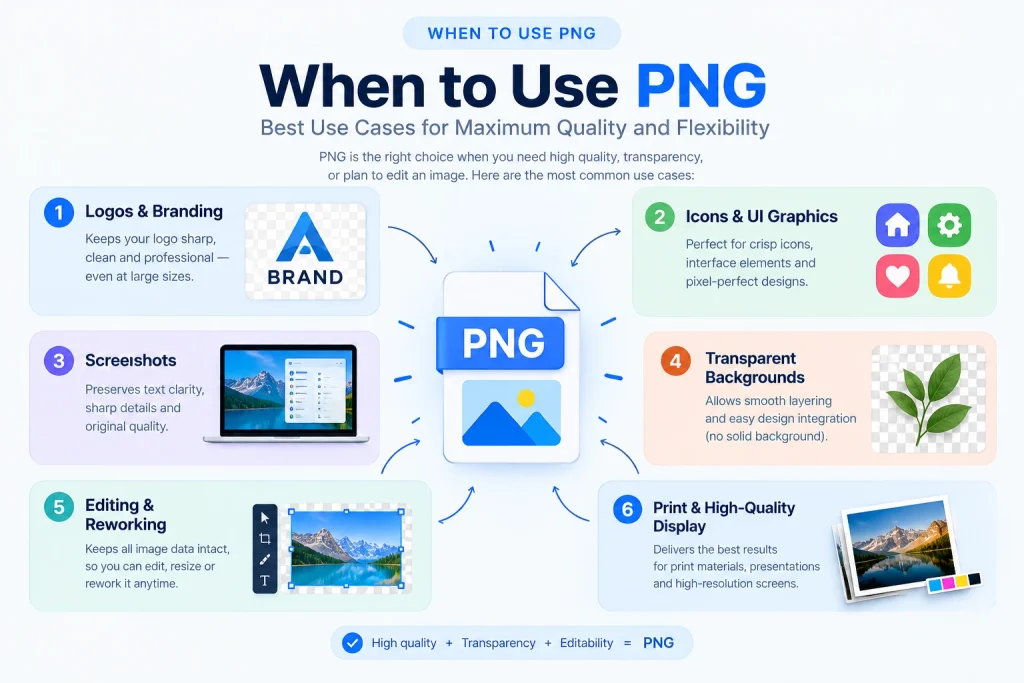
When to Use PNG — Specific Use Cases
Logos and Brand Graphics
PNG is the standard format for logos used in documents, presentations, email signatures, and print materials — any context where the logo needs to work across different platforms and software with guaranteed compatibility.
For a logo to work correctly in a Word document, a PowerPoint presentation, a PDF, an email, and a print-ready layout simultaneously, PNG is the reliable common denominator. Its universal support across all software ensures the logo displays correctly with its transparent background preserved wherever it’s used.
For web logos specifically, SVG is technically better — smaller file size and infinite scalability. But PNG is the practical backup for any context where SVG isn’t supported. Keep both versions — SVG for web use, PNG for documents and print.
Screenshots and Screen Recordings
PNG is the correct format for all screenshots — without exception. Screenshots contain text, interface elements, code, and graphics with sharp, hard edges. JPG compression creates visible colour fringing around text characters even at quality settings of 90 percent and above. PNG preserves every character, every interface element, and every hard edge with perfect pixel accuracy.
This matters practically — a tutorial screenshot with code examples saved as JPG looks noticeably degraded even at high quality settings. The same screenshot saved as PNG looks exactly as it appeared on screen. For any professional tutorial, documentation, or technical content involving screenshots, PNG is the only appropriate format.
Images With Transparent Backgrounds
Whenever an image needs a transparent background — for a cutout product image in an online store, a logo that needs to sit on different background colours, a watermark overlay, or any graphic element placed on top of other content — PNG is the format that preserves that transparency correctly and universally.
If you need to remove a background from an image, always save the result as PNG (or WebP for web use) — never as JPG, which fills transparency with white. Our Image Background Remover produces transparent PNG output that works in every application, presentation, and design tool.
Working Design Files
PNG is the correct intermediate format for design work involving multiple editing rounds. Converting a JPG to PNG before editing creates a lossless working copy — subsequent saves preserve quality perfectly, with JPG exported only at the final delivery step.
Even if the original source was a JPG (and therefore already has some compression loss), working in PNG from that point prevents any further degradation during the editing process. The principle is always the same — lossless for working files, lossy only for final delivery.
Infographics and Text-Heavy Graphics
Infographics combine text, icons, illustrations, and data visualisations — all elements with hard edges that JPG handles poorly. PNG preserves the crispness of every element. For infographics shared on websites, PNG is the standard — though WebP is technically better for web performance. For infographics shared across multiple channels including email, documents, and presentations, PNG’s universal compatibility makes it the practical choice.
Images for Print and Archive
For images being archived for potential future use — particularly images that may need to be printed at large sizes, repurposed in different contexts, or used as source material for future design work — PNG’s lossless quality preserves the maximum possible detail indefinitely. An archived PNG from 2026 will be exactly as detailed and accurate when opened in 2036 as it was when it was saved.
When NOT to Use PNG — Critical Situations
Photographs on Websites
This is the most common and most impactful misuse of PNG. Using PNG for photographs on a website creates pages that load dramatically slower — with no visible benefit to visitors. A photograph at 3MB as PNG versus 350KB as JPG or 230KB as WebP — both JPG and WebP look identical on screen. Using PNG for website photographs is a significant performance mistake that directly hurts page speed, Core Web Vitals scores, and search rankings.
For any photographic content on a website — hero images, blog photos, product photography, team photos — use JPG or preferably WebP. Our guide on best image format for websites covers exactly which format to use for every type of web image.
Email Attachments of Photographs
The inclusion of PNG photographs in emails will lead to larger file sizes than necessary. The 4MB PNG photograph is reduced to a 350 to 500KB JPG photograph without any loss in visual quality. Larger email attachments are less efficient because they take longer to upload and download and have a higher risk of filling up the recipient’s email box. Always convert photographic PNG files to JPG files before attaching to emails.
Social Media Photographs
All media uploads are recompressed by social media sites—no matter how good your PNG photos look, social media sites compress them in their own algorithms and turn them into JPGs or WebPs internally. This means that you send them a large PNG photo, and they turn it into their own compressed format for viewing. Sending a 3MB PNG photo to Instagram is the same thing as sending a well-optimized 400KB JPG—but the latter is more efficient and faster. Use JPG from 80 to 90 percent quality for social media photos.
Video Game Screenshots and High-Frame-Rate Captures
For tools that capture screenshots at high rates — game recording, screen recording software, continuous capture tools — PNG’s slower encoding speed and larger file sizes create storage and performance problems. Many game screenshot tools use JPG specifically because the faster encoding and smaller files are more practical at high capture rates. For occasional screenshots, PNG is ideal. For high-frequency capture workflows, JPG or format-specific solutions are more practical.
PNG vs JPG vs WebP — The Complete Picture
| Feature | PNG | JPG | WebP |
|---|---|---|---|
| Compression | Lossless | Lossy | Lossy + Lossless |
| Photo file size | Very large | Small | Smallest |
| Graphic file size | Small to medium | Medium (artefacts) | Smaller than PNG |
| Quality loss | Never | Permanent | Lossy: yes / Lossless: no |
| Transparency | Full alpha | None | Full alpha |
| Animation | APNG extension | No | Yes |
| Browser support | Universal | Universal | 96%+ |
| Print support | Wide | Universal | Rare |
| Email support | Generally works | Universal | Inconsistent |
| Software support | Universal | Universal | Improving |
| Best for | Graphics, logos, editing | Photos, universal use | All web images |
Our detailed comparisons cover these differences in depth. JPG vs PNG explains every practical difference between the two formats with specific use case guidance. PNG vs WebP covers when WebP’s superior web performance justifies switching from PNG.
PNG File Sizes — Realistic Expectations
Understanding what PNG file sizes to expect helps you make informed format decisions and identify when PNG is the wrong choice.
PNG File Sizes by Image Type
| Image Type | Dimensions | PNG Size | JPG 85% Size | WebP Size | PNG Overhead |
|---|---|---|---|---|---|
| Landscape photo | 1920 × 1080 | 3.8 MB | 420 KB | 280 KB | 9× larger than JPG |
| Product photo | 800 × 800 | 1.1 MB | 95 KB | 65 KB | 11× larger than JPG |
| Logo (flat colours) | 500 × 200 | 45 KB | N/A (artefacts) | 28 KB | Appropriate |
| Screenshot (interface) | 1440 × 900 | 820 KB | 320 KB (degraded) | 510 KB | Worth it for quality |
| Icon (simple) | 64 × 64 | 3 KB | 6 KB | 2 KB | PNG wins here |
| Infographic | 1200 × 2000 | 850 KB | 380 KB (artefacts) | 530 KB | Appropriate |
The file size comparison makes the format decision clear. For photographs — PNG creates files that are 9 to 11 times larger than JPG with no visible quality benefit on screen. For simple logos and icons — PNG is smaller than JPG and appropriate. For screenshots and infographics — PNG’s larger size is justified by the quality difference in sharp edge reproduction.
Reducing PNG File Sizes
When PNG is the right format but file size needs to be smaller, several optimisation techniques help without any quality loss:
Strip metadata: Remove text chunks, gamma information, and embedded profiles that add file size without affecting image quality on screen.
Reduce colour depth: If a PNG uses only 50 distinct colours, converting from full 24-bit RGB to 8-bit indexed colour can dramatically reduce file size with no visible quality loss for that specific image.
Lossless PNG optimisation tools: Tools like PNGQuant, OptiPNG, and our Image Compressor can reduce PNG file sizes by 20 to 70 percent through smarter compression and colour reduction — without removing any meaningful visual data.
Convert to WebP lossless: For web use where loading speed matters, converting PNG to WebP lossless achieves 26 percent smaller files with identical pixel-perfect quality. Use our PNG to WebP converter to convert any PNG for web delivery.
PNG in Professional Workflows
Web Design and UI Development
PNG is fundamental to web and interface design. Every interface element — buttons, icons, illustration assets, UI components — is typically created as PNG in design tools and exported for use in websites and applications. The combination of lossless quality and full transparency makes PNG the standard deliverable format for web design assets.
Modern web workflows increasingly convert PNG assets to WebP for actual web delivery — PNG remains the master format for design work, with WebP generated for production use. This hybrid approach gets the benefits of both — lossless working files and optimised delivery files.
Print and Publishing
PNG is accepted by most print services and is suitable for consumer print use — photo books, greeting cards, photo prints, simple document printing. For professional press production involving CMYK workflows, TIFF is the industry standard. But for print on demand, online print services, and everyday printing needs, PNG’s lossless quality produces excellent print results.
Always verify that your PNG has sufficient pixel resolution for the intended print size. Multiply print dimensions in inches by 300 to get minimum required pixels — a 5 × 7 inch print at 300 DPI needs at least 1500 × 2100 pixels. Our guide on what is image resolution covers the complete calculation for every print size.
Game Development
PNG is universally used in game development for sprite sheets, texture atlases, UI elements, and graphic assets. Game engines — Unity, Unreal Engine, Godot — all use PNG as the standard format for 2D graphic assets. The lossless quality and transparency support are essential for game graphics where precise pixel data and clean transparent edges matter for visual rendering quality.
Scientific and Technical Imaging
PNG is commonly used in scientific contexts — microscopy, medical imaging, satellite imagery, technical documentation — where accurate pixel-level data is important. The mathematical guarantee of lossless fidelity makes PNG appropriate for any imaging context where data accuracy matters more than file size.
How to Convert PNG to Other Formats
PNG is often the starting point for conversions to other formats depending on the use case.
PNG to JPG: When a PNG photograph needs to be smaller for email, upload, or web use without transparency. JPG at 80 to 85 percent quality produces files 70 to 90 percent smaller. Our PNG to JPG converter handles this with batch support — convert multiple PNG files simultaneously.
PNG to WebP: When optimising transparent or lossless PNG images for web delivery. WebP lossless is 26 percent smaller than PNG with identical quality. WebP with transparency is smaller than PNG with transparency. Our PNG to WebP converter converts any PNG — with full transparency preservation in the WebP output.
PNG to SVG: When a PNG logo or simple graphic needs to scale to any size without quality loss. The conversion traces PNG pixel shapes into vector paths — working best on simple, high-contrast logos with flat colours. Our guide on how to convert SVG to PNG also covers the reverse direction — converting SVG to PNG when raster output is needed.
PNG vs Modern Alternatives — Is PNG Still Relevant in 2026?
PNG has been PNG for 30 years — and it remains completely relevant in 2026 for the same reasons it was created. Lossless quality, full transparency, and universal compatibility are enduring needs that newer formats address differently but don’t eliminate.
WebP lossless is technically superior to PNG for web delivery — smaller files, same quality. But WebP lacks PNG’s universal compatibility outside web browsers. Email clients, print services, office software, and legacy applications all support PNG reliably. For a working design asset that needs to function everywhere — not just in web browsers — PNG remains the safer, more practical choice.
AVIF is emerging as a next-generation format with even better compression than WebP — but with less than 75 percent global browser support and even less software support outside browsers. AVIF is not yet a practical PNG replacement for general use.
The realistic answer: PNG will remain relevant indefinitely as the universal lossless format for graphics, logos, screenshots, and transparent images. For web delivery where performance matters, PNG files will increasingly be converted to WebP before serving — but PNG will remain the master format from which those web-optimised versions are generated.
Frequently Asked Questions
1. What does PNG stand for?
PNG stands for Portable Network Graphics — with “Portable” referring to the format’s cross-platform colour consistency. PNG developers also used the recursive humorous definition “PNG’s Not GIF” — emphasising its origin as a replacement for the GIF format. The specification was published in 1996 by the PNG Development Group and is now maintained as an international standard (ISO/IEC 15948).
2. Is PNG lossless or lossy?
PNG is exclusively lossless. It stores every pixel of an image exactly without removing any data. Quality is mathematically guaranteed to be identical to the original regardless of how many times the file is saved, edited, or decompressed. There is no quality setting that reduces PNG quality — PNG compression levels only affect file size and encoding time, not image quality.
3. Can PNG have a transparent background?
Yes — PNG’s full alpha channel transparency is one of its defining features. Each pixel can be fully transparent, fully opaque, or any level of partial transparency in between. This per-pixel multi-level transparency enables smooth anti-aliased edges that blend naturally into any background colour. PNG’s transparency support is superior to GIF (which only has on/off transparency) and is not available in JPG at all.
4. Why is my PNG file so large?
PNG photographs are large because PNG’s lossless compression is much less efficient for photographic content than JPG or WebP. Photographs have millions of subtly different adjacent pixel values — offering few of the repetitive patterns that PNG’s compression exploits effectively. A 3MB PNG photograph is normal. Converting to JPG at 85 percent quality or WebP reduces it to 300 to 400KB with no visible quality difference on screen.
5. Should I use PNG or JPG for my website?
It depends on the image type. For photographs — use JPG or preferably WebP — PNG photographs are 5 to 10 times larger with no visible benefit on screen. For logos, icons, and screenshots — use PNG or WebP lossless — JPG creates visible artefacts around sharp edges and text. For the best overall web performance in 2026, WebP is the recommended format for both types — see our PNG vs WebP comparison for the complete breakdown.
6. What is the difference between PNG and PNG-8?
Standard PNG (often called PNG-24 or PNG-32) uses 24-bit colour (8 bits per channel for RGB) or 32-bit (8 bits per channel plus alpha) — supporting 16.7 million colours. PNG-8 uses 8-bit indexed colour — storing a palette of up to 256 colours rather than full RGB values for each pixel. PNG-8 produces smaller files for simple graphics with few colours but is visually inferior to full PNG for complex colour content. For most purposes, standard full-colour PNG is the correct choice.
7. Can I convert PNG to JPG without losing quality?
Converting PNG to JPG always introduces some quality loss because JPG uses lossy compression — it permanently removes some image data. At 80 to 85 percent quality, the loss is invisible at normal screen viewing sizes. For photographs where file size matters more than absolute pixel accuracy, PNG to JPG conversion at high quality settings is practical and widely used. For logos, screenshots, and images where edge sharpness is critical, the quality loss is more visible — especially around text and hard edges.
8. Why do I need PNG if WebP is better?
WebP lossless is technically better than PNG for web delivery — 26 percent smaller at identical quality. But PNG has universal compatibility that WebP lacks. Email clients don’t reliably support WebP. Print services don’t accept WebP. Office software like Word and PowerPoint doesn’t handle WebP consistently. Many legacy applications can’t open WebP. PNG works in every one of these contexts. For working files, cross-platform assets, and any image that needs to function outside a web browser, PNG remains the correct choice.
9. How do I make a PNG file smaller without losing quality?
Several lossless optimisation techniques reduce PNG file size without quality loss. Strip unnecessary metadata. Reduce colour depth to 8-bit indexed if the image uses few colours. Use specialised PNG compression tools that find more efficient DEFLATE compression. For web use, convert to WebP lossless — 26 percent smaller at identical quality. Our Image Compressor applies lossless PNG optimisation automatically during compression.
10. What is the maximum size of a PNG file?
The PNG specification supports images up to 2,147,483,647 × 2,147,483,647 pixels — a theoretical maximum of over 4.6 quintillion pixels. In practice, real-world limits are determined by available RAM and software capabilities. Consumer image editing software typically handles PNG files up to several hundred megapixels. Specialised scientific and medical imaging software handles larger files. For any everyday photography, design, or web publishing use, the PNG dimension limit is never reached.
Conclusion
PNG is the format that solved the problems GIF couldn’t — full colour support, smooth alpha channel transparency, and lossless compression that preserves every pixel indefinitely. For 30 years it has been the foundation of web design, logo production, screenshot workflows, and any image context requiring transparent backgrounds or pixel-perfect quality.
PNG’s strengths and weaknesses go hand in hand with each other. It’s the only format capable of lossless quality and total transparency which makes it essential for creating logos, graphics, screenshots, and editing files. Those very attributes of PNG that give it its strength make it unsuitable for using images on web pages because in such cases JPG or WebP with high quality settings will appear indistinguishable from the PNG file but be much smaller in size.
In 2026, PNG’s place in the scheme of things is evident. PNG becomes the go-to format for any image that should be used in documents, emails, print shops, presentations, and web browsers. For the purposes of web usage PNG can be converted into WebP to upload and retain the PNG version as lossless original. When it comes to photographs – use JPG or WebP.
Convert between PNG and other formats using our free tools — PNG to JPG for smaller shareable files, PNG to WebP for optimised web delivery, and our complete image converter tools for every other format conversion — all free, all supporting batch upload, no sign-up required.