JPG and PNG are the two image formats that are the most common on the internet – and most people do not realize that these two file types are completely different from each other and use them interchangeably. JPG loses some of the image data in order to make it smaller. PNG preserves all the pixels of an image but the resulting file becomes much bigger. The wrong choice leads to bigger files, slower loading times, or loss of image quality.
This article explains the differences between JPG and PNG and helps you choose the best option for every occasion and platform you need the image for.
What Is JPG?
JPG or JPEG is an abbreviation for Joint Photographic Experts Group. This format was developed in 1992 exclusively for photo storage. JPG utilizes a lossy compression algorithm, which means that it scans the picture and removes those pixel elements that the human eye won’t be able to detect. Thus, we get an image file of considerably reduced size that looks pretty much the same as the original one.
JPEG format is the most popular image format ever invented. Every single photo taken by any smartphone or digital camera, every photo downloaded from the internet is always a JPG file. And it is compatible with all existing devices, platforms, software, operating systems, and browsers in the world without exception.
The catch — every time you save a JPG, it loses a little more data. Open a JPG, make a small change, save it — and quality drops slightly. Do this ten times and the degradation becomes visible. This is called generation loss and it’s one of the most important things to understand about JPG.
What Is PNG
PNG means Portable Network Graphics. This image format was developed in 1996 as a better version of older lossless file formats. The PNG file format utilizes lossless compression; it organizes image information differently, but does not throw away anything. Each pixel is kept exactly the same as it was. You can repeatedly save the PNG file without affecting its quality at all.
PNG files also have support for alpha-channel transparency. Alpha-channel transparency allows pixels to be partially or completely transparent. That is why logos, icons, and any images with transparent background almost always use PNG format. JPG does not support transparency and replaces all transparent areas with white color.
PNG is universally supported and widely used for graphics, screenshots, logos, and anything where pixel-perfect quality matters more than file size.
JPG vs PNG — Complete Comparison
| Feature | JPG | PNG |
|---|---|---|
| Compression Type | Lossy — removes some data | Lossless — keeps all data |
| File Size | Small — great for photos | Larger — great for graphics |
| Quality Loss | Yes — slight loss at each save | No — stays perfect forever |
| Transparency | Not supported | Full alpha channel support |
| Best For | Photographs, web images | Logos, icons, graphics, screenshots |
| Browser Support | Universal | Universal |
| Print Support | Yes | Yes — better for sharp graphics |
| Editing Repeatedly | Degrades over time | Safe — no quality loss |
| Colour Depth | 24-bit | Up to 48-bit |
| Animation | Not supported | Not supported (APNG does) |
| File Extension | .jpg or .jpeg | .png |
The Core Difference — Lossy vs Lossless
This is the most important thing to understand about JPG vs PNG. Everything else flows from this single difference.
JPG is lossy. It discards image information completely for the purpose of making file sizes smaller. However, the information that gets discarded is selected with care as information that is hardest for human eyes to detect is what gets discarded. It does extremely well on images that have complicated gradients of colors and tones. The information that is discarded is actually invisible when viewed normally. An image in JPG format set at 85 percent quality will appear identical to the original.
But the removed data is gone forever. You can’t get it back. And each time you open and re-save a JPG, more data is removed. This is why professional designers and photographers always work from the original file — never repeatedly saving a JPG.
PNG is lossless. It never deletes any image information. All pixels are preserved exactly how they were before. The compression technique used is akin to packing your bag in a smarter way — all the things can be packed into lesser space but nothing is lost. Open, edit, and save a PNG file thousands of times and it will still look the same.
For this reason, PNG is the perfect choice for any image that needs frequent editing, any image that requires absolute pixel accuracy, and images with transparency.
According to the W3C PNG specification, PNG was specifically designed to provide lossless, portable compression for raster images — a direct response to the limitations of older formats that used lossy compression.
File Size — How Different Are They Really?
This is where JPG wins decisively for photographs. The size difference between JPG and PNG for the same photographic image is dramatic.
Here are real-world examples of the same images in both formats:
| Image Type | PNG File Size | JPG at 85% | Size Difference |
|---|---|---|---|
| Landscape photo (1920×1080) | 3.8 MB | 450 KB | PNG is 8x larger |
| Portrait photo (1200×800) | 2.1 MB | 280 KB | PNG is 7.5x larger |
| Product photo on white | 1.4 MB | 180 KB | PNG is 7.8x larger |
| Screenshot (1440×900) | 800 KB | 320 KB | PNG is 2.5x larger |
| Logo on transparent bg | 120 KB | N/A — no transparency | N/A |
| Simple icon | 45 KB | 38 KB | Similar size |
| Flat colour graphic | 85 KB | 110 KB | PNG smaller here |
Look at something intriguing about the last two rows. Graphics with plain colors and sharp edges do not make much difference between file sizes of PNG and JPG, while PNG files may be even smaller. This is due to the fact that JPG compression is based on the analysis of color diversity and patterns. In a complex photo with millions of shades, JPG does a good job. In case of graphics with large blocks of plain colors, there will be less diversity for compression.
This is one of the best ways to recognize which format to choose — photos should be saved in JPG format and graphics/logos should be PNG.
Transparency — PNG Wins, No Contest
There is absolutely no way to make JPEG images transparent. It doesn’t matter whether you want to apply some hack or change some settings; the transparent areas will always become white when saved in this format.
On the other hand, PNG format supports full transparency, which means that you can choose any level of transparency from one hundred percent to none at all for each individual pixel. An example would be a logo on a transparent background that looks great regardless of what background you put behind it because it blends perfectly with everything, dark or light or patterned or photographic. When this logo is saved in the JPEG format, you will end up with the white frame around it.
This is the most important thing why people use PNG to store their logos, icons, watermarks, and any other graphics with transparent backgrounds.
If you need transparency AND a smaller file size than PNG, WebP supports full transparency and produces files 25 to 35 percent smaller. Our article on what is WebP format explains WebP transparency and when it’s better than PNG.
Quality — When Does It Actually Matter?
For Photographs
JPG quality from 80% to 85% is indistinguishable from PNG at any reasonable viewing size. The human eye cannot distinguish between a compressed JPG and a lossless PNG picture when viewed at 100% zoom on an ordinary monitor.
It is distinguishable only in two cases — when viewing a picture very closely and looking for compression artifacts, or after opening-editing-saving process done multiple times.
For uploading, sending and internet usage — a JPG file from 80% to 90% is just fine and much smaller. For printing purposes — PNG or high-quality JPG with 95% is recommended.
For Graphics and Logos
For logos, icons, and graphics with sharp edges and flat colours, the quality difference between JPG and PNG is immediately obvious. JPG compression creates visible artefacts around sharp edges — blurring, colour fringing, and a slight “fuzzy” appearance around hard lines and text. PNG keeps everything razor sharp.
Put a logo on a slide, banner, or website header as JPG — and you’ll see the blurry edges immediately at any zoom level. Use PNG and the edges are perfectly crisp. This is why the rule “logos use PNG, photos use JPG” is so consistent across professional design work.
For Screenshots With Text
Screen captures with text are some of the most obvious examples of where JPG is inferior to PNG. Text has extremely sharp boundaries; the color of each individual character abruptly changes from text color to background color. JPG is terrible at compressing such sharp color changes, producing an ugly fringing effect around all text characters. PNG preserves text perfectly sharp.
When you’re doing professional screen captures of any software interface, documents, source code, or anything else containing text, you should always be using PNG. For screen captures, the file size ratio is significantly smaller than for photographs — PNG will only be 2 to 3 times bigger than JPG in file size, compared to 7 to 8 times for photos.
When to Use JPG
Use JPG when:
- The image is a photograph — portraits, landscapes, product photos, food photography, travel photos
- File size matters — email attachments, web uploads, social media where loading speed is important
- Transparency is not needed — the image has a solid background
- You’re sharing the final version — not editing it again after this point
- Universal compatibility is required — every device and platform on earth opens JPG without issues
- You’re uploading to social media — Instagram, Facebook, and Twitter all handle JPG better than PNG for photographs
- You’re sending by email — JPG keeps attachments small and manageable
JPG is the right format when you need a small, compatible file that looks great and doesn’t need to be edited again. For our Image Compressor, JPG images compress further and reach smaller file sizes than PNG for the same photographic content.
When to Use PNG
Use PNG when:
- The image needs a transparent background — logos, icons, cutout graphics, watermarks
- The image has sharp edges or text — logos, diagrams, infographics, screenshots, UI graphics
- You’ll edit the image repeatedly — PNG never loses quality on re-save, making it safe for ongoing edits
- You need pixel-perfect accuracy — technical diagrams, exact colour reproduction, professional design work
- The image is a logo or brand asset — logos always look sharper as PNG than JPG
- You’re creating graphics for print — PNG’s lossless quality suits print production
- The image is a screenshot — especially screenshots containing text or UI elements
PNG is the right format when quality and accuracy matter more than file size. If you need to convert a PNG to another format for web use, our PNG to WebP converter creates WebP files that are smaller than PNG but keep the same quality.
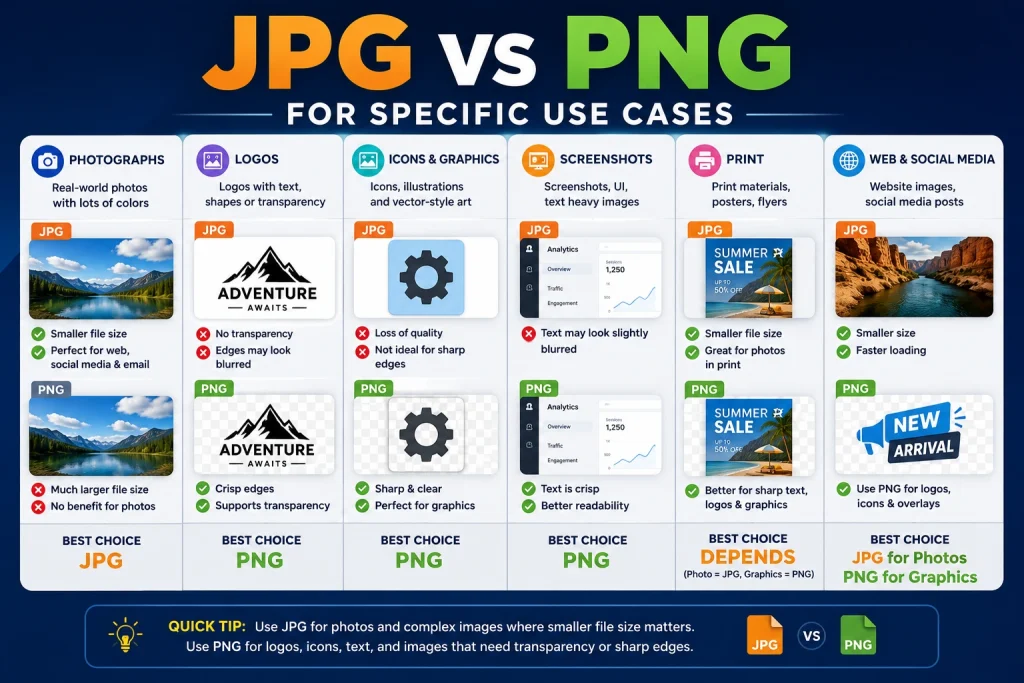
JPG vs PNG for Specific Use Cases
For Websites
For photographs on websites — hero images, blog featured images, product photos — JPG or WebP is the right choice. PNG creates unnecessarily large files for photographic content that slow your pages down significantly.
For logos, icons, and graphics on websites — PNG or SVG is better. PNG keeps logos sharp. SVG is even better for simple logos because it scales to any size perfectly and has tiny file sizes.
Page speed is a Google ranking factor. Using PNG for photographs on a website creates much larger files than necessary and slows your pages down. Google PageSpeed Insights will flag these as a performance issue. Our guide on how to optimise images for SEO covers format choice and its impact on search rankings in detail.
For Social Media
For photographs on Instagram, Facebook, Twitter, and LinkedIn — JPG is the better choice. These platforms recompress images on upload anyway. JPG handles this recompression better than PNG for photographic content.
For graphics, quotes, and designed posts on social media — PNG holds up better through platform recompression. The hard edges and text in designed graphics look sharper when uploaded as PNG than when platform-compressed from JPG.
For Email
JPG every time. Email attachments need to be small. Email clients are inconsistent with how they display different formats. JPG keeps files small, opens in every email client, and displays inline reliably. Never attach a PNG photograph to an email — it’ll be 5 to 8 times larger than a JPG version of the same photo.
For Print
Both JPG and PNG work for print. PNG is technically better because it’s lossless — no data has been removed. But a JPG at 90 to 95 percent quality is visually indistinguishable from PNG at the print sizes most people use.
For professional large-format print — billboard advertising, exhibition panels, large canvas prints — PNG or TIFF is the professional choice. For everyday print like photo books, greeting cards, and A4 prints — JPG at 90 percent quality is fine.
For Logos
PNG every time for logos in standard raster use. Logos have hard edges, flat colours, and often text — all things that JPG compression handles poorly. A logo saved as JPG will have blurry edges and visible fringing at most quality settings.
For web logos specifically, SVG is even better than PNG — SVG scales to any size perfectly and has much smaller file sizes than PNG for simple logos. If you need to convert a JPG logo to a better format, our guide on how to convert JPG to SVG covers the SVG conversion process in detail.
For Screenshots
PNG for screenshots containing text, UI elements, or anything with hard edges. JPG creates visible blurring around text and interface elements that makes screenshots look unprofessional.
The file size difference for screenshots is much smaller than for photographs — typically 2 to 3 times rather than 7 to 8 times. PNG is worth the slightly larger file for the quality advantage on screenshot content.
Can You Convert Between JPG and PNG?
Yes — and it’s very common to need to convert between these two formats.
JPG to PNG: Converting JPG to PNG creates a lossless PNG from the JPG source. The PNG won’t look better than the JPG — it preserves the JPG quality exactly as it is, including any compression artefacts. But the PNG won’t get any worse with future saves. This is useful when you need to do more editing on a JPG image — convert to PNG first to prevent further quality loss during the editing process.
PNG to JPG: Converting PNG to JPG applies lossy compression and makes the file significantly smaller. This is useful when you need to reduce file size for a PNG photograph or graphic that doesn’t need transparency. At 80 to 85 percent quality, the converted JPG looks identical to the PNG at normal viewing sizes.
Our guide on how to convert JPG to PNG covers both conversion directions in detail with step-by-step instructions for every device and platform.
Is There a Better Option Than Both?
Yes — WebP. For web use, WebP beats both JPG and PNG on almost every measure. WebP lossless files are 26 percent smaller than PNG. WebP lossy files are 25 to 34 percent smaller than JPG. WebP supports transparency like PNG. WebP is supported by all modern browsers.
If your images are going on a website and loading speed matters, WebP is the best choice in 2026. Use our JPG to WebP converter or PNG to WebP converter to convert your existing images to WebP for better web performance.
For everything else — print, email, design software, platforms that don’t support WebP — JPG and PNG remain the right choices depending on the image type and use case.
Quick Decision Guide — JPG or PNG?
Use this to pick the right format in under 10 seconds:
| Question | If Yes → | If No → |
|---|---|---|
| Does the image need a transparent background? | PNG | Continue below |
| Is the image a photograph? | JPG | Continue below |
| Does it have text, logos, or hard edges? | PNG | Continue below |
| Will you edit and re-save it multiple times? | PNG | Continue below |
| Does it need to be as small as possible? | JPG | PNG |
| Is it going on a website? | JPG or WebP | PNG or JPG |
Frequently Asked Questions
1. What is the main difference between JPG and PNG?
JPG uses lossy compression — it permanently removes some image data to make files smaller. PNG uses lossless compression — it keeps every pixel exactly as it was. JPG creates smaller files that look great for photographs. PNG creates larger files with perfect quality, transparency support, and no quality loss on repeated saves.
2. Is JPG or PNG better for websites?
For photographs on websites, JPG or WebP is better — smaller files mean faster loading and better Core Web Vitals scores. For logos and graphics, PNG keeps edges sharp. For the best overall web performance in 2026, WebP beats both — it’s smaller than JPG and PNG at the same quality and supports transparency.
3. Is PNG higher quality than JPG?
PNG is lossless — it stores every pixel perfectly. JPG is lossy — it removes some data. So technically yes, PNG has higher quality. But at JPG quality settings of 80 to 85 percent, the difference is invisible at normal screen viewing sizes for photographs. For graphics with sharp edges and text, PNG’s quality advantage is clearly visible.
4. Does converting JPG to PNG improve quality?
No. Converting JPG to PNG creates a lossless copy of the JPG — but it can’t recover data that JPG already removed. The PNG preserves the JPG quality exactly as it is. It won’t look better than the JPG source. The benefit of converting to PNG is preventing further quality loss during editing — not recovering lost quality.
5. Should I use JPG or PNG for Instagram?
For photographs on Instagram, JPG is better. Instagram recompresses all uploaded images and JPG handles this process better than PNG for photographic content. For designed graphics, quotes, and images with text, PNG holds up better through Instagram’s recompression.
6. Is PNG or JPG better for printing?
Both work for print. PNG is technically better because it’s lossless. But JPG at 90 to 95 percent quality is visually indistinguishable from PNG at most print sizes. For professional large-format print, PNG or TIFF is the safer choice. For everyday photo printing, JPG at high quality is perfectly fine.
7. Why is my PNG so much larger than my JPG?
Because PNG is lossless and stores every pixel. A photograph saved as PNG can be 5 to 10 times larger than the same photo as JPG because JPG removes image data that eyes can’t notice, while PNG keeps everything. This is expected and normal — PNG prioritises quality over file size.
8. Can JPG have a transparent background?
No. JPG doesn’t support transparency at all. Any transparent areas in a source image become white when saved as JPG. If you need a transparent background, use PNG or WebP — both support full alpha channel transparency.
9. Which is better for logos — JPG or PNG?
PNG is always better for logos. Logos have sharp edges, flat colours, and often text — all things that JPG compression handles poorly. JPG creates blurry edges and colour fringing around logo elements. PNG keeps everything crisp and sharp. For web logos, SVG is even better than PNG because it scales to any size perfectly.
10. Should I use JPG or PNG for screenshots?
PNG for screenshots. Screenshots contain text, interface elements, and hard edges that JPG compression blurs noticeably. PNG keeps every character and edge perfectly sharp. The file size difference for screenshots is much smaller than for photographs — usually 2 to 3 times rather than 7 to 8 times — so PNG is worth it for the quality improvement.
Conclusion
JPG and PNG aren’t competing formats; they are complementary formats that cater to different needs. Knowledge of how and when to use these formats will help you produce images that look great and load fast.
The principle is easy. Photos are JPG – smaller size, same quality, works everywhere. Logos, graphics, images with transparency, and screenshots are PNG – highest quality, sharp edges, transparency possible. And for web-based applications where quick loading is vital, WebP format is the best choice – smaller than both JPG and PNG and of equal quality.
If you need to convert between formats, our free tools handle it in seconds — convert JPG to PNG or use our PNG to WebP converter to get the best web performance from your PNG images.