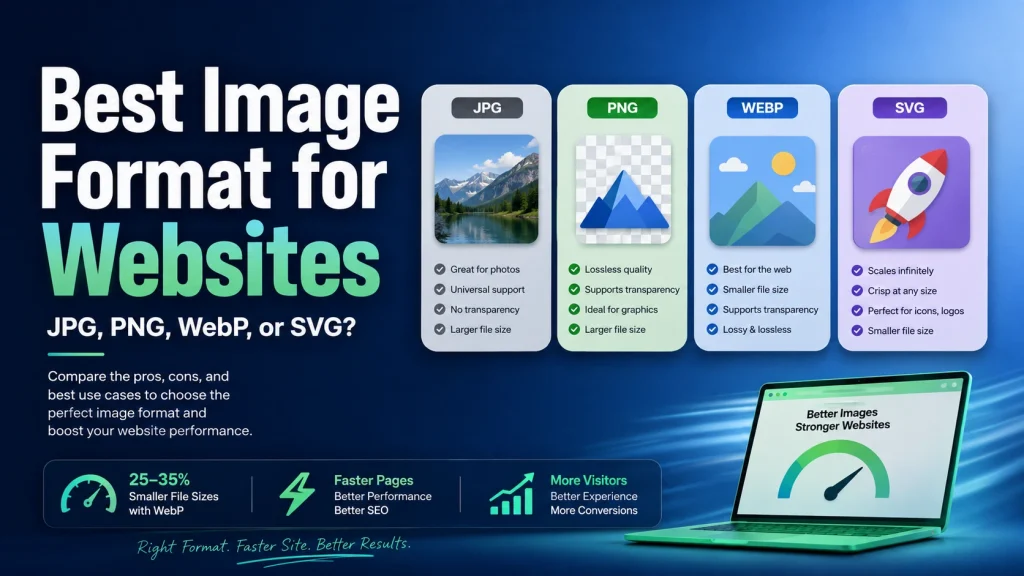
WebP is the best image format for most websites in 2026 — it’s 25 to 35 percent smaller than JPG and PNG at the same visual quality, works in every modern browser, and directly improves your Google PageSpeed scores. But JPG, PNG, and SVG all still have specific jobs where they’re the better choice — and picking the wrong format for the wrong image type costs you in file size, quality, or compatibility.
This guide breaks down every major image format, what each one is good at, what it’s bad at, and exactly when to use which one on your website. No technical jargon — just clear, practical answers you can apply straight away.
Why the Format You Choose Matters So Much
Most people post images to their site without even considering format. All they do is pick whatever they’ve created with their camera or design tool, and upload it. It is one of the most common and expensive mistakes in web performance.
The format you choose impacts the file size more than pretty much anything else. A photo saved in PNG can easily be 5 to 10 times bigger than the same photo saved in WebP. That difference is directly reflected in your page load speed. Slow pages drive visitors away. Google penalizes slow pages in its rankings. And slow eCommerce pages lose sales.
Once you know the rules, it takes about 5 seconds to pick the right format. And it makes everything else — compression, resizing, SEO — work better and faster.
The Main Image Formats for Websites
JPG — The Old Reliable
JPG has been around since 1992 and it is still one of the most popular image formats on the Internet. It uses lossy compression – it throws away some image data permanently to reduce the file size. Discards are invisible on screen at 80 to 85 percent quality settings. You get a small file that looks great.
JPG is wonderful for photos. It works well for gradients, skin tones and complex colour shifts. And it is universally supported — JPG can be opened with no problems by every device, every browser, every app, every email client and every print service.
We all know the problems with JPG. It does not support transparency – any transparent area becomes white. It just gets worse every time you save it. And it produces larger files than WebP at the same visual quality. JPG is still a solid choice for many situations, but for web use in 2026, WebP beats it on almost every measure.
JPG is good for:
- Photographs where you need maximum compatibility
- Images going to print or email
- Situations where WebP isn’t supported
JPG is bad for:
- Logos and graphics with sharp edges
- Images with transparent backgrounds
- Images you’ll edit and re-save multiple times
PNG — The Quality King
PNG uses lossless compression – it keeps every single pixel of the original image intact. Data is never deleted. You can save the image as many times as you want and it is still razor sharp. PNG also supports 100% alpha channel transparency making it the format of choice for logos, icons and cutout images.
The downside to PNG is the file size. PNG files are much bigger than JPG or WebP for photos because they retain all of the data. A photo saved as PNG can be easily 3 to 5 times bigger than the same photo saved as JPG or WebP. A common mistake is using PNG for photos, which makes pages considerably slower.
PNG is the right choice when quality and transparency matter more than file size — like logos, icons, and graphics with text. But even then, WebP lossless can match PNG quality at a smaller file size. PNG’s main advantage over WebP is universal compatibility in software, print, and design tools.
PNG is good for:
- Logos and brand graphics
- Icons and UI elements
- Images with transparent backgrounds
- Screenshots with text
- Working files you’ll edit again
PNG is bad for:
- Photographs (file sizes get very large)
- Web images where loading speed matters
- Images that need to stay under a file size limit
WebP — The Best Choice for Web in 2026
Google created WebP to address the issues that both JPG and PNG face. It supports lossy compression ( like JPG ) , lossless compression ( like PNG ) , full transparency ( like PNG ) and animation ( like GIF ) – all in one format . And it does all this with smaller file sizes than any of the formats it replaces.
WebP lossless images are 26% smaller than PNG on average. WebP lossy images are 25-34% smaller than JPG at the same quality. If your website has 100 images, changing from JPG and PNG to WebP can reduce your total image size by one-third. This means faster page loads and better Core Web Vitals scores.
WebP is supported natively by all modern browsers — Chrome, Firefox, Safari, Edge and Opera. In 2026, WebP browser support is more than 96 percent worldwide. The other 4% are users with really old browsers, which you can cover with a simple HTML fallback if you need to.
WebP doesn’t shine in print workflows and certain older desktop design applications. But WebP is the clear winner for everything that goes on a web page.
WebP is good for:
- All photographs on web pages
- Logos and graphics for web use
- Transparent images on websites
- Animated images replacing GIF
- Any image where loading speed matters
WebP is bad for:
- Print files (most print services don’t accept WebP)
- Working files for design applications that don’t support it
- Images that need to open in very old software
Our full guide on what is WebP format explains how WebP compression works and exactly why it produces smaller files than JPG and PNG.
SVG — The Best Choice for Logos and Icons
SVG means Scalable Vector Graphics. Unlike JPG, PNG and WebP which are all pixel-based, SVG uses mathematical paths and shapes to describe an image. Which means SVG pictures can be scaled to any size without getting blurry. A small phone icon that appears sharp on a small phone screen will look just as sharp on a large 8K monitor.
SVG files for simple graphics are also quite small. A logo that is 150KB as a PNG could be 3KB as an SVG. No, that’s not a typo — simple graphics in SVG files tend to be 50 to 100 times smaller than their pixel-based equivalents. SVG is the sharpest and fastest option for logos, icons, and simple illustrations that are used on every page of your website.
SVG also has animation and interactivity capabilities that pixel formats don’t — you can animate SVG elements with CSS and JavaScript, change their colours dynamically, and control them with code. This makes SVG especially useful for interactive icons and animated UI elements.
The limitation is that SVG only works for graphics made from simple shapes and paths. It doesn’t work for photographs or complex photographic images. You can’t save a photograph as SVG — it’s only for logos, icons, and illustrations created in vector design tools.
SVG is good for:
- Logos and brand marks
- Navigation icons
- Simple illustrations and diagrams
- Graphics that need to scale to different sizes
- Animated or interactive graphics
SVG is bad for:
- Photographs and photographic images
- Complex images with many colours and gradients
- Images that need to be opened in basic image viewers
GIF — Almost Always the Wrong Choice
GIF is one of the oldest image formats on the internet and it’s genuinely outdated for most uses today. It’s limited to 256 colours per frame, which makes photographs look terrible. Its animation capability is the only reason it’s still widely used — animated GIFs are everywhere on social media and in messaging apps.
For web use in 2026, there’s almost no good reason to use GIF over WebP. Animated WebP files are dramatically smaller than animated GIFs, support millions of colours instead of 256, and look much better. The only exception is very old email clients and platforms that specifically require GIF for animations.
For static images, GIF is worse than every other format on every measure. Don’t use it for static web images.
Format Comparison Table
Here’s a clear side-by-side comparison of all four main formats:
| Feature | JPG | PNG | WebP | SVG |
|---|---|---|---|---|
| Compression | Lossy | Lossless | Both | N/A (vector) |
| Transparency | No | Yes | Yes | Yes |
| Animation | No | No | Yes | Yes (CSS) |
| File Size | Medium | Large | Smallest | Tiny (for graphics) |
| Photo Quality | Good | Excellent | Excellent | Not for photos |
| Browser Support | Universal | Universal | 96%+ | Universal |
| Print Support | Yes | Yes | No | Yes |
| Software Support | Universal | Universal | Improving | Wide |
| Best For | Photos, email | Graphics, editing | All web images | Logos, icons |
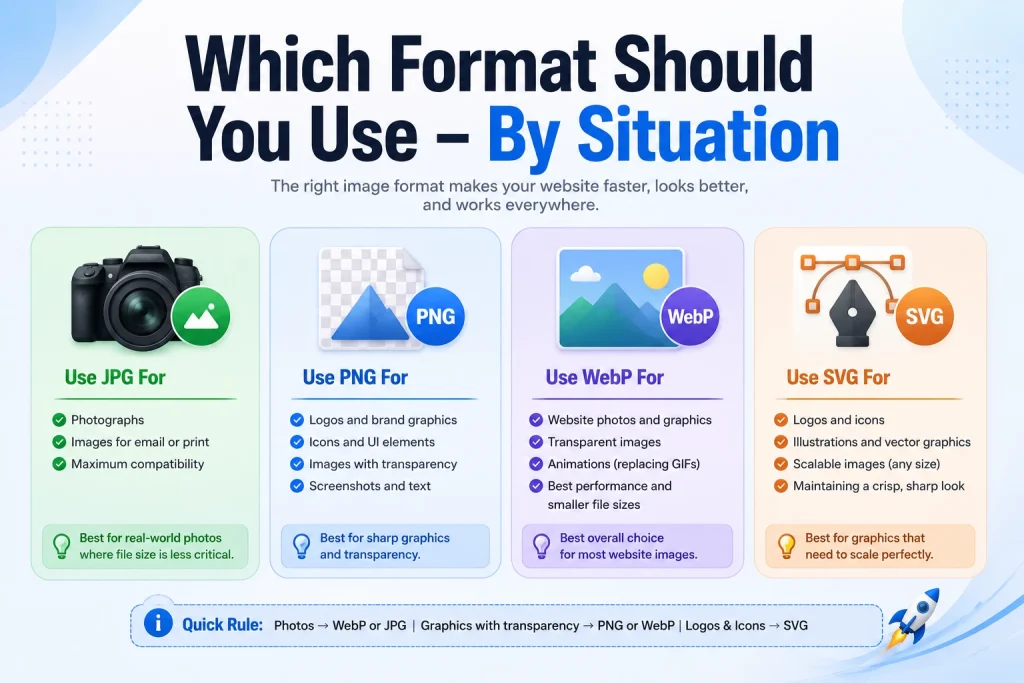
Which Format Should You Use — By Situation
For Blog Post Images and Featured Images
Use WebP for all blog images. Featured images, inline photos, infographics, screenshots — everything should be WebP. The file size reduction compared to JPG and PNG means your blog posts load faster, which improves both user experience and search rankings.
Convert your existing blog images to WebP using our JPG to WebP converter for photographs and our PNG to WebP converter for graphics. Both tools support multiple file uploads so you can process a whole batch at once.
For Product Images on eCommerce Websites
Use WebP for all product images. Product pages with fast-loading images have lower bounce rates and higher conversion rates. WebP gives you excellent visual quality at file sizes 25 to 34 percent smaller than JPG. For product cutouts on transparent or white backgrounds, WebP handles transparency just as well as PNG.
Keep product images between 800 × 800px and 1200 × 1200px for the best balance of visual quality and loading speed. Compress to under 150KB per image. Our Image Compressor handles WebP files and can reduce file sizes further without any visible quality loss.
For Your Website Logo
Use SVG if your logo was created in a vector design tool. SVG gives you the sharpest possible logo at the smallest possible file size, at every screen size and resolution. If you only have a raster version of your logo — JPG or PNG — use PNG or WebP. PNG for maximum compatibility, WebP for best web performance.
If you need to convert your logo from one format to another, our article on how to convert JPG to SVG explains the conversion process and what to expect from the results.
For Icons and Navigation Graphics
Use SVG for icons wherever possible. SVG icons are tiny, sharp at all sizes, and can be styled with CSS. If you can’t use SVG — for example if your icons are photographic or too complex for SVG — use WebP.
Never use JPG for icons. JPG compression creates visible artefacts around the sharp edges of icons, which looks bad especially at small sizes. PNG or WebP are both better choices than JPG for any icon or graphic with hard edges.
For Hero Images and Banner Images
Use WebP. Hero images are typically one of the largest images on any page and they’re almost always above the fold — meaning they load immediately and directly affect your Largest Contentful Paint score. A smaller WebP hero image loads faster than a larger JPG version of the same image. Faster hero loading means better LCP. Better LCP means better Core Web Vitals. Better Core Web Vitals means better rankings.
Resize hero images to 1920 × 1080px for full-width banners. For retina screens, use 2x dimensions — 3840 × 2160px — combined with WebP compression to keep the file size manageable. Aim for under 300KB even at 2x retina dimensions with good WebP compression.
For Background Images
Use WebP for CSS background images too. Background images are often large and cover the full width of the screen. Large background images in JPG or PNG are a very common cause of slow-loading websites. Switching to WebP reduces the file size significantly with no visible quality difference on screen.
For background images that are purely decorative — patterns, textures, gradients — keep file sizes as low as possible. Simple geometric patterns and solid colour gradients can often be replaced with CSS gradients entirely, which eliminates the image download completely and loads instantly.
For Images in Emails
Use JPG for email images. WebP is not reliably supported in email clients — Gmail, Outlook, Apple Mail, and many others don’t render WebP correctly. PNG works in emails but creates larger files than necessary. JPG is the safest and most compatible format for email images.
Keep email images small — under 100KB per image — and keep total email image weight under 600KB. Heavy emails load slowly on mobile and are more likely to be flagged as spam.
For Print
Use PNG or high-quality JPG for print. WebP and SVG (for complex graphics) are not accepted by most print services. PNG gives you lossless quality and is widely accepted. JPG at 90 to 95 percent quality is acceptable for most print work. For professional print work, always check your print service’s specific requirements before preparing files.
How to Convert Between Formats
Converting to WebP
Converting your existing JPG and PNG images to WebP is the single highest-impact format change you can make for web performance. Use our free tools to convert in seconds — no software, no sign-up, no limits.
For JPG files, use our JPG to WebP converter. For PNG files, use our PNG to WebP converter. Both tools support multiple file uploads for batch conversion. Our article on how to convert PNG to WebP explains the lossless vs lossy conversion settings and which to use for different image types.
Converting Back to JPG or PNG
Sometimes you need to convert a WebP file back to JPG or PNG — for print, for email, for older software, or for sharing with someone who can’t open WebP. Our WebP to JPG converter and WebP to PNG converter handle both directions quickly and for free.
Common Format Mistakes That Slow Down Websites
These are the mistakes that website owners make most often with image formats. Each one costs you in loading speed, rankings, or both.
Using PNG for photographs. This is the most common and most costly mistake. A photograph saved as PNG is typically 3 to 5 times larger than the same photo in WebP or JPG. If you have PNG photographs on your website, converting them to WebP is one of the fastest performance improvements you can make.
Using JPG for logos and icons. JPG compression creates blurry edges and colour fringing around sharp graphic elements like logos and icons. This looks unprofessional and gets worse at smaller sizes. Always use SVG, WebP, or PNG for logos and icons — never JPG.
Using GIF for static images. GIF is outdated, colour-limited, and produces large files for the quality delivered. If you have static GIF images on your website, convert them to WebP immediately. You’ll get better quality and smaller files.
Not converting to WebP at all. This is the biggest missed opportunity. If your website is still serving all JPG and PNG images in 2026 with no WebP conversion, you’re loading 25 to 35 percent more data than necessary on every single page visit. Switch to WebP for web images and the performance improvement is immediate and measurable.
Mixing formats inconsistently. Using JPG for some images, PNG for others, and WebP for a few creates an inconsistent and hard-to-manage image workflow. Establish a clear format rule — WebP for all web images, SVG for all logos and icons — and apply it consistently.
Frequently Asked Questions
1. What is the best image format for websites in 2026?
WebP is the best image format for websites in 2026. It’s 25 to 35 percent smaller than PNG and JPG at the same visual quality, supports transparency, works in all modern browsers, and directly improves page speed and Core Web Vitals scores. Use SVG for logos and icons. Use JPG or PNG only when WebP isn’t appropriate — for print, email, or older software compatibility.
2. Should I use JPG or PNG for my website?
It depends on the image type. Use JPG for photographs where you don’t need transparency and maximum compatibility matters. Use PNG for logos, icons, and images with transparent backgrounds where lossless quality is important. But for most web images in 2026, WebP is better than both — smaller files, same quality, and supports both lossy and lossless compression plus transparency.
3. Is WebP supported by all browsers?
Yes — all major modern browsers support WebP. Chrome, Firefox, Safari (version 14 and later), Edge, and Opera all display WebP natively. Global WebP browser support is over 96 percent. For the small percentage of users on very old browsers, use the HTML picture element with a JPG or PNG fallback to ensure everyone sees the image correctly.
4. Can I use WebP for my website logo?
Yes. WebP supports transparency and lossless compression, making it a good choice for web logos. But SVG is usually the better option for logos because SVG is resolution-independent — it looks perfectly sharp on screens of any size and resolution, including retina displays. If you can get your logo as an SVG file from your designer, use SVG. If not, WebP is the next best choice.
5. Why is my website slow even though I use JPG?
JPG is compressed, but it’s not as efficient as WebP. A JPG file is 25 to 34 percent larger than an equivalent WebP file at the same visual quality. If you have many JPG images on your website — blog posts, product pages, hero images — the combined file size adds up and slows your pages. Convert to WebP to get the same visual quality at significantly smaller file sizes.
6. What image format is best for eCommerce product photos?
WebP is the best format for eCommerce product photos. It gives you excellent visual quality at file sizes 25 to 34 percent smaller than JPG. Faster product pages have lower bounce rates and higher conversion rates. For product cutouts on white or transparent backgrounds, WebP supports transparency just as well as PNG.
7. Is PNG better than JPG for image quality?
PNG is lossless — it keeps every pixel of the original image. JPG is lossy — it removes some data permanently. So technically, yes, PNG preserves more quality. But for photographs at quality settings of 80 to 85 percent, JPG quality is visually identical to PNG at a fraction of the file size. PNG’s quality advantage is most noticeable for graphics with sharp edges and text, not for photographs.
8. Should I use GIF or WebP for animated images on my website?
WebP is better than GIF in almost every way for web animations. Animated WebP files are dramatically smaller than animated GIFs, support millions of colours instead of 256, and look significantly better. The only reason to still use animated GIF is compatibility with email clients and platforms that specifically don’t support WebP animation.
9. How do I convert my website images to WebP?
Use a free online converter. Upload your JPG or PNG images, download the WebP versions. You can process multiple images at once. No software installation, no account, no cost. After converting, compress the WebP files if needed to reach your target file size.
10. Does the image format affect my Google rankings?
Yes, indirectly but significantly. Google uses page loading speed as a ranking factor. WebP images are smaller than JPG and PNG, which means pages load faster. Faster pages score better on Core Web Vitals — particularly Largest Contentful Paint. Better Core Web Vitals mean better search rankings. The connection between format choice and rankings is real and measurable.
Conclusion
Choosing the right image format for your website is one of the simplest and most impactful decisions you can make for performance, SEO, and user experience. The rules are clear and consistent once you know them.
Use WebP for all images displayed on web pages — photographs, graphics, product photos, blog images, hero images. Use SVG for logos and icons that need to scale perfectly at any size. Use JPG for email and print where WebP isn’t supported. Use PNG for working files and images going to print or professional design tools. Avoid GIF for anything other than animation — and even then, WebP animation is better.
Start converting your existing images to WebP today. Use our free JPG to WebP converter and PNG to WebP converter — no software, no sign-up, and you can process multiple images at once.