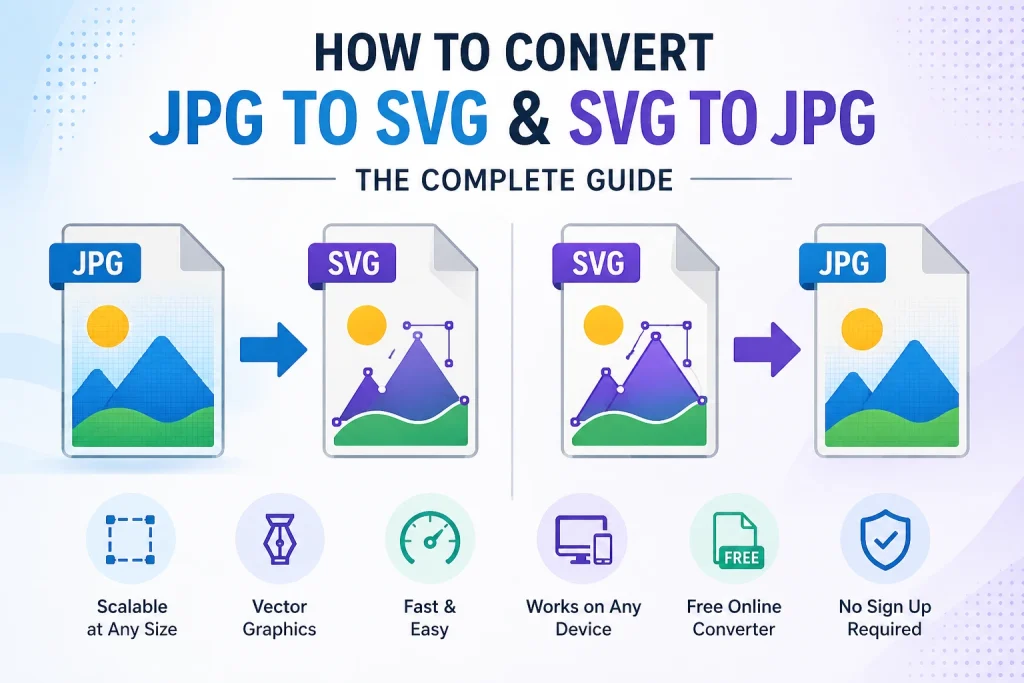
If you have ever tried to resize an image and it came out blurry, you have already experienced the biggest difference between JPG and SVG. JPG images break apart when you scale them up. SVG images stay perfectly sharp at any size.
This guide covers everything you need to know — how to convert JPG to SVG, how to convert SVG to JPG, which tools to use, when to use each format, and step-by-step methods for Windows, Mac, iPhone, Inkscape, Illustrator, Canva, and more.
What Is the Difference Between JPG and SVG?
JPG — Raster Image Format
JPG is a raster format. This means the image is made up of a fixed grid of pixels. When you zoom in or scale it up, those pixels become visible and the image looks blurry or pixelated. JPG works great for photographs and images with lots of colour detail, but it is not ideal for logos, icons, or anything that needs to scale.
SVG — Vector Image Format
SVG stands for Scalable Vector Graphics. Instead of pixels, SVG uses mathematical paths, shapes, and coordinates to describe the image. This means you can scale an SVG to any size — from a business card to a billboard — and it will always look perfectly sharp.
According to the World Wide Web Consortium (W3C), SVG is an XML-based vector image format and has been a web standard since 1999.
JPG vs SVG — Quick Comparison
| Feature | JPG | SVG |
|---|---|---|
| Format Type | Raster (pixels) | Vector (paths) |
| Scalability | Loses quality when scaled | Scales to any size perfectly |
| File Size | Small for photos | Small for simple graphics |
| Transparency | Not supported | Supported |
| Best For | Photos, social media | Logos, icons, illustrations |
| Editability | Limited | Fully editable in design tools |
| Web Use | Photos and banners | Icons, logos, animations |
| Print Quality | Can degrade at large sizes | Perfect at any size |
When Should You Convert JPG to SVG?
Common Reasons to Convert JPG to SVG
- You have a logo as a JPG and need it to scale without quality loss
- You are using a cutting machine like Cricut or Silhouette and need vector files
- You need to edit individual elements of an image in a design tool
- You want to use an image on a website as a scalable, lightweight icon
- Your print shop requires vector files for large-format printing
Converting JPG to SVG is especially popular among Cricut and Silhouette users. These cutting machines work with vector paths, so a JPG needs to be converted to SVG before the machine can trace and cut it properly.
When Should You Convert SVG to JPG?
Common Reasons to Convert SVG to JPG
- The platform or app you are using does not support SVG files
- You need to send the image by email or message and SVG is not accepted
- You want a flat image for social media or a website where SVG is not practical
- You need to embed the image in a document or presentation
- The recipient does not have a vector-capable design tool
SVG is not supported everywhere. Many older platforms, email clients, and basic image editors do not handle SVG files. Converting SVG to JPG gives you a universally compatible format that opens on any device.
Use our SVG to JPG converter to get a flat JPG from any SVG file in seconds — no software needed.
How to Convert JPG to SVG Online — Step by Step
The fastest way to convert JPG to SVG is using a free online tool. No software download, no account needed.
- Go to imageconvertertools.com/jpg-to-svg
- Click the upload button or drag and drop your JPG file
- The tool will automatically process the image
- SVG will be selected as the output format
- Click Convert
- Download your SVG file
You can upload multiple JPG files at once and convert them all to SVG in one go. Your files are automatically deleted from the server after conversion.
How to Convert SVG to JPG Online
- Go to imageconvertertools.com/svg-to-jpg
- Upload your SVG file
- Make sure JPG is selected as the output format
- Click Convert
- Download your JPG
The tool handles all SVG types including simple icons, complex illustrations, and multi-layer SVG files.
How to Convert JPG to SVG in Inkscape
Inkscape is a free, open-source vector graphics editor. It is one of the most popular tools for converting JPG to SVG because it has a built-in tracing feature that converts raster images into vector paths.
Step-by-Step: JPG to SVG in Inkscape
- Download and install Inkscape from inkscape.org (it is completely free)
- Open Inkscape and go to File > Import
- Select your JPG file and click Open
- Click on the imported image to select it
- Go to Path > Trace Bitmap
- The Trace Bitmap panel will open on the right side
- Choose your tracing mode — Brightness Cutoff works well for simple images, Colors works better for multi-colour images
- Adjust the threshold until the preview looks clean
- Click Apply or OK
- A vector path will be placed on top of your original image
- Delete the original JPG underneath
- Go to File > Save As and choose SVG as the format
Tips for Better Results in Inkscape
- Use images with high contrast for cleaner tracing
- Simple logos and line art trace much better than photographs
- Photographs rarely convert well to SVG — the result can look messy
- Use the Smooth and Stack options for colour images to get better results
According to Mozilla’s developer documentation, SVG images are resolution-independent, making them ideal for responsive web design where images need to look sharp on all screen sizes.
How to Convert JPG to SVG in Adobe Illustrator
Adobe Illustrator has a professional-grade tracing tool called Image Trace that produces excellent results for logos and graphics.
Step-by-Step: JPG to SVG in Illustrator
- Open Adobe Illustrator
- Go to File > Place and select your JPG file
- Click on the placed image to select it
- In the top toolbar, click Image Trace
- Click the dropdown arrow next to Image Trace and choose a preset — High Fidelity Photo, Low Fidelity Photo, 3 Colors, 6 Colors, etc.
- Once the trace looks good, click Expand in the toolbar
- Go to File > Save As
- Choose SVG from the format list
- Click Save and adjust SVG settings if needed
Choosing the Right Image Trace Preset
- High Fidelity Photo — best for complex photos, but produces large files
- 3 Colors or 6 Colors — good for logos and simple graphics
- Black and White Logo — best for simple line art and monochrome logos
- Sketched Art — good for hand-drawn images
How to Convert JPG to SVG in Canva
Canva does not have a direct JPG to SVG conversion feature, but you can export designs as SVG from Canva Pro.
Exporting SVG from Canva
- Open your design in Canva
- Click the Share button at the top right
- Select Download
- Click the File type dropdown
- Choose SVG (this option is available on Canva Pro)
- Click Download
If you need a free way to convert JPG to SVG without a Canva Pro subscription, use our JPG to SVG converter — it is completely free with no limits.
How to Convert JPG to SVG for Cricut
Cricut cutting machines work with SVG files for precise cutting paths. If you have a JPG image you want to cut with Cricut, you need to convert it to SVG first.
Method 1 — Using an Online Converter
- Convert your JPG to SVG using imageconvertertools.com/jpg-to-svg
- Download the SVG file
- Open Cricut Design Space
- Click Upload
- Select your SVG file
- Place it on your canvas and start cutting
Method 2 — Using Cricut Design Space Directly
- Open Cricut Design Space
- Click Upload > Upload Image
- Select your JPG file
- Design Space will ask you to select the image type — choose Simple, Moderately Complex, or Complex depending on your image
- Use the tracing tools to clean up the image
- Save as a Cut Image
- Insert into your canvas
Tips for Cricut SVG Conversion
- High contrast images with clear edges work best
- Remove any background before converting for cleaner cut lines
- Simple clipart and bold logos give the best cutting results
- Avoid using photographs — they trace poorly and do not cut well
How to Convert JPG to SVG for Silhouette
Silhouette cutting machines also use SVG files. The process is similar to Cricut.
Using Silhouette Studio
- Open Silhouette Studio
- Go to File > Open and select your JPG
- Click on the image and select Trace from the right panel
- Use the Trace Area tool to select the image
- Adjust the threshold until the trace outline looks clean
- Click Trace
- Delete the original JPG
- Go to File > Save As and choose SVG
For better results with Silhouette, start with a clean high-contrast JPG. The cleaner the original, the better the trace will be.
How to Convert SVG to JPG on Windows
Windows does not natively open or convert SVG files easily. Here are your options:
Using a Browser
- Open Chrome or Edge on your Windows PC
- Drag and drop the SVG file into the browser window
- Press Ctrl + S to save the page — this saves as an HTML file, not ideal
- Better option: use an online converter instead
Using an Online Converter on Windows
- Go to imageconvertertools.com/svg-to-jpg in your browser
- Upload your SVG file
- Select JPG as the output
- Click Convert and download your JPG
This is by far the simplest method on Windows — no extra software needed.
How to Convert SVG to JPG on Mac
Using Preview on Mac
- Open the SVG file in Preview
- Go to File > Export
- Select JPEG from the Format dropdown
- Click Save
Preview on Mac handles SVG files natively, making this the easiest desktop method for Mac users.
How to Convert JPG to SVG on iPhone
iPhones do not have native SVG conversion tools, but browser-based tools work well.
- Open Safari on your iPhone
- Go to imageconvertertools.com/jpg-to-svg
- Tap the upload area and select your JPG from Photos
- Tap Convert
- Download the SVG file to your Files app
This works in Safari and Chrome on all iPhone models. No app download needed.
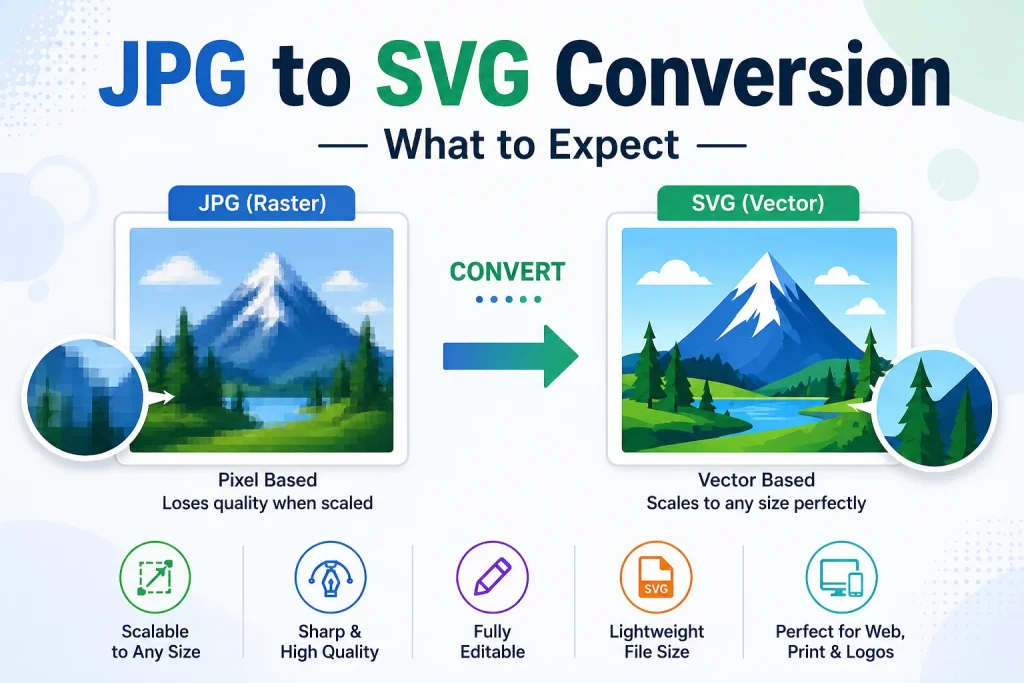
JPG to SVG Conversion — What to Expect
Why Photographs Do Not Convert Well to SVG
This is something many people do not realise before they try. SVG is a vector format built for graphics with clean edges — logos, icons, illustrations, and line art. When you convert a photograph to SVG, the tracer tries to turn millions of pixel colour variations into vector paths. The result is usually a very large SVG file full of complex shapes that does not look much better than the original JPG.
What Types of JPG Convert Well to SVG
- Bold logos with flat colours
- Simple clipart and cartoon-style illustrations
- Black and white line art
- High-contrast images with clean edges
- Text-based graphics
What Types of JPG Do Not Convert Well to SVG
- Photographs of people, landscapes, or products
- Images with gradients and soft shadows
- Low-resolution or blurry images
- Images with lots of fine detail
If you need to work with photographs on the web and want smaller file sizes without quality loss, consider converting to WebP format instead — it gives better compression than JPG while keeping photo quality intact.
How to Convert JPG to SVG for Free
Several free options are available:
- Online converters — The fastest option. No installation, works on any device
- Inkscape — Free desktop software with professional tracing tools
- GIMP — Free photo editor with some SVG export capability via plugins
- Canva Free — Limited SVG export, mainly available on Pro plan
The easiest free method is always the online converter. You get a clean SVG without installing anything.
When to Use SVG vs JPG vs PNG
| Use Case | Best Format |
|---|---|
| Website logo | SVG |
| Product photograph | JPG |
| Icon or button graphic | SVG |
| Social media image | JPG or PNG |
| Cricut or Silhouette cutting | SVG |
| Large-format print | SVG |
| Screenshot | PNG |
| Email attachment | JPG |
| Animated graphic | SVG or GIF |
If you are working with PNG files and need SVG, you can also use our PNG to SVG converter to convert directly without going through JPG first.
Frequently Asked Questions
1. Can I convert a JPG to SVG for free?
Yes. Use our free online JPG to SVG converter at imageconvertertools.com/jpg-to-svg. No sign-up, no software, and no limits. Inkscape is also a completely free desktop option with more advanced tracing controls.
2. Does converting JPG to SVG improve image quality?
It depends on the image. For logos, icons, and simple graphics, the SVG version will look much sharper because it is now vector-based. For photographs, the conversion usually does not look better and can actually look worse due to the complex tracing required.
3. How do I convert JPG to SVG for Cricut?
Convert your JPG to SVG using an online converter, then upload the SVG into Cricut Design Space via the Upload button. For best results, use a simple high-contrast JPG with a clear subject and a clean background.
4. Can I convert JPG to SVG in Photoshop?
Photoshop is not the best tool for this. It can export some vector elements as SVG, but it is primarily a raster editor. Illustrator is the Adobe tool designed for vector work and gives much better JPG to SVG results using the Image Trace feature.
5. Why does my JPG to SVG conversion look messy?
This usually happens because the original JPG has a complex background, low contrast, or too much fine detail. Try removing the background from the JPG before converting, and use a simple high-contrast version of the image for the best tracing result.
6. How do I convert SVG to JPG on Windows?
The easiest way is to use an online converter. Go to imageconvertertools.com/svg-to-jpg, upload your SVG, select JPG as the output, and download the file. Windows does not have a native SVG to JPG conversion tool built in.
7. Is SVG better than JPG for websites?
For logos, icons, and simple graphics — yes, SVG is much better. It scales perfectly on all screen sizes, has smaller file sizes for simple graphics, and can be animated with CSS. For photographs and complex images, JPG remains the better choice for web use.
8. How do I convert JPG to SVG on iPhone?
Open Safari, go to imageconvertertools.com/jpg-to-svg, upload your JPG from your Photos app, tap Convert, and download the SVG to your Files app. Works on all iPhones without any app download.
9. Can Inkscape convert JPG to SVG?
Yes. Inkscape has a built-in Trace Bitmap feature under the Path menu that converts JPG images into vector SVG paths. It is free, powerful, and gives you full control over the tracing settings.
10. What is the difference between SVG and PNG?
PNG is a raster format like JPG — it is made of pixels and loses quality when scaled up. SVG is vector-based and scales to any size without quality loss. PNG supports transparency, and so does SVG. For logos and icons, SVG is generally better. For screenshots and complex photos, PNG is the better choice. You can also convert between these using our SVG to PNG converter.
Conclusion
Converting between JPG and SVG opens up a lot of possibilities — from sharp scalable logos to Cricut-ready cut files to lightweight web graphics. The right method depends on what you are starting with and what you need the final file for.
For quick conversions without any software, use our free online tools. For more control over complex images, Inkscape and Illustrator give you professional-grade tracing options.
Head to ImageConverterTools JPG to SVG or SVG to JPG and convert your files in seconds — no sign-up, no software, works on any device.