
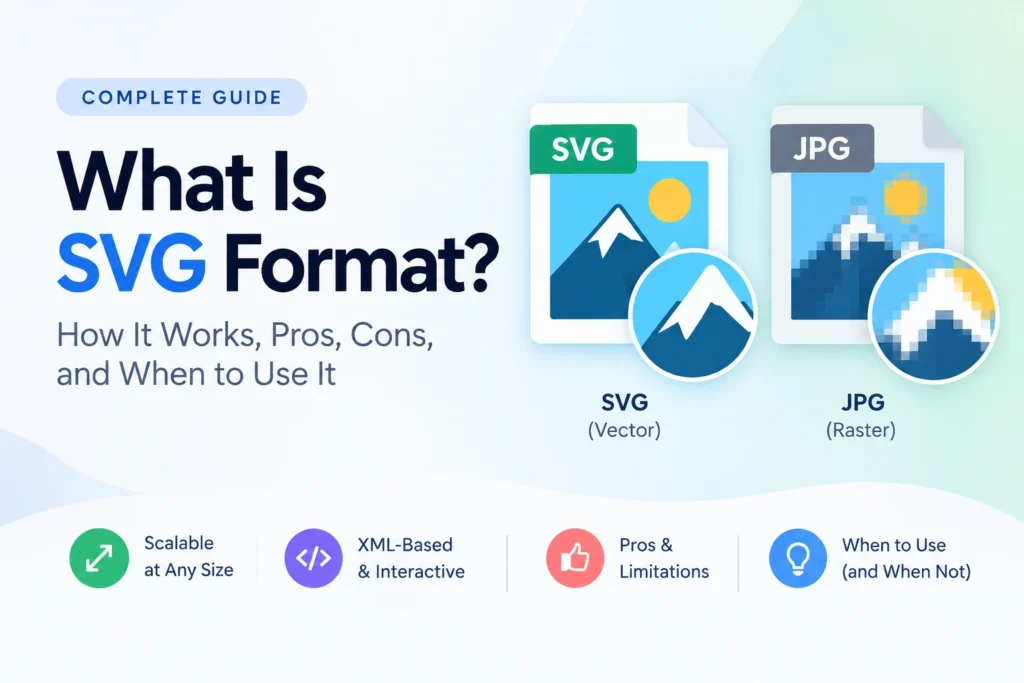
SVG — Scalable Vector Graphics — is the only image format that maintains absolute precision in all sizes, from a 16-pixel favicon to a 10-meter billboard, by storing images as mathematical descriptions of shapes and paths instead of pixels. A logo stored as SVG is described by defining the equations — not colors — of its pixels, which allows the browser to calculate the perfect output at the necessary size. This makes the SVG the standard format for logos, icons, illustrations, and any graphics that need to appear crisp on screens of various sizes, resolutions, and output contexts.
This guide explains what SVG is, what mathematics of vectors describes instead of pixels, the structure of an SVG file — and the strengths and weaknesses of this format, the cases of use, and alternatives to SVG in 2026.
What Is SVG? — Definition, History, and Origin
SVG is an XML-based vector graphics format, created by the World Wide Web Consortium (W3C), the organization that develops standards for the web including HTML and CSS. It was designed to introduce resolution-independent and interactive graphics on the web that raster graphics formats such as JPG or PNG cannot support.
The idea of SVG originated in 1998 when the W3C started developing a standard for vector graphics for the web. There were several competing proprietary technologies, including Microsoft, Adobe, and Macromedia’s proposed standards. However, W3C decided to develop a new open standard that would be based on XML. The first version of the standard was released as a W3C Recommendation in September 2001. The most used version of SVG, SVG 1.1, was released in 2003 and later updated in 2011. Meanwhile, the working draft of the next major version, SVG 2, is currently being developed.
Why SVG was created: In the early web, all images were raster — pixels stored in GIF, JPG, or PNG files. This created a fundamental problem for graphics like logos that need to appear at different sizes — a logo at 200 × 80 pixels for a website header looks acceptable, but the same logo scaled up to fill a banner at 2000 × 800 pixels looks blurry and pixelated. Every raster format has a fixed resolution — scale beyond it and quality degrades. SVG solved this by describing graphics mathematically — no fixed resolution means no resolution limit.
SVG as a web standard: Unlike JPG (ISO standard from 1992) and PNG (ISO/IEC 15948), SVG is primarily a web standard maintained by the W3C rather than a traditional image compression standard. This origin as a web technology gives SVG capabilities far beyond static images — animation, interactivity, CSS styling, JavaScript control, and integration with the DOM (Document Object Model) that makes web pages work.
According to the W3C SVG specification, SVG is a language for describing two-dimensional graphics using XML — with support for three types of graphic objects: vector graphic shapes, images, and text. These three types can be grouped, transformed, composited, and styled — creating rich, interactive graphics from a single text-based file.
The Fundamental Difference — Vector vs Raster
Understanding SVG requires understanding the fundamental difference between vector and raster image representation. This difference explains everything about where SVG excels and where it fails.
How Raster Images Work
Raster images (JPG, PNG, WebP, GIF) have a more straightforward structure as pixels are allocated a specific color value, so they form a grid. For instance, a raster image with a resolution of 1200 × 800 will have 960000 pixels in 1200 columns and 800 rows, with each pixel having a specific value.
When raster images are displayed at the size they were intended to appear, every image pixel (PI) corresponds to a display pixel (DP). In instances where images are displayed at a larger size, the program has to calculate new pixels based on the existing ones, resulting in an image that is visibly blurred. The reason behind this is that programs use the process of interpolation when trying to estimate the values of pixels that should not have any information.
It is important to note that the simplicity of a raster image structure, with pixels allocated on a grid, has its advantages and disadvantages. On the one hand, it allows storing the color values of every single pixel of a photograph without having to calculate or estimate anything. This would be impossible to achieve if there were no pixels or a grid to base it on. The downside is that an image cannot be enlarged beyond its specified size because there will not be enough information to calculate the new pixels.
How Vector Images Work
Vector images store visual information as mathematical descriptions of geometric objects — paths, shapes, curves, and colours described by equations rather than pixel grids. A circle in SVG is not stored as 10,000 pixels forming a circular shape — it is stored as one instruction: “draw a circle with this centre point, this radius, and this fill colour.”
When a vector image is displayed at any size, the mathematical descriptions are solved for that specific output resolution. A circle described by the equation cx="50" cy="50" r="40" renders as a perfect circle whether displayed at 100 × 100 pixels or 10,000 × 10,000 pixels — because the mathematics resolves to the correct pixel output at each resolution independently.
This resolution independence means vector images have no native size limit and no quality ceiling. Display an SVG at 10× or 1000× its design dimensions — it remains mathematically sharp because the rendering calculations simply scale the output without losing any information.
The tradeoff: Vector representation works brilliantly for geometric shapes, paths, and text — things that can be defined by mathematical equations. It does not work for photographic content where individual pixel colour variations are the content itself. A photograph cannot be efficiently described by mathematical paths — the SVG encoding of a photograph would be enormously complex, slow to render, and larger than an equivalent PNG or WebP file.
What Does an SVG File Actually Look Like?
SVG is unique among image formats because SVG files are human-readable text. Unlike JPG or PNG which are binary files containing compressed pixel data that looks like random characters when opened in a text editor, SVG files contain structured XML code that a person can read and understand.
Here is what a simple SVG logo looks like as code:
xml
<?xml version="1.0" encoding="UTF-8"?>
<svg xmlns="http://www.w3.org/2000/svg"
     viewBox="0 0 200 80"
     width="200"
     height="80">

  <!-- Background rectangle -->
  <rect width="200" height="80" fill="#2563EB" rx="8"/>

  <!-- Company name text -->
  <text x="20" y="35"
        font-family="Arial, sans-serif"
        font-size="18"
        font-weight="bold"
        fill="white">ImageTools</text>

  <!-- Subtitle text -->
  <text x="20" y="58"
        font-family="Arial, sans-serif"
        font-size="12"
        fill="rgba(255,255,255,0.8)">Convert Any Format</text>

  <!-- Icon circle -->
  <circle cx="170" cy="40" r="22" fill="white" opacity="0.2"/>
  <path d="M162 40 L170 32 L178 40 L174 40 L174 48 L166 48 L166 40 Z"
        fill="white"/>
</svg>
This simple SVG file is 752 bytes — less than 1KB. It produces a logo that displays perfectly sharp at 200 × 80 pixels, at 2000 × 800 pixels, or at any size in between or beyond. The same logo as a PNG at 2× retina resolution would be 15 to 25KB — still small, but 20 to 30× larger than the SVG for equivalent sharpness.
What each part of the SVG means:
The <svg> element is the root container, defining the coordinate system (viewBox) and default display dimensions (width and height). The viewBox="0 0 200 80" attribute defines an internal coordinate space 200 units wide and 80 units tall — all child elements are positioned within this coordinate space regardless of the actual display size.
The <rect> element draws a rectangle with a blue fill and rounded corners. The <text> elements draw text directly in the SVG — text remains as actual text characters, not as pixels, meaning it renders with full font-level sharpness. The <circle> draws a circle. The <path> element draws an arbitrary shape using a series of drawing commands — M (move to), L (line to), Z (close path).
Every geometric description in SVG is resolution-independent because every browser, every device, and every rendering context recalculates the pixel output from these mathematical descriptions at the actual display resolution.
SVG Coordinate System and the viewBox
Understanding SVG’s coordinate system is important for working with SVG files effectively — especially when resizing or embedding them in web pages.
SVG Units and the Coordinate Space
SVG uses its own coordinate system expressed in arbitrary units. In the example above, the logo is using 200 × 80 units coordinate space. Notice, that these are not pixels in any way — these are abstract units defined inside SVG’s coordinate system.
Now, when you embed SVG into web page, and tell it to be N CSS pixels wide, SVG will map its internal coordinate system to display pixels. So, if you have 200 units wide image displayed in 400 CSS pixels, it’ll have 2 display pixels per SVG unit — and that will look nice on retina.
The viewBox Attribute
The viewBox attribute defines the internal coordinate space of an SVG — viewBox="minX minY width height". This is separate from the SVG’s display width and height. The viewBox defines what portion of the coordinate space is visible and how it maps to the display dimensions.
This separation of internal coordinate space from display dimensions is what gives SVG its scaling superpower. An SVG with viewBox="0 0 100 100" displayed at width="200" height="200" simply scales the coordinate space 2× — every path coordinate is recalculated at double the resolution. Display the same SVG at width="2000" height="2000" and it scales 20× — still perfectly sharp, because the math simply recalculates.
SVG Technical Specifications
Core SVG Elements
SVG provides a comprehensive set of graphic primitives for building any vector image:
Basic shapes:
<rect>— Rectangles with optional rounded corners<circle>— Circles defined by centre point and radius<ellipse>— Ellipses defined by centre and two radii<line>— Straight lines between two points<polyline>— Connected line segments<polygon>— Closed shapes with straight edges
Complex paths:
<path>— The most powerful element — draws arbitrary curves and shapes using a mini-language of drawing commands including lines, cubic bezier curves, quadratic bezier curves, and arcs
Text:
<text>— Renders text as actual text characters — fully searchable, selectable, and sharp at any size<tspan>— Inline text spans with independent styling<textPath>— Text that flows along a path
Raster image embedding:
<image>— Embeds a raster image (JPG, PNG, WebP) within the SVG coordinate space
Structure and grouping:
<g>— Groups elements that can be transformed and styled together<defs>— Defines reusable elements (gradients, patterns, symbols)<use>— Instantiates a defined element — powerful for icon systems<symbol>— Defines reusable graphic symbols
SVG Styling — CSS Integration
SVG elements can be styled using CSS — either through element attributes, inline <style> blocks, or external CSS stylesheets. This CSS integration enables powerful capabilities:
Hover effects: Logo colour changes on mouse hover — without JavaScript
Animations: SVG paths animate between states using CSS transitions
Theme support: SVG icon colours change based on CSS custom properties — enabling dark mode icons that automatically invert without multiple image files
Responsive behaviour: SVG elements reposition at different viewport sizes
css
/* Change logo colour on hover */
.logo:hover path {
  fill: #1D4ED8;
}

/* Animate icon on click */
.icon.active {
  transform: rotate(45deg);
  transition: transform 0.3s ease;
}
SVG Animation
SVG supports two types of animation:
SMIL animation (declarative): Animation defined entirely within the SVG file using <animate>, <animateTransform>, and <animateMotion> elements. The animation runs without any JavaScript and is embedded directly in the SVG file.
CSS animation: SVG elements can be targeted by CSS animations and transitions exactly like HTML elements — enabling smooth, performant animations controlled by CSS rather than JavaScript.
JavaScript animation: SVG elements are part of the DOM and can be manipulated by JavaScript — enabling complex interactive animations, data-driven visualisations, and programmatic drawing.
SVG Filters and Effects
SVG includes a powerful filter system — <filter> elements that apply visual effects to SVG content:
- Blur (
feGaussianBlur) - Drop shadow (
feDropShadow) - Colour matrix transformations (
feColorMatrix) - Composite and blend operations
- Displacement maps and distortion effects
These filters are computed by the browser at render time — producing resolution-independent effects that remain sharp at any display size.
File Size Characteristics
SVG file sizes depend almost entirely on the complexity of the graphic — the number of paths, the complexity of those paths, and the amount of text and metadata included.
| SVG Content Type | Typical File Size |
|---|---|
| Simple logo (3-5 shapes) | 1 – 8 KB |
| Medium logo (10-20 paths) | 5 – 25 KB |
| Complex illustration | 50 – 500 KB |
| Icon (single symbol) | 0.5 – 3 KB |
| Icon set (50 icons) | 20 – 100 KB |
| Data visualisation (chart) | 10 – 100 KB |
| Simple map | 50 – 500 KB |
| Highly complex illustration | 500 KB – several MB |
Simple logos and icons in SVG are dramatically smaller than equivalent raster formats. A logo that is 45KB as PNG might be 4KB as SVG — 11× smaller. An icon at 18KB as PNG might be 800 bytes as SVG — 22× smaller.
SVG Strengths — What It Does Better Than Any Alternative
Perfect Scalability at Any Size
SVG’s defining advantage is mathematical perfection at every scale. A logo, icon, or illustration in SVG looks identically sharp on a retina MacBook, a standard HD monitor, a 4K TV, a tiny phone screen, a large external display, and a printed page — because the rendering calculations happen fresh at each output resolution.
This eliminates one of the most persistent problems in responsive web design — serving correctly-sized raster images for every possible screen size and pixel density. For logos and icons, SVG replaces multiple raster files (1×, 2×, 3× retina versions) with a single SVG file that is correct at every resolution automatically.
Tiny File Sizes for Simple Graphics
For simple graphics — logos, icons, simple illustrations — SVG files are dramatically smaller than equivalent raster files. A logo that needs to be sharp on retina displays might require a 2× PNG at 80KB. The same logo as SVG is 4KB. The browser downloads 4KB instead of 80KB and displays the logo more sharply on every device.
For websites where every icon and logo is SVG, the total image overhead for interface elements is a fraction of what equivalent raster files would require. This matters for page loading speed — particularly on mobile connections where every kilobyte counts.
CSS Styleable and Themeable
SVG elements respond to CSS — enabling capabilities that are impossible with raster images. Icon colours can change on hover. Logos can adapt between light and dark mode. Interface elements can animate smoothly with CSS transitions. Colours can be driven by CSS custom properties, enabling a single SVG icon file to render in any colour determined at runtime by the page’s CSS.
This stylability means one SVG file serves many visual states that would require multiple raster files — reducing total HTTP requests and file downloads.
Fully Accessible Text
Text in SVG files is real text — not pixels that look like text. SVG text is searchable by search engines, selectable by users, readable by screen readers for visually impaired users, and indexable by accessibility tools. A diagram, chart, or infographic that uses SVG text for labels has those labels fully accessible — something impossible with raster images where text is baked into pixels.
Interactive and Animatable
SVG elements are part of the browser’s DOM — they can respond to mouse events, be animated with CSS or JavaScript, and be dynamically generated from data. This enables interactive charts that respond to hover, animated loading indicators, data-driven visualisations that update in real time, and complex interactive graphics that would be impossible with static raster images.
Resolution Independence for All Output Contexts
A single SVG file serves web display at any resolution, print output at 300 DPI or above, and even very large format output. A company can maintain one SVG logo file that serves their website at 200px wide, their business card print at 2 inches, their poster print at 12 inches, and their trade show banner at 120 inches — all from one file, all at perfect quality.
SVG Limitations — Where It Falls Short
Not Suitable for Photographs
SVG cannot efficiently represent photographic content. A photograph contains millions of pixels with subtle colour variations — each pixel slightly different from its neighbours based on lighting, texture, and detail. Encoding this as mathematical paths would require an astronomically complex collection of microscopic path shapes — resulting in a file far larger than a PNG or WebP, and rendering far more slowly.
SVG is for geometric graphics — shapes described by boundaries and fills. Photography is fundamentally incompatible with vector representation at practical file sizes. Any attempt to use SVG for photographs produces inferior results compared to JPG or WebP.
Complex SVGs Can Be Slow to Render
Simple SVG logos and icons render essentially instantaneously. But highly complex SVGs — detailed illustrations with thousands of paths, SVGs with complex filter effects, or SVGs with many animation layers — can be computationally demanding to render and may cause visible performance issues in browsers on less powerful devices.
Very complex SVG illustrations sometimes perform better as a PNG or WebP at the appropriate resolution — particularly for large hero illustrations where the rendering overhead of thousands of paths exceeds the cost of downloading and decoding a raster image.
Limited Software Support Outside Browsers
SVG is a web format. Modern design tools — Adobe Illustrator, Figma, Affinity Designer, Inkscape — all support SVG well. But many everyday applications do not. Microsoft Word, Google Docs, older email clients, most photo editing apps, and print production workflows outside professional design contexts handle SVG inconsistently or not at all.
For a logo that needs to work in a Word document, an email signature, or basic image editing software — PNG remains the more practical choice. SVG is the right choice for web contexts. PNG is the right choice for cross-software compatibility.
Security Considerations for User-Uploaded SVGs
Because SVG is XML and can contain embedded JavaScript and external resource references, user-uploaded SVG files can carry security risks — including cross-site scripting (XSS) attacks where malicious JavaScript embedded in an SVG file executes in a viewer’s browser.
Websites that allow users to upload SVG files need to sanitise those files — stripping any embedded scripts or external references — before serving them. Raster formats like PNG and JPG cannot contain executable code, making them inherently safer for user-upload scenarios.
Not Supported in Email
Email clients don’t support SVG. Gmail, Outlook, Apple Mail, and Yahoo Mail all ignore or reject SVG images. For any image going into an email — including logos in email signatures — PNG or JPG is required. Many designers maintain separate PNG versions of their SVG logos specifically for email use.
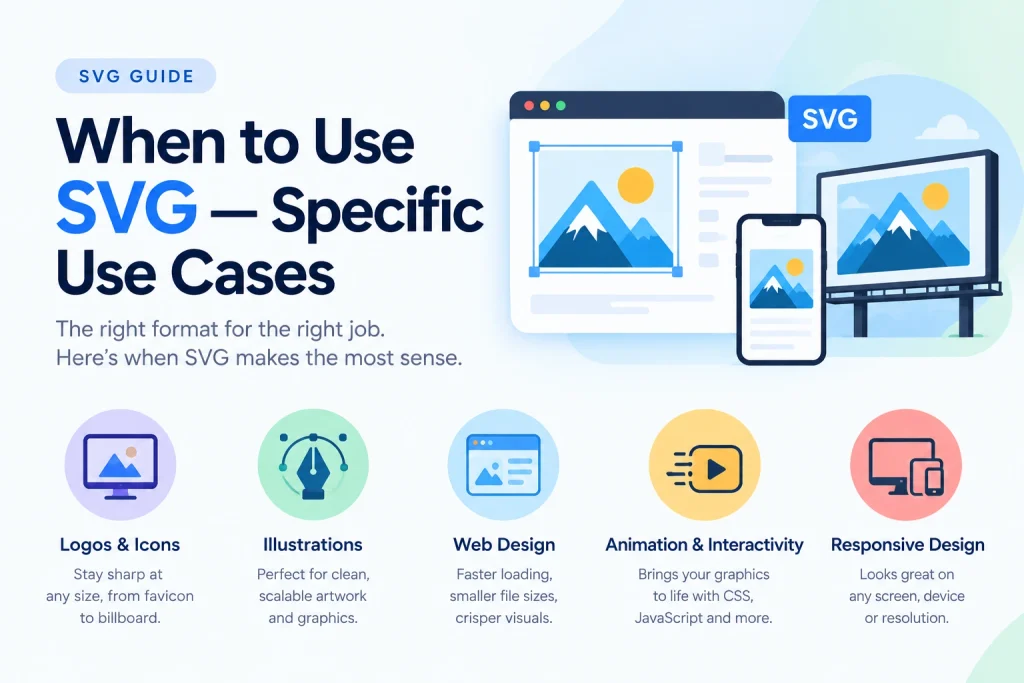
When to Use SVG — Specific Use Cases
Website Logos
SVG is the optimal format for website logos in 2026. A single SVG logo file:
- Displays sharply on standard monitors and retina displays without serving multiple files
- Is typically 10 to 50× smaller than equivalent PNG at retina resolution
- Can change colour with CSS for different page sections or dark mode
- Scales correctly when the browser is zoomed
- Prints at full quality from any web page without pixelation
Every major website and web application uses SVG for its logo. If your website logo is currently PNG or JPG, switching to SVG improves display quality on retina screens while simultaneously reducing file size.
Navigation and Interface Icons
SVG icon systems are the standard for web interface design. Rather than maintaining separate PNG files at multiple resolutions for every icon, a single SVG file produces perfectly sharp icons at every size and pixel density.
SVG icon systems can be implemented as inline SVG (embedded directly in HTML — fastest rendering, no HTTP request), as external SVG files referenced by <img> tags, or as SVG sprites (multiple icons combined in one SVG file, referenced by fragment identifiers). Modern front-end frameworks like React and Vue have SVG icon components as first-class features.
Data Visualisations and Charts
Charts, graphs, infographics, and data visualisations are natural SVG applications. D3.js — the most widely used data visualisation library — generates SVG output. The text labels in SVG charts are real, accessible text. The chart elements respond to hover and click events. The entire visualisation scales to any size without quality loss. SVG is the standard format for interactive and responsive data visualisations on the web.
Illustrations and Decorative Graphics
Simple to medium-complexity illustrations — flat-design illustrations, geometric decorative graphics, branded icons — work excellently as SVG. These graphics can be animated with CSS, coloured with CSS custom properties, and scaled across responsive breakpoints without any quality concerns.
Logos for Print
SVG — or its print-production equivalent EPS (Encapsulated PostScript) — is the standard delivery format for logos going to print production. Print designers, sign makers, embroidery machines, and screen printers all need vector files because their output processes require mathematically perfect paths rather than fixed-resolution pixels. An SVG logo file can be sent to any print vendor for output at any size — from a 2-inch business card to a 20-foot banner.
Animated Icons and Interactive Graphics
Any icon or graphic that needs to animate on hover, on click, or in response to user interaction is naturally suited to SVG. CSS-animated SVG icons are performant, accessible, and resolution-independent. The hamburger menu that transitions to an X when clicked, the loading spinner that spins smoothly, the like button heart that pulses on click — these are all natural SVG animation use cases.
When NOT to Use SVG — Critical Situations
Photographs and Photorealistic Images
Never use SVG for photographs. SVG cannot represent photographic content efficiently — it would produce enormously large files that render slowly and look worse than equivalent JPG or WebP. For photographs on websites, use WebP. For email and universal compatibility, use JPG. SVG is exclusively for geometric graphics.
Email Images and Signatures
Email clients don’t support SVG. For logos in email signatures and images in email campaigns, always use PNG for logos (transparent background, sharp at the display size) and JPG for photographs. Maintain a PNG version of every SVG logo specifically for email use.
Images Requiring Universal Software Compatibility
For logos and graphics used in Word documents, PowerPoint presentations, PDF files produced by non-design tools, and any context where basic software compatibility matters more than web performance — PNG is the safer choice. Keep SVG for web use and maintain PNG versions for cross-software contexts.
Very Complex Illustrations at Large Viewport Sizes
Very detailed SVG illustrations with thousands of paths and complex filter effects can cause browser performance issues — particularly on mobile devices with limited GPU resources. For full-viewport hero illustrations with high visual complexity, a high-resolution WebP or PNG may actually perform better than SVG because raster image decoding is more efficient than rendering thousands of complex SVG paths.
The practical threshold varies — simple to medium-complexity illustrations (under a few hundred paths) are virtually always better as SVG. Very complex illustrations (thousands of detailed paths) may benefit from raster format depending on their complexity and the target device range.
How to Create SVG Files
Vector Design Tools
SVG files are created in vector design applications that work with mathematical paths rather than pixels:
Adobe Illustrator: The industry standard for professional vector design. Exports SVG with fine control over output settings — embedding options, decimal precision, CSS vs attribute styling. Used by professional designers for logo and illustration production.
Figma: The dominant web design tool. Exports SVG from any vector element or component. Widely used for web interface design and produces clean, web-optimised SVG output. Free tier available.
Inkscape: Free, open-source vector editor. Full SVG support — Inkscape’s native format is SVG. Excellent for SVG editing and creation without a subscription. Available on Windows, Mac, and Linux.
Affinity Designer: One-time purchase alternative to Illustrator. Strong SVG export capabilities. Popular among independent designers as a cost-effective professional tool.
Code — Writing SVG by Hand
Because SVG is XML text, simple SVG graphics can be written directly in a text editor or code editor. Simple icons, loading spinners, simple logos, and UI elements are sometimes created by hand-coding SVG — particularly by front-end developers who want precise control over file size and want to understand every element in the file.
Hand-coded SVG is often smaller and cleaner than SVG exported from design tools, which sometimes include unnecessary metadata, editor-specific attributes, and unused element definitions.
Converting Raster to SVG
Converting a raster image (JPG or PNG) to SVG is possible through a process called tracing or vectorisation — the software analyses pixel colour boundaries and generates vector paths that approximate the shapes in the raster image. This works well for simple, high-contrast graphics like logos but produces poor results for photographs and complex images.
Our guide on how to convert JPG to SVG covers the complete tracing process including which tools produce the best results and what to expect from different types of source images.
How to Convert SVG to Other Formats
SVG is often the master file that generates raster versions for contexts where SVG isn’t supported.
SVG to PNG: When a logo or icon needs to work in email, documents, or applications that don’t support SVG. Convert at 2× or 3× the display dimensions for retina-quality PNG output. Our SVG to PNG converter handles this conversion with dimension control — set the exact pixel output you need.
SVG to JPG: Less common since SVG logos typically have transparent backgrounds that JPG can’t preserve — but needed for specific contexts like some email systems or platforms requiring JPG specifically. Our guide on how to convert SVG to PNG covers both SVG to PNG and SVG to JPG conversion in full detail.
SVG to WebP: For web contexts where WebP delivers better performance than PNG for certain SVG-derived graphics. Convert the SVG to PNG first then to WebP using our PNG to WebP converter.
SVG and Web Performance
SVG File Size Advantages
For logos and icons — which appear on every page of a website — SVG’s file size advantage over raster formats compounds significantly across all page views. A logo that is 4KB as SVG versus 45KB as 2× retina PNG saves 41KB on every page load, for every visitor, indefinitely. For a website with 100,000 monthly page views, that’s 4.1GB of bandwidth saved per month — from the logo alone.
SVG and HTTP Requests
SVG can be inlined directly into HTML — embedding the SVG code directly in the page rather than loading it as a separate file. Inline SVG eliminates the HTTP request entirely — the graphic is part of the HTML document and displays immediately without a network round trip. For critical above-fold graphics like logos, inline SVG produces the fastest possible display time.
SVG Caching
When referenced as an external file (via <img src="logo.svg"> or as a CSS background), SVG files cache in the browser like any other static asset. A visitor who loads the logo once has it cached for all subsequent pages — adding zero loading time to every subsequent page view.
SVG and Core Web Vitals
SVG logos and icons referenced correctly — with defined dimensions and ideally inlined or preloaded — contribute to good Core Web Vitals scores. SVG logos don’t cause layout shift (when dimensions are defined). SVG icons load faster than raster equivalents. For websites optimising Core Web Vitals scores, SVG is the correct format for all logo and icon content. Our comprehensive guide on how to make images load faster covers SVG implementation alongside other image loading optimisation techniques.
SVG Security — Important Considerations
Because SVG is XML and can contain scripts and external references, SVG files present security considerations that raster formats do not.
SVG Can Contain JavaScript
An SVG file can contain <script> elements with JavaScript code that executes when the SVG is rendered in a browser. If a malicious user uploads an SVG file to a website and that file is served to other users without sanitisation, the embedded JavaScript can execute in those users’ browsers — a cross-site scripting (XSS) attack.
Safe practices for user-uploaded SVGs:
- Never serve user-uploaded SVG files directly without sanitisation
- Use an SVG sanitisation library to strip scripts and external references before serving
- Serve SVG files as images (
<img src="user-upload.svg">) rather than inline — inline SVG executes scripts, while SVG in<img>tags does not in most browsers - Consider requiring raster formats (PNG, JPG) for user uploads and maintaining SVG only for controlled brand assets
Trusted SVG Files Are Safe
SVG files created by your own designers and design team in controlled tools are completely safe. The security concern applies specifically to user-uploaded, third-party, or externally sourced SVG files where you don’t control the content. Your own website’s logo SVG has no security risk — the concern is external SVG content you serve to your users.
SVG Browser Support
SVG has had full support in all major browsers for over ten years. Chrome, Firefox, Safari, Edge и Opera — all of them support SVG in all its glory: SVG in , inline SVG, SVG as background images in CSS, SMIL animation, CSS animation of SVG elements and SVG filters.
The only SVG compatibility issue was Internet Explorer — IE11 supported SVG, but with some restrictions, and versions of IE below 9 did not support SVG at all. However, Microsoft has officially ended support for Internet Explorer in June 2022, and all major browsers now support SVG, so you should not worry about browser compatibility for SVG in 2026.
Frequently Asked Questions
1. What does SVG stand for?
SVG stands for Scalable Vector Graphics — with “Scalable” referring to its ability to scale to any size without quality loss, and “Vector” referring to its use of mathematical vector paths rather than pixels. SVG was developed by the W3C (World Wide Web Consortium) and became a web standard in 2001. It is maintained as part of the open web standards alongside HTML and CSS.
2. Is SVG better than PNG for websites?
For logos and icons on websites, SVG is better than PNG in almost every measure — smaller file sizes (often 10 to 50× smaller than retina PNG), perfect sharpness at any display size and resolution, CSS stylability, and animation capability. For photographic content, PNG or WebP is better — SVG cannot represent photographs efficiently. For graphics that need to work in email, documents, and non-browser software, PNG is more compatible.
3. Can SVG have a transparent background?
Yes — SVG is transparent by default. Unless you explicitly add a background rectangle (<rect width="100%" height="100%" fill="white"/>) to an SVG file, the background is transparent. SVG logos placed on web pages sit naturally on whatever background colour is behind them without any white box — this is one of SVG’s key advantages over PNG for web logos.
4. Can I use SVG for photos?
No — SVG is not suitable for photographs. SVG describes graphics using mathematical paths which work perfectly for geometric shapes and logos but cannot efficiently represent the millions of subtle pixel colour variations in photographic images. For photographs, use WebP for web use or JPG for universal compatibility.
5. Why is my SVG blurry?
SVG should never be blurry — blurriness in SVG is almost always caused by incorrect implementation rather than a format limitation. Common causes include: using SVG in an <img> tag without defined width and height (browser guesses dimensions), referencing an SVG as a raster background without correct sizing, or using a raster image embedded within an SVG at insufficient resolution. Pure SVG vector content is always mathematically sharp at any size.
6. What is the difference between SVG and PNG?
SVG is a vector format — mathematical descriptions of shapes that scale perfectly to any size. PNG is a raster format — a fixed grid of pixels that blurs when scaled beyond its original dimensions. SVG is best for logos, icons, and illustrations that need to scale. PNG is best for photographs, screenshots, and images needing universal software compatibility. For web logos, SVG is almost always better. For images going to email or non-browser software, PNG is more reliable.
7. How do I convert a PNG logo to SVG?
Converting a PNG to SVG involves tracing — software analyses the PNG pixel boundaries and generates vector paths. This works well for simple logos with flat colours and hard edges. It works poorly for photographs and complex images. Our guide on how to convert JPG to SVG covers the complete process including the best tools for tracing and what quality to expect from different image types.
8. Can SVG be animated?
Yes — SVG supports two types of animation. SMIL animation is defined in the SVG file itself using animation elements — it runs without JavaScript. CSS animation targets SVG elements the same way it targets HTML elements — using keyframes and transitions. Both approaches produce smooth, resolution-independent animations that play at perfect quality on any display. Animated SVG icons are widely used for loading indicators, hover effects, and interactive interface elements.
9. Is SVG safe to use on websites?
SVG files you create and control are completely safe. The security concern is user-uploaded or externally sourced SVG files — these can contain embedded JavaScript that executes as XSS attacks if served without sanitisation. For your own website’s logo and icons (SVG files created by your design team), there is no security risk. For platforms that accept user-uploaded images, either restrict SVG uploads or sanitise uploaded SVG files before serving them.
10. What is the best way to use SVG on a website?
For logos and critical above-fold graphics, inline SVG (embedding the SVG code directly in the HTML) is fastest — no HTTP request, no loading delay, immediately available for CSS styling and animation. For icons used in many places, an SVG sprite system (multiple icons in one file, referenced by fragment ID) or an SVG icon component system in a framework like React reduces HTTP requests while keeping icons modular. For larger SVG illustrations, external SVG files referenced by <img> tags cache efficiently and don’t block page rendering.
Conclusion
SVG is not just an image format — it is a complete graphics language for the web. Its ability to describe images mathematically rather than as pixel grids gives it capabilities that raster formats simply cannot provide: perfect sharpness at any size, tiny file sizes for simple graphics, CSS stylability, JavaScript interactivity, and animation — all from a single text-based file.
For web logos and icons, SVG is the correct format in 2026 — replacing multiple raster files at different resolutions with a single file that renders perfectly everywhere. For data visualisations, interactive graphics, and animated interface elements, SVG enables functionality that is impossible with raster formats. For photographic content, email, and cross-software compatibility, raster formats remain necessary.
The practical workflow for most websites is clear. Use SVG for logos, icons, and simple illustrations. Use WebP for photographs and complex graphic content. Maintain PNG versions of SVG assets for email signatures, document use, and any context where SVG support is uncertain. Convert SVG to raster formats as needed using our free SVG to PNG converter — and convert raster graphics to SVG using our guide on how to convert JPG to SVG.
Explore all available format conversions at imageconvertertools.com/image-converter-tools/ — every major format supported, batch conversion included, completely free with no sign-up required.